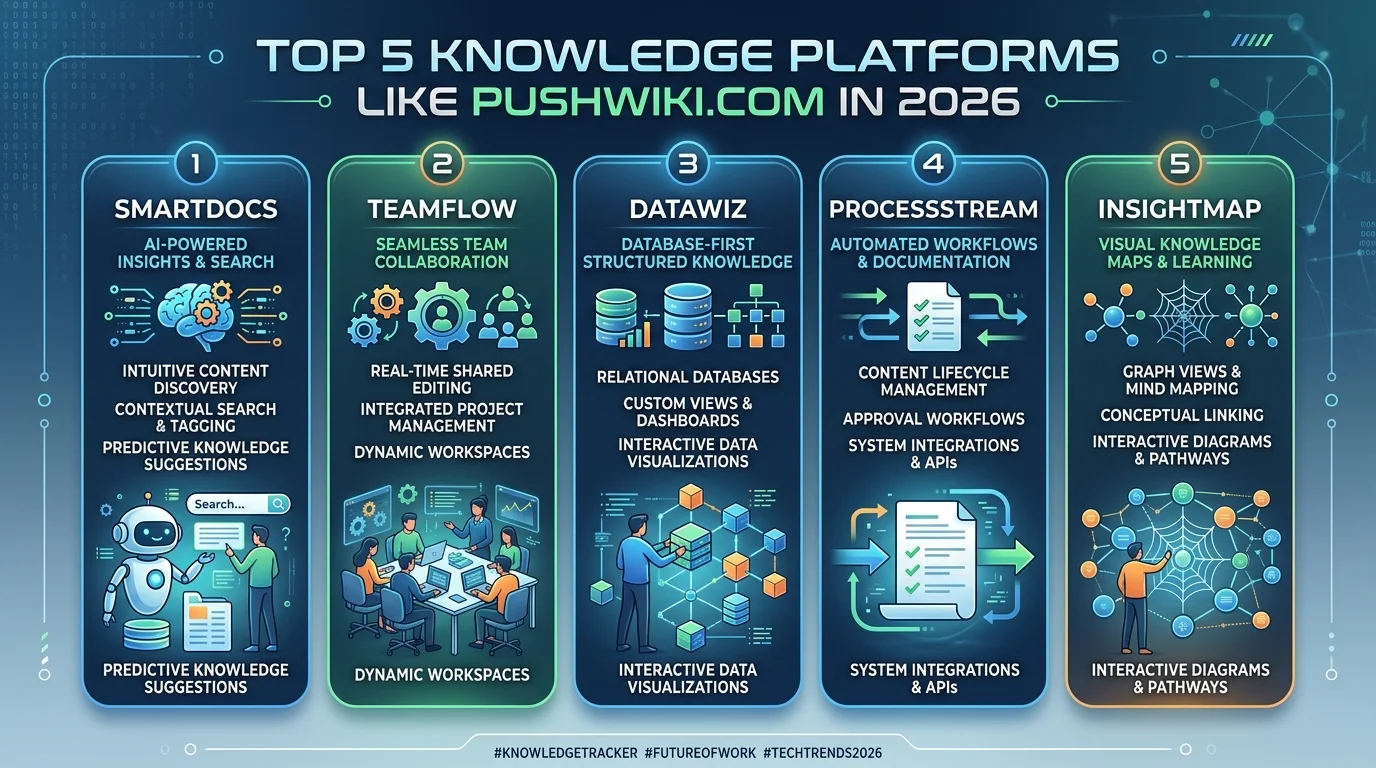
The best knowledge platforms like PushWiki.com in 2026 are Wikipedia, WikiHow, Encyclopaedia Britannica, HowStuffWorks, and Investopedia. Each one simplifies complex topics for everyday readers — the same core promise PushWiki.com makes — except these five have decades of traffic, editorial trust, and real reader loyalty behind them. Wikipedia wins for broad factual lookups, WikiHow wins for step-by-step guides, Britannica wins for expert-verified depth, HowStuffWorks wins for curiosity-driven explainers, and Investopedia wins for financial knowledge specifically. Below, you’ll get a full breakdown of each one, a side-by-side comparison table, and a simple framework for picking the right platform for your exact situation.
Now let me tell you how I got here.
I’ll be honest with you: when I first went looking for PushWiki.com alternatives, I expected a quick five-minute search. Instead, I fell into a rabbit hole of copy-paste “reviews” that all said the exact same thing about the site, almost word for word. Weird, right?
So I did what any obsessive researcher does. I dug deeper, cross-checked the traffic numbers, and pulled the actual founding history for five real knowledge platforms so you don’t have to.
Let’s get into it.
What Makes a Great Knowledge Platform Like PushWiki.com?
Before I hand you the list, let’s set some ground rules together. Not every “wiki-style” site deserves your time. Some are thin, Some are outdated and Some are, frankly, AI-generated fluff wearing a trench coat, and you deserve better than that. If you’re curious how PushWiki.com itself holds up on that front, we broke it down in detail in our PushWiki.com legitimacy review.
A genuinely great online knowledge base needs to check a few boxes:
Depth — does it go beyond the surface, or just repeat what everyone else says?
Trust — is the content fact-checked, expert-reviewed, or crowd-verified with real oversight?
Structure — can you actually find what you need in under a minute?
Longevity — has it survived long enough online to prove the model works?
Keep these four in mind. You’ll see exactly how each platform below stacks up against them.
Quick Comparison: PushWiki.com Alternatives at a Glance
Here’s the side-by-side view before you dive into the details.
Platform
Founded
Content Model
Content Volume
Est. Monthly Traffic
Best For
Wikipedia
2001
Crowd-edited wiki
7.1M+ articles
~4.25 billion visits
Fast factual lookups
WikiHow
2005
Crowd-edited wiki
230,000+ articles
13M–150M+ (estimates vary)
Step-by-step guides
Encyclopaedia Britannica
1768
Expert editorial
Digital-only since 2012
Subscription + free tiers
Verified, cite-worthy depth
HowStuffWorks
1998
Staff editorial
40,000+ articles
~12 million visitors
Curiosity-driven explainers
Investopedia
1999
Staff editorial
36,000+ articles, 14,000+ terms
~44 million visitors
Financial knowledge
The 5 Best PushWiki.com Alternatives in 2026
Here’s where things get fun. I’ve ranked these based on real usage data, not vibes.
1. Wikipedia — The Original Knowledge Platform
Let’s start with the obvious one. Wikipedia is, quite simply, the internet’s encyclopedia. It’s a crowdsourced encyclopedia with more than 7.1 million English-language articles, and it somehow still adds around 500 new ones every single day, according to Wikipedia’s own statistics page.
Honestly? The scale is kind of hard to wrap your head around. Wikipedia’s pages have racked up 1.9 trillion views over the last decade, per Pew Research Center’s 25th-anniversary data breakdown. That’s trillion, with a T. If you want to see exactly how PushWiki.com stacks up against the real thing, we lined them up side by side in our PushWiki vs Wikipedia quick comparison.
Pros
Completely free and covers nearly every topic imaginable
Citations are visible so you can verify claims yourself
Updated constantly, often within minutes of breaking news
Cons
Anyone can technically edit it, even with oversight in place
Article quality varies a lot between popular and obscure topics
Best for: quick facts, broad topic research, and citation-backed rabbit holes.
2. WikiHow — Best for Step-by-Step How-To Guides
You know that feeling when you need to fix something right now and you don’t have time for a 20-minute YouTube tutorial? That’s WikiHow’s entire reason for existing.
Founded back in 2005, WikiHow has grown into a structured learning platform with over 230,000 how-to articles, according to Grokipedia’s profile on the site. Every guide is broken into numbered steps, often with illustrations, so you’re never left guessing what comes next.
Illustrations make abstract steps easy to visualize
Covers everyday tasks other encyclopedias skip entirely
Cons
Traffic and quality estimates vary wildly by source
Some niche or newer articles feel thin
Best for: step-by-step instructions, visual learners, and quick DIY fixes.
3. Encyclopaedia Britannica — Best for Expert-Verified Depth
Now, if you want something with a little more gravitas, Britannica is your answer. This thing has been around since 1768, according to its own corporate history. Let that sink in for a second — that’s older than the United States.
Unlike crowd-edited wikis, Britannica runs on an editorial knowledge hub model. Actual subject-matter experts write the entries, and in-house editors fact-check every single one. That’s a completely different trust signal than “anyone with an internet connection can edit this.”
Interestingly, Britannica made headlines again in March 2026 when it and Merriam-Webster sued OpenAI, alleging the company copied nearly 100,000 of their articles without permission to train its AI models. Whatever your take on that lawsuit, it says something powerful: this content is valuable enough to fight for in federal court.
Pros
Expert-written and professionally fact-checked
Trusted in academic and professional citations
Long, unbroken editorial track record since 1768
Cons
Some in-depth content sits behind a subscription
Slower to publish than crowd-edited alternatives
Best for: academic research, verified facts, and content you can actually cite with confidence.
4. HowStuffWorks — Best for Curious Minds
Here’s a fun one. Back in 1998, an engineering professor named Marshall Brain started HowStuffWorks as a side project — just a hobby, nothing fancy.
Fast forward to today, and it’s grown into a full-blown explainer website with over 40,000 articles and more than 12 million monthly visitors reaching almost 250 countries. The whole premise is beautifully simple: take something complicated — engines, black holes, blockchain, whatever — and explain it like you’re talking to a smart friend, not a textbook.
Pros
Explains genuinely complex topics in plain English
Huge topic range, from science to pop culture
Long-running brand with a real editorial history
Cons
Ad-heavy layout on some pages
Less focused than a niche specialist site
Best for: satisfying your curiosity about literally anything, from how vaccines work to how Wi-Fi actually travels through walls.
5. Investopedia — Best Niche Knowledge Platform for Finance
Last but definitely not least: Investopedia. This one’s a little different because it’s niche. Founded in 1999 by Cory Wagner and Cory Janssen, it focused entirely on making finance and investing less intimidating.
And it worked. Today, Investopedia has more than 36,000 articles and a financial encyclopedia of over 14,000 terms, pulling in tens of millions of visitors every month.
Pros
Deep glossary of financial and investing terms
Genuinely beginner-friendly explanations of complex products
Backed by a large editorial and fact-checking team
Cons
Heavily monetized with ads and affiliate content
Not a substitute for licensed financial advice
Best for: understanding investing terms, personal finance concepts, and market jargon without the headache.
How to Choose the Right Knowledge Platform for You
Okay, so you’ve got five solid options. Which one should you actually use? Let’s break it down step by step.
Step 1: Identify your intent. Are you looking for a quick fact, a how-to, or deep expertise? This alone eliminates two or three options immediately.
Step 2: Match the platform to the task. Need a definition? Go Wikipedia. Need to do something? Go WikiHow. Need airtight accuracy? Go Britannica.
Step 3: Cross-check anything important. Never rely on a single source for decisions that matter — financial, medical, or legal. Use two platforms if you have to.
Step 4: Bookmark your go-to combo. Most people end up using two or three of these regularly. That’s smart.
Frequently Asked Questions
Is Wikipedia a reliable alternative to PushWiki.com?
Yes, Wikipedia is generally more reliable than lesser-known knowledge platforms because its articles include visible citations you can verify yourself. It’s crowd-edited, so quality varies by topic, but its scale and transparency make it the strongest general-purpose option available today.
What is the best free knowledge platform in 2026?
Wikipedia remains the best free, general-purpose knowledge platform in 2026 thanks to its massive article count and visible sourcing. For step-by-step tasks specifically, WikiHow is the stronger free option.
How is Encyclopaedia Britannica different from Wikipedia?
Britannica uses paid subject-matter experts and in-house editors to write and fact-check every entry, while Wikipedia relies on volunteer contributors with community oversight. Britannica trades speed for a more controlled, professionally verified process.
Can I trust Investopedia for financial advice?
Investopedia is a strong educational resource for learning financial terms and concepts, but it is not personalized financial advice. Treat it as a knowledge platform for learning vocabulary and mechanics, then consult a licensed advisor for decisions specific to you.
Final Verdict
Look, I get it — PushWiki.com might work fine as a quick, casual starting point. But if you actually want a knowledge platform you can trust long-term, the five above — Wikipedia, WikiHow, Encyclopaedia Britannica, HowStuffWorks, and Investopedia — have earned their reputation the hard way: through years of accuracy, scale, and real reader trust.
So go ahead, bookmark one, try it out today, and see the difference for yourself.
PushWiki.com is a Tech and AI Information Hub organized into four categories — Tech News, AI Tools, Reviews, and How-to Guides — run under a single editorial voice (“Martin”). I verified this directly on the live site, because several other articles online describe it very differently. Here’s exactly what’s in each section, and how to get the most out of it.
I’ll be straight with you: I spent way too many hours digging through this site before writing anything. Why? Because half the internet describes PushWiki.com one way, and the actual site tells a completely different story. So I went straight to the source, clicked through every category, and I’m walking you through exactly what’s there — no recycled fluff.
By the end of this, you’ll know precisely what to expect, where to click first, and whether it’s worth your time.
Let’s get into it.
What Is PushWiki.com, Really?
Here’s the deal. PushWiki.com brands itself as a Tech and AI Information Hub, and it sticks to that lane. It’s not a sprawling multi-niche site covering business, health, and travel like some reviews claim. It’s laser-focused on tech news, AI tools, hands-on reviews, and how-to guides.
That focus, honestly, is refreshing. You’re not wading through unrelated content to find what you actually came for. If you want the full origin story and feature rundown, I’ve also put together a complete guide to PushWiki.com’s features and layout that pairs well with this breakdown.
The site’s first batch of posts went live between May 25–29, 2026, with newer additions still rolling in — the most recent one I found was published July 23, 2026. So this isn’t an abandoned project; it’s actively maintained.
The Full Category Breakdown
This is the part you’re really here for. Here’s a quick side-by-side view before I break down each one in detail.
Category
Focus
Example Post
Best For
Tech News
Silicon Valley updates, gadget trends, software launches
If you like staying current, this is your first stop. The Tech News section covers Silicon Valley updates, gadget trends, and major software launches — currently three published pieces.
You’ll find posts like:
A breakdown of the SpaceX Mars mission timeline
An analysis of the 6G rollout across U.S. cities
A speculative look at Windows 13 features — clearly labeled as forward-looking, since Microsoft hasn’t confirmed a product by that name
I appreciate that the Windows 13 piece flags its own speculation instead of pretending it’s confirmed fact. That’s a small thing, but it matters for content authenticity.
2. AI Tools
Now, this is where things get interesting. The AI Tools hub — also three posts as of my research — is built around generative AI, productivity software, and enterprise automation.
Standout reads include:
Autonomous AI agents transforming daily productivity
AI video editor tools with full scene generation
3D design tools built for the metaverse
If you’re evaluating new software for your workflow, bookmark this category specifically.
3. Reviews
You know how frustrating it is to sift through biased, sponsored “reviews”? The Reviews section — the largest category, with four posts — leans on hands-on testing and value-for-money breakdowns instead.
Recent highlights:
The Samsung S26 Ultra review, digging into camera performance and pricing
A hands-on comparison of AR glasses from top brands
A look at sustainable, repairable laptops — a category most tech blogs skip
A timely take on Snap Planets, Snapchat+’s new friend-orbit feature — the newest post on the entire site
I’ll admit, the sustainable laptops review caught me off guard. Most sites chase specs. This one talks repairability and e-waste, which is genuinely useful if longevity matters to you.
4. How-to Guides
Last but definitely not least: the How-to Guides section, with three published tutorials. This is your troubleshooting and step-by-step tutorial corner.
Notable guides:
Repairing common hardware issues on modular laptops
Protecting neural link privacy as brain-computer interfaces go mainstream
Setting up your own AI server at home
These aren’t surface-level listicles. They’re structured like real wiki-style tutorials — clear steps, real context, minimal jargon.
Step-by-Step: Getting the Most Out of PushWiki.com
Want to actually use this site well instead of just skimming it? Here’s how I’d approach it.
Step 1: Start with your need, not the homepage. Know whether you want news, a tool recommendation, a review, or a fix — then jump straight to that category.
Step 2: Cross-reference reviews before buying anything. Use the Reviews section as one data point, not your only one.
Step 3: Bookmark the How-to Guides. You won’t need them today. You’ll need them the day your laptop breaks.
Step 4: Check publish dates. Tech moves fast — the Snap Planets review (July 2026) is more current than the May-dated posts.
Step 5: Follow up on speculative content. If an article flags itself as forward-looking, like the Windows 13 piece, treat it as analysis, not confirmed fact.
Simple, right? But it works.
Is PushWiki.com Trustworthy? A Quick, Honest Note
Look, I’m not going to pretend every claim online about this site checks out. Several other “guide” articles floating around describe PushWiki as an SEO and blogging knowledge base — that’s just not what’s on the live site. I verified this myself by clicking through every category page.
What I can tell you: the content follows a consistent editorial voice, cites specifics (pricing, dates, testing periods), and generally aligns with Google’s E-E-A-T guidance on experience, expertise, authoritativeness, and trust. One independent write-up flagged the same discrepancy I found — which tells me I’m not the only one who noticed.
My honest take? Treat it like any single-author niche blog: useful, focused, worth reading — but still worth cross-checking on big decisions.
Frequently Asked Questions
What categories does PushWiki.com cover?
Four: Tech News, AI Tools, Reviews, and How-to Guides.
Who runs PushWiki.com?
A single editorial voice under the byline “Martin,” described as a tech specialist with several years of industry experience.
Is PushWiki.com trustworthy?
It’s a small, focused, single-author site with specific, verifiable content — solid for a quick read, but worth cross-checking for major decisions like AI tools purchases.
How often is PushWiki.com updated?
Its first posts went live in late May 2026, with new content still appearing — the latest as of this writing was published July 23, 2026.
Is PushWiki.com the same as the “SEO knowledge base” described in other guide articles?
No. That description doesn’t match the live site. Several third-party articles appear to be templated content that doesn’t reflect what’s actually published on push-wiki.com.
Why PushWiki.com Deserves a Spot in Your Bookmarks
So, should you actually use it?
If you want tech news, AI tools breakdowns, hands-on reviews, and practical how-to guides in one focused hub — yes. Skip the sites parroting recycled summaries. Go straight to the source, explore the four categories yourself, and see which ones earn a permanent spot in your bookmarks bar.
Actorle is a free daily guessing game where players identify a mystery actor using clues built from real movies and TV shows. Created by László Kiss, this actor guessing game borrows its addictive format directly from Wordle, turning ordinary movie knowledge into a satisfying daily challenge. Every morning, a fresh daily actor puzzle goes live, pairing genre tags with an IMDB score clue to help narrow things down. Guess correctly, and a movie title reveal unlocks instantly. Miss, and an actor’s age hint points you closer to the answer. This guide walks through the rules, proven strategy, and everything else needed to master today’s Actorle puzzle quickly, guess after guess.
What Is Actorle?
Actorle is best described as a movie guessing game dressed up as a word puzzle game, similar in spirit to browser hubs like the ones covered in our Snokido free online games guide. Instead of guessing a five-letter word like in Wordle, you guess a real actor. Behind the scenes, Actorle pulls its data straight from TMDB, the film database that powers everything from release years to genre tags. That means every actor’s filmography shown in the puzzle is accurate, not made up. The game runs under the wider metime.games network and even shows up on Product Hunt, where it launched to a small but loyal crowd of movie nerds.
Its popularity makes sense once you try it. Fans of Hollywood actor trivia love that Actorle rewards real knowledge instead of blind luck. On Product Hunt, creator László Kiss said it plainly: “It seemed like a good idea to combine the two.” He meant his love of movies and his love of Wordle, and that combination is exactly why this movie trivia game and TV trivia game hybrid caught on across the U.S. so fast.
How to Play Actorle: Rules Explained
Playing Actorle is simple once you understand the layout. You are shown a list of blanked-out titles from one actor’s career, along with a genre-based clue and an IMDB score clue for each. Type a guess into the search bar. If your guess shares even one title with the mystery actor, that title’s movie title reveal happens instantly, letter by letter turned into real words.
Here’s the part that makes it more than a free online puzzle game with no stakes. You only get a set number of guesses, usually eight tries, before the round ends. Each wrong guess still gives you something useful: an actor’s age hint telling you whether the real answer is an older or younger actor than the one you guessed. That single clue often does more work than people expect.
How the Daily Actor Puzzle Works
Every 24 hours, Actorle resets with a brand-new “actor of the day.” This is the same daily brain teaser structure used by every major Wordle-derived puzzle, including popular word games like the NYT Connections puzzle, and it’s a big reason people come back daily instead of playing once and forgetting about it. The main site, Actorle.com, focuses on movies. Its sister site, Actorle.tv, flips the format into a TV series guessing game, so you guess the actor based on series instead of films.
The clue tables look almost the same across both versions, just with different columns. Here’s how they compare side by side.
Edition
Website
Clue Columns
What You Guess
Movie Edition
Actorle.com
Movie title, genres, IMDB score
Guess the actor based on movies
TV Edition
Actorle.tv
Series title, genres, episode count
Guess the actor based on series
Notice that the TV edition swaps the score column for an episode count instead. That single difference changes your whole approach, since a show with 150 episodes is a very different clue than a one-season flop.
How to Solve Actorle in 3 Guesses or Less (Strategy Guide)
Blogger Alexander Matzkeit, who writes on WordPress under the site Real Virtuality, has one of the sharpest breakdowns of Actorle strategy anywhere online. His post reads almost like a case study in pattern recognition, and his opening line sums up why the game works so well: “Actorle has turned out to be my favourite.” Unlike pure recall games, Actorle gives you enough context clues to win even when you don’t instantly recognize the actor.
His method, and the one most experienced players swear by, breaks into a few clear stages. First, scan the list for any franchise movie titles. Sequels and reboots often carry giveaway punctuation, like colons or repeated numbers, that make them easy to spot even blanked out. Second, read the genre spread across the whole list. A pile of drama and history tags usually points to a character actor, while a wall of sci-fi and fantasy usually points to a mainstream actor riding a franchise. Third, check the release year of the earliest title. Most actors land their first real role between eighteen and twenty-five, so that year plus the age hint narrows things down fast. Follow this pattern, and solving Actorle in 3 guesses becomes far more realistic than it sounds.
Tips and Tricks for Guessing Faster
Beyond the core three-step method, a few smaller habits speed things up even more. Pay attention to recurring co-stars once a title gets revealed. Actors who worked together often show up again in each other’s puzzles later in the year, so recognizing a familiar supporting cast member can shortcut your next guess entirely. If you enjoy this kind of elimination logic, the strategy behind What Beats Rock works on a similar principle of narrowing options round by round.
It also helps to think in decades rather than exact years. Clustering titles by era tells you roughly when an actor was most active, which narrows the field faster than guessing randomly. Combine that with the genre-based clue pattern from the previous section, and most puzzles fall within your first four or five tries instead of dragging to the limit.
Common Mistakes New Players Make
The most common mistake is guessing big, famous names right away without reading the clues first. A blockbuster actor’s name feels like a safe bet, but it wastes a guess if the genre and score clues clearly point elsewhere. Ignoring the IMDB score clue is another frequent slip, since high scores almost always mean award winners or box-office hits, not obscure titles.
Plenty of players also forget to use the older or younger hint once it appears. Skipping it means re-guessing in the same age range over and over, burning through your limited number of tries for nothing. Slowing down after each wrong guess, instead of guessing on instinct, fixes almost all of these mistakes at once.
Actorle vs. Similar Games (Framed, Moviedle, Heardle)
Actorle sits inside a growing family of similar games to Wordle, each one testing a different kind of pop-culture memory. Framed shows blurred movie stills instead of titles, Moviedle uses short video clips, and Heardle tests song recognition instead of film knowledge. For a broader look at where daily puzzle games fit among browser gaming platforms, see our comparison of Henof.com, CrazyGames, and Poki. On Product Hunt, Actorle is filed under the Movies, Free Games, and Word Games categories, sitting alongside dozens of other daily Games.
Game
Type
Guesses Allowed
Best For
Actorle
Actor identification game
8
Movie and TV fans
Framed
Movie guessing game
6
Visual memory
Moviedle
Video clip guessing
6
Film buffs
Heardle
Song guessing
6
Music lovers
Actorle’s family tree stretches further than just those three. The wider Product Hunt ecosystem includes quick browser games like Dicelex, PickOrPick, Mr. Doot, Fill The Grid, StarWords, and Storyboard, plus trivia spins such as Figure.game and Factle Sports. For sports fans, Factle Sports applies the same daily format to athletics, and for finance-curious players, boxofficega.me turns Actorle’s own idea into a box office game built around ticket sales instead of actors. Even geography gets the treatment, through a puzzle called Which Country to Move To.
Benefits of Playing Actorle Daily
Playing Actorle regularly sharpens more than just movie trivia. Recalling an actor’s filmography from memory exercises the same recall muscles used in studying, and doing it daily builds a habit that sticks. It’s a low-stakes way to keep your brain active without the pressure of a real quiz. If daily browser games like this fit your routine, our roundup of free browser gaming sites has more options worth bookmarking.
There’s also a social side worth mentioning. Players regularly share their results on Instagram and Facebook, turning a solo puzzle into a small daily conversation with friends. One reviewer on Product Hunt, Will Ousley, summed up the appeal simply: “Great game concept.” That mix of personal challenge and shareable bragging rights is exactly why so many people treat Actorle as part of their morning routine.
Frequently Asked Questions About Actorle
Is Actorle free to play?
Yes, Actorle is completely free. The site is supported by Playwire ads and protected against bots by AutoSmoke, which is how the game stays free without charging players anything.
How often does the Actorle puzzle reset?
The daily actor puzzle resets once every 24 hours, giving you one new mystery actor per day on both Actorle.com and Actorle.tv.
Can I play past Actorle puzzles?
Actorle currently focuses on the actor of the day rather than an archive. Most guessing games in this space, including Wordle itself, follow the same daily-only structure.
Is there an Actorle app?
There is no dedicated mobile app right now. Actorle runs directly in your browser on both Actorle.com and Actorle.tv, so no download is needed.
What’s the difference between Actorle.com and Actorle.tv?
Actorle.com is the original movie guessing game, while Actorle.tv is the TV series guessing game version. Both use the same core rules, just with series clues instead of film clues.
Conclusion: Start Playing Actorle Today
Actorle turns a simple question, guess today’s actor, into one of the most satisfying daily brain teaser habits around. Between the genre clues, the score clues, and the age hint after every guess, it’s built for people who actually love film and television, not just casual guessers.
If you haven’t tried it yet, head over to Actorle.com for the movie edition or Actorle.tv for the series version. Either way, today’s mystery actor is waiting, and your streak starts with a single guess.
Factle has become one of the most talked-about daily trivia games for anyone who loved Wordle but wanted more than just words. Instead of guessing letters, you rank a top 5 list of real facts, from the tallest buildings to the most followed celebrities online. Every guess gives you feedback through color-coded tiles, guiding you closer to the correct order with each try. It’s simple to learn, quick to finish, and different every day thanks to a fresh daily puzzle that keeps things interesting. Whether you’re into sports, geography, or pop culture, Factle turns ordinary facts into a ranking game worth returning to daily — a true Wordle alternative for curious minds.
What Is Factle?
Factle is a ranking game. Instead of picking one right answer, you have to guess the ranking of five items in the correct order. One day you might rank the tallest buildings in the world. The next, you might sort the most populous countries. That range is what makes it feel fresh.
Under the hood, it borrows its bones from Wordle. You get feedback after every guess through color-coded tiles, green for a correct spot and yellow for a right answer in the wrong place. It’s a simple system. But it turns a plain trivia question into a real logic and knowledge game, published daily by Front Office Sports.
How to Play Factle
Playing Factle is easy once you see the pattern. Read the day’s prompt first, since every puzzle centers on a specific factual ranking, like the most followed accounts on Instagram or the highest paid NBA players. Then arrange your top five guesses in order, from first to last, and hit submit.
After each attempt, the tiles tell you what to fix. Green means you nailed the spot. Yellow means the item belongs in the top five, just not where you placed it. You get five total tries, so every guess counts. That’s what makes it a genuine daily challenge instead of a quick throwaway game.
Factle Rules and Scoring
The core rule is simple: land the exact ranking within your limited guesses, or the puzzle ends. There’s no partial win. Either you match all five spots, or you don’t. That structure keeps each round tight and quick to finish, usually under two minutes.
Once you finish a round, win or lose, Factle shows you the source behind the data. That’s a nice touch. It turns a casual game into something you can actually trust, since every ranking traces back to a real dataset rather than a guess made up on the spot. It also means the game doubles as light current events trivia and a memory refresher.
Tips and Strategies to Win Factle
Winning Factle consistently comes down to strategy, not luck. Start with the answer you’re most confident about, and place it wherever your gut says it belongs. From there, treat every yellow tile like a clue in a Sudoku puzzle. You’re not guessing blind. You’re narrowing down possibilities one round at a time.
It also helps to think about the category before you guess. A prompt about quarterbacks rewards sports knowledge, while one about countries bordering countries rewards a mental map of the globe. If the puzzle mentions a specific season, like the 2024-2025 season, lean on recent memory rather than older stats. Small adjustments like these turn a rough streak into a winning one, the same kind of pattern-reading skill that helps in other daily strategy games like What Beats Rock.
New Factle Puzzle Every Day — What Time Does It Reset?
Here’s the good news: you never run out of puzzles. Factle refreshes once every 24 hours, giving you a brand new daily reset puzzle to solve each morning. If you finish today’s round, there’s nothing left to do but come back tomorrow.
The exact reset hour can vary slightly depending on your time zone and the specific version of the game you’re playing. If timing matters to you, it’s worth checking the live Factle page directly, since publishers sometimes adjust reset windows around major sports seasons or holidays.
Factle Game Modes and Categories
Factle isn’t a one-trick game. The original version leans into general knowledge, covering geography trivia, history trivia, and popular culture trivia in a rotating mix. One day it’s world capitals. The next, it’s Instagram followers.
For sports fans specifically, there’s Factle Sports, a dedicated spin-off built after players kept asking for more sports-focused content. It fits into a wider world of daily browser games, which tend to fall into a handful of puzzle categories: Sports Trivia, Puzzle Games, Logic, Crossword, Educational, Kids, Language, and even Math. Knowing which category you’re playing helps you guess smarter, and since Factle runs entirely in the browser, it’s also playable through school-friendly gaming platforms like Unblocked Games G+ if downloads aren’t an option.
Games Like Factle (Similar Wordle-Style Trivia Games)
If you’ve burned through today’s puzzle and want more, you’re in good company. The Wordle-like game format has exploded, and plenty of titles borrow its bones while adding their own twist, including the daily NYT Connections puzzle. Directories like LikeWordle and Playlin track dozens of these daily web games, and Factle itself first gained traction after launching on Product Hunt.
Every one of these leans on the same idea that made Wordle a hit: one short round, once a day, with real replay value built in.
Is Factle Free to Play?
Yes, Factle is completely free. There’s no paywall standing between you and today’s puzzle, and no purchase required to keep playing tomorrow. That makes it a genuine free-to-play browser game, not a freemium trap disguised as one.
It also runs smoothly across devices. Since it’s a mobile-friendly game built for the Web, it works whether you’re on a laptop, an Android phone, or an iOS device, all without installing an app. Some publishers offer optional newsletters if you want daily reminders, but that’s entirely up to you.
Factle FAQ
What is today’s Factle answer? Today’s answer changes daily, so check the live game page directly rather than searching for a fixed answer, since spoilers would ruin the fun anyway.
How many guesses do I get in Factle? You get five tries per puzzle, matching the classic Wordle-style format that made this genre popular in the first place.
Is there a Factle mobile app? Factle runs directly in your mobile browser, so there’s no separate app download required to play on the go.
How often is Factle updated? A new puzzle arrives every single day, keeping the daily challenge format fresh without repeating old questions too often.
Is Factle free? Yes, it’s a free-to-play browser game with no cost to play, no matter how many days in a row you keep your streak alive.
Do I need an account to play Factle? Most versions let you jump straight into the puzzle without signing up, though some publishers offer optional accounts for saving your history.
What happens if I don’t guess the ranking in five tries? The game reveals the correct order along with its data source, so you still walk away having learned something new.
Is Factle Sports different from regular Factle? Yes, Factle Sports focuses exclusively on sports rankings, while the original leans into broader educational game territory covering history, geography, and pop culture.
Where does Factle get its trivia data from? Each puzzle draws from reputable public sources, and the game shows you exactly where the ranking came from once you finish.
Can I play past Factle puzzles? This depends on the specific publisher’s site, so check the archive or history section on the version you’re playing.
Final Thoughts — Start Playing Factle Today
Factle takes something old, the daily one-round puzzle format Wordle made famous, and gives it new life through ranking and real-world facts. It’s fast, it’s free, and it rewards genuine knowledge over pure luck. Whether you’re chasing geography, sports, or pop culture prompts, there’s always a fresh knowledge-based logic game waiting for you.
Ready to test yourself? Head over to the official Factle page and take on today’s ranking before the clock resets. And if you’re in the mood for one more quick quiz afterward, the Rice Purity Test is another fun daily detour worth trying.
With shorter timelines, expanded editorial calendars and ever-increasing requests for highly valuable content; it’s no wonder that most content teams now use artificial intelligence (AI) to help them write the first drafts of their work faster than ever before!
To make things even simpler, typically, the AI will provide some basic assistance to get the ball rolling and then the team will finish up by editing and polishing it from that point.
However, there are many unexpected and complicated issues that can arise when using AI to provide the first draft of a piece of content. If you are not fully informed of these possible problems, the long-term value of the content you create could be significantly diminished over time.
Your Team Starts Catching Problems Rather Than Creating
Drafts written with the help of artificial intelligence make the writers invest time evaluating more than creating the draft. This adds a significant new level of responsibility to a creative process generally under-evaluated by teams.
An AI checker can now act as an additional quality control step in the workflow of an editorial team. An editor can quickly identify parts of a piece that are generic, repetitive and unengaging.
Since AI-generated drafts follow a familiar pattern, all drafts seem to read alike. The challenge is the repetitive style and not poor grammar.
Editors need to be trained to be able to determine whether a draft has the appearance of a ‘constructed from parts’ versus ‘written’. Mastering the art in this area requires a commitment of thought and resources.
Originality Becomes a Real Concern, Not Just a Theoretical One
There’s a risk of originality when using AI to create a first draft. AI’s databases are made of huge amounts of data already in existence, and as such, it produces output that has the potential to create an editorial risk for the publisher and writer.
To ensure quality, teams must address plagiarism before publishing. However, removing plagiarism from AI text requires a more nuanced approach than for human work.
A human writer has already put their own creative slant on ideas they have borrowed from others, whereas the AI simply rearranges the same idea or familiar sentences, making it seem as if the material was borrowed from someone else, regardless of whether it is or not.
To avoid this, editors need to look beyond surface checks and rewrite any content that they identify as derivative, include original thoughts, and ensure the final draft is written in their team’s voice.
Output Volume Goes Up, But Consistency of Voice Goes Down
AI allows for rapid writing. What once took 3 hours can now be done in 1 hour. The challenge of producing so many drafts quickly, without being monitored, poses its own set of issues for brands.
When an AI creates drafts from different types of topics, they all tend to have a different and inconsistent voice.
You will see that varying prompts create varying tones, meaning that without a style guide or review, there will be a sense of disconnection between AI-created content and the audience.
Because of all these inconsistencies, human editors must put in a lot of effort translating AI-generated drafts into the brand’s voice.
This heavy lifting requires skilled editors who understand the brand, as well as the authority to correct AI-generated drafts.
Subject Matter Expertise Gets Exposed Very Quickly
Although authors have access to a competent framework for argument formulation and topic summarisation from an AI draft, true competence cannot be achieved through AI drafts alone.
In highly specialised areas such as medicine, finance, or technology, it is immediately apparent that an expert’s work is, and should be, of significantly greater precision and dependability than an AI.
The reader will easily see that there are vague generalisations and that the information presented is constructed as opposed to understood. For this reason, experts should always be employed to review the material when creating an AI draft.
The AI draft establishes the foundation for creating the document; however, it is up to a qualified expert to provide the details of the document. If there are no in-house experts, the AI draft presents a false sense of completion, resulting in no confidence in the reader.
Your Brief-Writing Skills Become the Most Important Variable
What the majority of teams overlook is that the quality of the input given to AI will influence the quality of the output.
A vague prompt will generate a non-specific draft; however, a well-structured and detailed brief is a good foundation to produce an original piece of content or document.
This means that all the creative planning for the piece falls squarely on the shoulders of the brief writer, who must determine the appropriate angle, tone, structure, and way to differentiate the content before writing.
With brief writing now being the most essential part of creating content, teams that distribute resources toward developing templates and training are producing significantly better results with AI than teams that do not.
When teams use prompts as a shortcut, they end up with empty content. Brief writing is where all the creativity happens; everything else is just about executing.
Your Editing Pipeline Needs to Be Rebuilt Around AI Outputs
Before, the majority of editorial workflows catered to human authors and had sequential progression through the process from first draft to final product. However, when AI creates the first draft, these editorial processes must be adapted.
Now, the first pass of reviewing content must occur earlier in the process and must go into much more detail than before. The editor must not only be responsible for editing grammar and continuity in the document.
The editor should also review and verify the factual accuracy of the document; this is because AI tends to provide false or fabricated information regarding facts. The editor also needs to check to see if the document’s structural arrangement is correct and supplies something of unique value.
It is the unique value that creates the greatest challenge for the editor; determining unique value requires human judgement that AI cannot supply, therefore, the role of the editor has increased.
The Content Strategy Layer Becomes Non-Negotiable
AI content creation very quickly turns into a game of numbers. Producing many pieces of content without any type of strategic direction won’t create an audience or build credibility, but will only fill your calendar with completed tasks.
Developing a successful team means realizing that AI will take a stronger strategy than ever before. Each individual piece of newly created content must have a defined purpose or reason for existing, a defined audience, and a defined way to be measured.
The determination of what topic to write about, how to find interesting angles on the topic, how to solve the reader’s needs, and how to create a piece that adds value cannot be done without utilizing human reasoning.
If your team uses AI for the purpose of escaping difficult strategic issues, you may find that the quantity of content produced will go up; however, your total value of content will remain unchanged.
Writer Morale Shifts in Ways No One Talks About Openly
The introduction of artificial intelligence as a first-draft writing tool has changed the perception human writers have towards their own work in an emotional way; team members typically don’t notice this until it’s too late.
A writer’s years of experience in perfecting the art can leave them feeling more like robots editing documents than actual artists creating original content.
The emotional engagement of the writer experiences a significant decline due to the fact that once the writer is not the first point of contact for judgment, creative risk-taking will cease to exist. They’re likely going to find their next job somewhere that provides them with total creative freedom.
If you want to keep your top talent, you need to recognize the impact of their contribution on the final product, assure them that they will maintain creative control, and reward them for their actual writing abilities, not how quickly they can edit an already written document.
SEO Performance Becomes Harder to Predict
Many teams mistakenly think that increasing the amount of content published on a site quickly results in better search engine results. The current search engines use complex algorithms to compute rankings, and content volume is no longer a successful way to improve rank.
While some companies create drafts from AI and edit them, the resulting content typically ends up being broad rather than offering detailed insights. Most content produced by AI repeats general information already found online and does not provide original ideas.
Current search engines are looking for content that provides more than just the basics, so they are rewarding content that provides answers to unique questions and that is backed by the author’s expertise, showing credibility.
Publishing modified AI drafts with no unique value will, in all likelihood, result in a drop in your ranking – today’s search engines do not view the quantity of articles on your website as being equal to the quality of content.
Feedback Loops Between Teams Start to Break Down
Through typical collaboration, there is a productive outcome of developing mutual comprehension of the topics involved.
There is a reciprocal educational relationship between the parties: the author acquires subject matter knowledge, and the expert develops a capability to communicate a more straightforward version of their complex information.
While using AI to create a first draft may eliminate this collaborative learning loop, there is no longer any intellectual negotiation occurring that serves to refine both the information being produced and the team’s collective knowledge base as it pertains to content development.
Long-term dependence on AI has resulted in teams using the AI frameworks to create outputs without also developing the internal knowledge required to assess or enhance the outputs.
Successful teams actively maintain these human exchanges as investments in building shared knowledge, as opposed to viewing them as wasted efforts.
Final Thoughts
AI-generated drafts allow for quicker content creation but will require increased amounts of editing. The volume of content will increase, but maintaining the quality of content will necessitate a commitment from the content professional to invest time to maintain that quality.
Content professionals need to change their roles to meet the demands of a new, faster method of working.
Successful teams do not outsource all of their work. They recognize the limitations of AI and place a high value on the contribution of humans. They work quickly but are equally focused on producing high-quality output.
The first draft will be created by AI, but the expertise of your team will shape the final product.
The internet is packed with information. Yet finding a clear, simple answer feels harder every single year. You search one topic and land on ten confusing tabs. Most sites bury you in jargon or repeat the same tired fluff. That gap is exactly why so many people want to know how PushWiki works. This digital knowledge platform promises something rare: organized answers you can actually use. It skips the heavy technical talk and delivers beginner-friendly content in plain words. In this guide, you’ll see the step-by-step process, key features, main topics, and safety facts. By the end, you’ll know if this knowledge-sharing website fits your needs. Let’s dig in.
What Is PushWiki?
PushWiki Com is a digital knowledge platform built to make learning easy. Instead of drowning you in technical terms, it explains topics in clear and simple language. Think of it as a friendly guide that hands you easy-to-understand information without the headache. It works as a knowledge-sharing website where content stays organized and readable.
The goal is simple. It wants to simplify complex digital topics so beginners feel welcome. Whether you’re curious about SEO or blogging, the platform breaks things down. That focus on beginner-friendly content is what pulls readers in. It respects your time and gives you quick answers. If you want a deeper look, this complete guide to PushWiki’s features and knowledge covers even more ground.
A Modern Digital Knowledge Platform
A digital knowledge platform collects information in one tidy place. Pushwiki Com does this by grouping related articles together with logical structure and formatting. You don’t hop between random pages. Instead, structured content builds knowledge step by step, so learning feels smooth and natural.
What Makes PushWiki Different from Traditional Wikis
Old-school wikis like Wikipedia pile on dense text and heavy citations. That’s great for research but rough for beginners. As a collaborative knowledge platform, PushWiki flips this. It picks human-friendly content over walls of data. This PushWiki vs Wikipedia breakdown shows exactly how the two compare for quick answers.
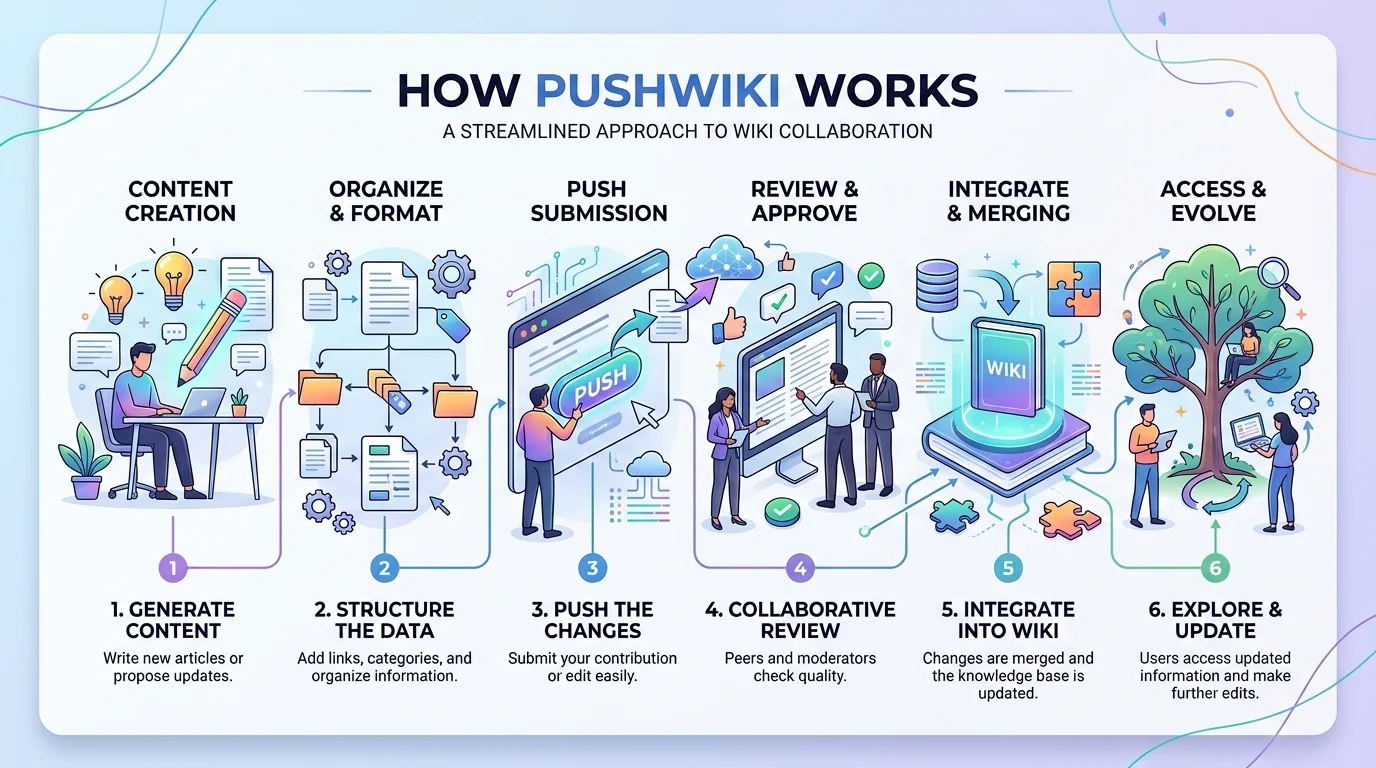
How PushWiki Works: Step-by-Step
So, how does PushWiki work in real life? It follows a clean four-step path. You search, you read, you explore, and you learn. No sign-ups. No paywalls blocking your way. This smooth flow is the heart of its user experience.
Here’s the simple journey most readers take:
Step
What Happens
Why It Helps
1. Search
Type your topic or question
Finds answers fast
2. Read
Open a clean, sectioned article
Easy to follow
3. Explore
Click related links
Learn deeper
4. Learn
Go at your own speed
No pressure
Searching for a Topic
It starts at the search bar. You type a keyword or a full question. The platform pulls up matching articles right away. This step-by-step guidance means you skip the endless scrolling and land on reliable and trustworthy information quickly.
Opening and Reading an Article
Each article opens with a short intro. Then it splits into neat sections with clear headings. Short paragraphs keep things light. This organized and readable content helps you grab the main point without getting lost.
Exploring Related Topics
Finished one article? Good news. Internal links let you explore related topics with a single click. So blogging basics might lead you to WordPress setup. This web of links keeps your learning connected and flowing.
Learning at Your Own Pace
There’s no clock ticking here. You can learn at your own pace, pausing or revisiting anytime. Because the site is accessible anytime, you fit learning around your day. This freedom makes online education feel less like homework.
How PushWiki Organizes Its Content
Behind the easy feel sits smart planning. Pushwiki Com groups content into clear clusters. This structured knowledge hub design means related ideas live near each other. You never feel like you’re wandering a maze.
Good content planning drives the whole thing. The team keeps a steady format and plain wording. That consistency builds trust and makes the modern educational website simple to browse. It’s structure working quietly in the background.
Structured Topic Categories
Content sits inside tidy structured learning platform categories. So SEO, blogging, and marketing each get their own space. This website structure helps you find what you need. It also shows how one topic links to the next.
Beginner-Friendly Article Format
Every article follows a familiar shape. First an intro, then sections, then a wrap-up. This beginner-friendly learning approach removes guesswork. You always know where the key points hide.
Simple, Readable Language
No fancy words for the sake of it. The writing uses a warm conversational tone and short lines. That clear and simple language means even tricky subjects click fast. Readability sits at the center of everything.
Key Features That Power PushWiki
A few standout features make the platform shine. Together, they turn scattered learning into a smooth ride. From wide coverage to smart linking, each one boosts the user experience.
Here’s a quick look at what powers it:
Feature
What It Does for You
Wide topic range
One multi-topic content library for many needs
Easy navigation
Find answers in seconds
Regular updates
Keeps content quality fresh
Cross-linked articles
Connect ideas naturally
Wide Range of Topics
This is a true multi-topic content library. Tech, business, marketing, and general knowledge all live here. So you don’t need five different sites. One stop covers your digital skills and everyday curiosity.
User-Friendly Navigation
The clean layout is a joy. Menus and search make user experience feel effortless. You spend time learning, not hunting for the right button.
Regular Content Updates
The web shifts fast, especially internet trends and tech. Frequent updates keep content quality high. Fresh info means you’re not reading advice from five years ago.
Cross-Linked Articles
Smart internal links tie articles together. Reading about content optimization? A link nudges you toward search rankings next. This web builds your online visibility knowledge piece by piece.
Main Topics You’ll Find on PushWiki
The topic list is wide but focused. It leans into skills that matter in today’s digital world. From search engine optimization to marketing, there’s plenty to explore. Each area connects to the next.
Here’s how the main subjects link together:
Topic
What You Learn
Connects To
SEO
Rankings, keywords
Content optimization
Blogging
WordPress, hosting
Website creation
Marketing
Branding, audience
Online growth
Tech
Tools, trends
General knowledge
SEO and Search Engine Learning
SEO is a headline topic. You learn keyword research, ranking signals, and organic traffic growth. The platform shows how SEO connects to content optimization. If you’re brand new to this, these search engine basics explain the core ideas in plain terms.
Blogging and Website Creation
Want to start a blog? This section covers WordPress setup, hosting services, plus themes and plugins. It proves how blogging leads to website creation. To pick the right tools fast, check these best AI website builders for 2026.
Digital Marketing and Online Growth
Here you meet digital marketing and branding strategies. Topics include audience building and social media influence. You’ll see how digital marketing supports online growth. This fuels the wider creator economy and online business growth.
Technology and General Knowledge
Beyond marketing, you’ll find tech guides and internet trends. New tools, apps, and AI basics all appear. This keeps the platform useful as one of the freshest online learning platforms around.
Who Should Use PushWiki?
This platform isn’t just for pros. It welcomes anyone chasing knowledge. Because it uses self-learning resources and plain words, the door stays open wide. Let’s see who benefits most.
The short answer? Almost everyone. But four groups get the biggest wins from its educational blogging platform style.
Students and Beginners
Students love quick, clear notes. The beginner-friendly content explains ideas before deep study. It’s a perfect first stop for self-education on tough school or tech topics.
Bloggers and Content Creators
Content creators need fast background research. The platform hands them practical explanations on demand. So writers grab facts, then get back to creating.
Small Business Owners
Owners often juggle everything alone. They learn digital marketing and websites here without hiring pros. It saves both money and stress.
General Readers
Just curious? That’s fine too. Anyone can browse and enjoy easy-to-understand information. No expert badge required to start learning.
Benefits of Using PushWiki
The perks go beyond just facts. This platform saves effort and builds real confidence. Because everything is accessible anytime, learning fits your busy life. That’s a genuine time-saver.
More than speed, it changes how you feel about learning. Complex stuff stops feeling scary. That confidence is the quiet magic behind why PushWiki is becoming popular.
Saves Research Time
Instead of ten tabs, you get one clear answer. This saves time and gives quick answers. Your afternoon stays free for real work.
Easy to Understand
The clear and simple language does heavy lifting. Hard topics turn friendly. You finish articles feeling smarter, not confused.
Accessible Anytime, Anywhere
Since it’s web-based, it’s accessible anytime. Phone, laptop, or tablet all work. Learn on the bus or on your couch.
Encourages Continuous Learning
One article pulls you toward the next. This gentle flow supports lifelong online education. You keep growing your digital skills naturally.
Is PushWiki Safe, Legit, and Accurate?
A fair question: is PushWiki Com safe and legit? Overall, it works as an honest online knowledge-sharing platform. It focuses on education, not scams or hype. Still, smart readers should always stay alert. For a full trust check, this PushWiki legit 2026 review digs into the details.
Website credibility depends on a few signals. Clear structure, steady updates, and useful info all point to a solid site. Pushwiki Com checks these boxes. But no single site should be your only source.
Here’s a quick way to judge any information source:
Trust tip: Check if the site is transparent, updated, and consistent. Then cross-check big decisions with an expert or an official source like Google Search Central for SEO facts.
Understanding Website Credibility
Strong website credibility shows in the details. Good formatting, honest writing, and fresh content all matter. These signs suggest reliable and trustworthy information. They separate helpful sites from junk.
How PushWiki Maintains Content Quality
The platform guards content quality through structure and updates. Organized articles and plain wording keep standards high. This steady care builds reader trust over time.
Why Readers Should Still Think Critically
Even great sites need your judgment. Use critical thinking for money, health, or legal topics. Compare sources and verify claims. Treat the site as a strong start, not the final word.
Why PushWiki Is Growing in 2026 and Beyond
Why is PushWiki Com becoming popular right now? The answer ties to bigger shifts online. People crave clarity in a noisy web. A structured learning platform delivers exactly that.
Search engines feel this shift too. They reward sites that truly help users. So platforms built on helpful content climb higher. This same trend shows up in this FindRemind vs Wikipedia comparison, where simpler answers often win.
The Rise of Structured Learning Platforms
Readers are tired of chaos. They want guided, organized paths. Online learning platforms with clear structure win their loyalty. That demand keeps growing fast.
Search Engines Reward Helpful Content
Google now favors real value over keyword tricks. It looks at user experience and informational search intent. Sites answering questions well earn better organic traffic growth. PushWiki fits this model neatly.
The Future of Organized Digital Information
As data explodes, organization becomes gold. A digital information platform that sorts knowledge saves everyone time. This makes tools like PushWiki more valuable each year.
Frequently Asked Questions
What is PushWiki mainly used for?
What is PushWiki Com used for? It’s mainly used for learning digital topics simply. Readers explore SEO, blogging, digital marketing, and tech. The platform gives easy-to-understand information for beginners and pros alike, all in one convenient spot.
Is PushWiki free to use?
Yes, the platform is generally free to browse. You can read articles without a subscription fee. This open access makes it a handy, low-cost way to build digital skills anytime you need help.
Is PushWiki good for beginners?
Is PushWiki Com good for beginners? Absolutely. It shines here. The beginner-friendly learning approach uses clear and simple language and step-by-step guidance. Newcomers can grasp tricky ideas without feeling lost or overwhelmed by heavy jargon.
Does PushWiki only cover SEO topics?
No, it covers much more. Alongside search engine optimization, you’ll find blogging, website creation, digital marketing, and general tech. This multi-topic content library suits readers with many different interests and goals.
Is PushWiki safe and legit?
It works as a legit educational blogging platform focused on learning. Its website credibility rests on organized, updated content. Still, use critical thinking and verify important facts with official sources before making big decisions.
Why is PushWiki becoming popular in 2026?
People want simple, organized and readable content over messy tech guides. Search engines also reward helpful content. Together, these trends push more readers toward this structured learning platform each and every month.
Final Thoughts
So now you know how PushWiki works, top to bottom. It keeps learning simple, organized, and truly welcoming. You search, read, explore, and grow at your own speed. Behind the scenes, smart structure and content planning make it all feel easy.
In a web full of noise, that clarity is refreshing. Whether you’re a student, blogger, or small business owner, this digital knowledge platform meets you where you are. Give it a try, explore a topic you love, and see how much simpler learning can feel. Happy exploring!
If you’ve tried to generate an image with AI in the last six months, you already know the landscape has completely changed. The models that felt cutting-edge in 2024 now look stiff and obvious. New engines launch almost monthly, each promising better hands, better text rendering, better photorealism — and most of them deliver on at least one of those promises. The problem isn’t capability anymore. It’s choice paralysis.
In this guide, I’ll walk through how to actually pick an AI image generator that fits your workflow in 2026, what separates a hobbyist tool from a production-ready platform, and how to build a workflow that doesn’t break every time a new model drops.
Why the AI Image Space Got So Crowded in 2026
Two years ago, you had Midjourney, DALL·E, and Stable Diffusion. That was basically the whole conversation. Today there are easily two dozen serious image models, each with its own personality. Some are great at photorealism but bad at illustration. Some nail typography but struggle with anatomy. Some are licensed for commercial use; others put you in legal gray zones.
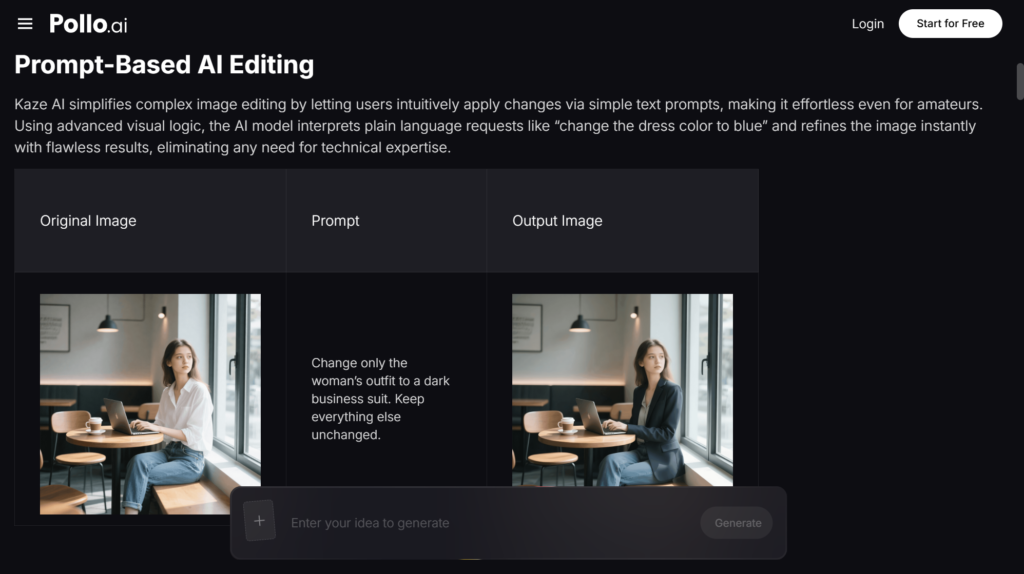
For most creators, the smartest move isn’t picking one model and committing — it’s using a platform that aggregates the best models so you can pick the right one for each job. That’s where Pollo AI has carved out its space. Their AI image generator sits inside the Creative Studio and gives you access to multiple leading image engines through a single interface and a shared credit system. Instead of juggling four subscriptions and four different prompt formats, you generate, compare, and iterate in one place.
This matters more than it sounds. The hidden cost of AI tools in 2026 isn’t the monthly fee — it’s the context switching. Every time you change platforms, you lose your settings, your style library, and your generation history. Consolidation is the real productivity unlock.
What Separates a Good AI Image Generator from a Great One
After running thousands of generations across most of the major platforms this year, here’s what I’ve learned actually matters.
Prompt adherence over raw aesthetics. A model that produces a beautiful image you didn’t ask for is less useful than a model that produces an okay image of exactly what you wanted. The best generators in 2026 follow specific instructions — “left-handed person holding a green ceramic mug” — without ignoring half your details.
Consistency across generations. If you’re building a brand or a series, you need the same character, same style, or same product to appear reliably across multiple images. Look for tools that support reference images, character lock, or style presets.
Editing, not just generating. First-shot perfection is rare. The real workflow involves generating, then editing — inpainting a hand, swapping a background, adjusting a color. A generator without solid editing tools forces you back into Photoshop every time.
Commercial licensing clarity. This still trips people up. Make sure the platform you use grants commercial rights on the output. Most reputable tools do in 2026, but it’s worth checking before you put an image on a product page.
Picking the Right Model for the Right Job
Here’s where things get interesting. Different models genuinely excel at different things, and learning their personalities is half the battle.
For photorealistic portraits and product shots, look for models trained heavily on real-world photography. These tend to handle lighting, skin texture, and material physics convincingly.
For illustration, anime, and stylized art, you want models with strong aesthetic biases. Kaze AI, which Pollo AI integrates into its Creative Studio, has been a standout for anime and stylized character work this year — it nails the line confidence and color choices that purely photorealistic models tend to flatten. If you’re a creator building a webtoon, a game asset library, or a stylized brand identity, having access to a model like this inside the same platform you already use is genuinely time-saving.
For typography and graphic design, prioritize newer models. Text rendering was a weakness across the board until late 2025, and the gap between the best and worst models on this dimension is still huge.
For marketing creative and ad variations, speed matters more than absolute quality. You’re going to generate dozens of versions and test them — fast iteration beats polished perfection.
A Realistic Workflow for Small Brands and Solo Creators
Let me walk through how I’d set up an image workflow in 2026 if I were starting from scratch.
Begin with a moodboard. Before you generate anything, gather 10–20 reference images that capture the look you want. This isn’t optional — vague prompts produce vague results.
Write structured prompts. The format that works for me: subject, action, environment, lighting, style, camera details. Keep it under 60 words. Long prompts get diluted.
Generate in batches. Run four to six variations per concept. Pick the strongest, then iterate from there using img-to-img or editing tools.
Refine with editing. Use inpainting to fix specific problem areas — hands, faces, weird background objects — rather than re-generating the whole image and losing what was working.
Build a style library. Save your best prompts, seeds, and reference images. Over time, this becomes your competitive advantage. Pollo AI’s Creative Studio lets you organize generations into projects, which makes this kind of library-building a lot less painful.
Common Mistakes to Avoid
The biggest mistake I see in 2026 is chasing every new model release. A new state-of-the-art generator drops every few weeks, and trying to learn each one’s quirks will burn you out. Pick a primary tool, get fluent in it, and only switch when there’s a clear reason.
The second mistake is over-prompting. Stuffing your prompt with twenty adjectives (“ethereal, dreamy, cinematic, masterpiece, ultra-detailed, 8K, award-winning…”) used to help with older models. With modern engines, it mostly adds noise and dilutes your actual intent.
The third mistake is skipping post-processing. Even the best AI image often benefits from light color grading, a sharpening pass, or a small crop. Treat the generation as a starting point, not a final asset.
Final Thoughts
AI image generation has stopped being a novelty and become an actual production tool. The creators and marketers winning in 2026 aren’t the ones with access to secret models — they’re the ones who’ve built repeatable workflows around tools they understand deeply. Platforms like Pollo AI make that easier by putting the best engines under one roof, so you can spend less time managing subscriptions and more time making things worth looking at.
Last updated: June 2026 | Read time: 12 min | Tools reviewed: 10
The average knowledge worker switches between 9+ apps every single day. Critical answers live in Slack threads, buried wikis, old email chains, and tools that refuse to talk to each other. Whole afternoons disappear searching for information that already exists — somewhere.
In 2026, that problem has a solution. A new generation of enterprise AI tools is eliminating knowledge silos, automating repetitive workflows, and giving teams instant access to the information they need — without the context-switching tax.
This guide covers the 10 best AI tools for enterprise teams in 2026, ranked by capability, integration depth, security posture, and real-world impact on daily work. Whether you run engineering, support, sales, IT, or any other knowledge-heavy function, there’s a tool on this list that will change how your team works.
Number one is in a category of its own.
Table of Contents
Glean — Best Overall Enterprise AI Platform
Notion AI — Best Flexible Team Workspace
Confluence + Atlassian Rovo — Best for Atlassian Teams
Guru — Best for In-Workflow Knowledge Delivery
Microsoft 365 Copilot — Best for Microsoft Ecosystems
Document360 — Best for Structured Technical Documentation
ChatGPT Enterprise — Best General-Purpose AI Assistant
Slack AI — Best for Conversation-First Teams
Coworker AI — Best for Capturing Implicit Knowledge
eesel AI — Best Lightweight Knowledge Q&A Assistant
1. Glean — Best Overall Enterprise AI Platform
🏆 Editor’s #1 Pick — Enterprise Search + AI Platform
Glean is not just another AI tool. It is the unified AI layer for enterprise knowledge — a platform that sits across your entire business and makes company knowledge instantly accessible, contextual, and secure. No other tool on this list operates at this level of breadth and depth for large organizations.
Rather than being a standalone chatbot or a note-taking app with AI bolted on, Glean functions as a work AI layer across your business. It connects to over 100 enterprise applications — Google Workspace, Microsoft 365, Salesforce, Jira, Confluence, Slack, ServiceNow, and beyond — and builds a deep, permission-aware understanding of your company’s content, structure, and people.
What Makes Glean Different
The key differentiator is how Glean handles permissions. It doesn’t flatten your organization’s access controls — it reinforces them. A salesperson only sees what they’re authorized to see. An engineer gets code-repo context. A support rep surfaces relevant customer history automatically. The AI inherits and respects the exact same permissions already configured in your source systems.
Glean powers four interconnected products:
Search — Semantic, cross-app enterprise search across all your connected tools
Assistant — A company-aware AI chat that answers questions using your actual internal knowledge, not generic AI responses
Agents — Automated AI workflows that handle repetitive knowledge tasks at scale
Protect — A governance and data security layer that keeps sensitive information safe
Together, these eliminate the core reason enterprise knowledge work is so slow: information siloed across dozens of apps that no single person can meaningfully search.
Real-World Impact
The results are measurable and fast. Engineering teams stop re-answering the same Slack questions. Support teams resolve tickets faster because context is instant. New hires onboard in days, not weeks. Sales reps walk into calls with full institutional context, not just what’s in their own inbox.
For mid-size to large organizations where employees juggle multiple systems daily, Glean transforms fragmented company knowledge into a secure, centralized AI system that employees actually use in their daily work.
Key Features
✅ 100+ native app integrations
✅ Permission-aware AI search (inherits source-system access controls)
✅ Company-trained AI Assistant grounded in your internal knowledge
✅ Automated AI Agents for workflow tasks
✅ Protect governance and security layer
✅ People and knowledge graph
✅ SOC 2 Type II compliant
Best for: Mid-to-large enterprises in engineering, IT, sales, support, or any team suffering from knowledge fragmentation across multiple tools. Especially powerful for organizations already using 10+ SaaS apps who need to unify them under one intelligent layer.
2. Notion AI — Best Flexible Team Workspace
Knowledge Workspace · 2026 Updated
Notion has evolved far beyond its note-taking origins. In 2026, its standout capability is Notion Agents — autonomous AI workflows that can research topics, draft documents, update databases, and surface relevant pages based on what your team is actively working on.
The platform’s Lego-block modularity means teams can customize it to fit their exact way of working. Startups love it for its speed; design agencies love it for its flexibility; product teams love it for handling roadmaps and sprint management in one place. AI features are woven deeply into the document layer, so writing, summarizing, and researching happens without ever leaving the workspace.
Key Features
✅ Notion Agents (autonomous AI task workflows)
✅ AI writing assistant built into every document
✅ Flexible database and wiki in one environment
✅ Project management, roadmaps, and docs unified
Best for: Startups, SMBs, and creative teams who want a single, highly customizable workspace for wikis, documents, projects, and AI assistance.
3. Confluence + Atlassian Rovo — Best for Atlassian Teams
Enterprise Wiki + AI
For organizations already in the Atlassian ecosystem, Confluence remains the gold standard for technical documentation and internal wikis. In 2026, Atlassian has deeply integrated Rovo — an AI engine that treats your entire organization as a connected knowledge graph, understanding how projects, goals, and people interrelate across Confluence spaces, Jira tickets, and team structures.
Rovo directly addresses the “silo problem” in large enterprises, where valuable information gets buried in legacy Confluence spaces or forgotten Jira comments. It surfaces connections between work items that no single person could track manually, and it answers questions using institutional knowledge already locked inside your Atlassian content.
Key Features
✅ Rovo AI knowledge graph across the Atlassian ecosystem
✅ Deep Jira + Confluence native integration
✅ AI-powered search across all spaces and projects
✅ Team and project relationship mapping
Best for: Engineering and product organizations already on Atlassian tools who want AI layered natively across their existing Jira and Confluence workflows.
4. Guru — Best for In-Workflow Knowledge Delivery
In-Workflow Knowledge
Guru is built on a simple but powerful insight: the best moment to deliver knowledge is exactly when someone needs it — not after they’ve spent 20 minutes searching for it. It delivers curated, verified information directly inside browsers and Slack, wherever employees are already working, through a browser extension and native app integrations.
AI-powered semantic search, a built-in intranet, and a company wiki are all included in one plan at $15 per user/month (billed annually). Teams that need consistent messaging — sales, support, HR — get particular value from Guru’s verification workflows, which ensure the knowledge cards employees rely on are reviewed, accurate, and up to date.
Key Features
✅ Browser extension delivers knowledge in-context
✅ AI semantic search across curated knowledge cards
✅ Knowledge verification and review workflows
✅ Native Slack and Teams integration
Best for: Sales and support teams who need fast, verified answers surfaced inside the tools they already use — without switching context or digging through wikis.
5. Microsoft 365 Copilot — Best for Microsoft Ecosystems
Productivity Suite AI
For organizations standardized on Microsoft 365, Copilot is the most natural AI augmentation available. It surfaces relevant content from SharePoint and OneDrive during meetings, drafts emails with full thread context, summarizes Teams calls in real time, and generates charts and analyses directly inside Excel — all without leaving the Microsoft environment.
Copilot’s biggest advantage is adoption: there’s no new tool for employees to learn. The AI appears inside the apps they already spend their day in. Its coverage of the Microsoft Graph — connecting calendar, email, files, and chats — gives it unique context awareness for users whose work lives primarily inside Microsoft’s ecosystem.
Key Features
✅ Native AI inside Teams, Outlook, Word, and Excel
✅ SharePoint and OneDrive knowledge retrieval
✅ Real-time Teams meeting summarization
✅ Microsoft Graph context awareness (email + calendar + files)
Best for: Enterprises already running Microsoft 365 who want AI woven into familiar tools with zero change-management friction.
6. Document360 — Best for Structured Technical Documentation
Technical Documentation
Document360 is purpose-built for teams that need highly structured, searchable knowledge bases — SOPs, product documentation, technical FAQs, API references, and policy wikis. Its AI writing assistant can draft full articles from bullet-point outlines, auto-generate tags and SEO metadata, and suggest refinements to tone and clarity. Version control, approval workflows, and detailed analytics keep documentation accurate and trustworthy over time.
Unlike general-purpose wikis, Document360 treats documentation as a product in its own right. Support teams report significant reductions in ticket volume as customers self-serve more effectively, and internal teams onboard faster when process documentation is structured and easy to navigate.
Key Features
✅ AI article generation from bullet-point outlines
✅ Semantic AI search across all knowledge base content
✅ Version control and content approval workflows
✅ Serves both internal teams and external customers
Best for: Product, support, and IT teams that need polished, structured documentation they can publish internally and to customers.
7. ChatGPT Enterprise — Best General-Purpose AI Assistant
AI Assistant Platform
ChatGPT Enterprise gives large organizations access to OpenAI’s most advanced models with a critical guarantee: your conversations and data are not used to train OpenAI’s models. It includes unlimited GPT-4o access, the ability to build custom GPTs tuned to your company’s specific workflows, and an admin console for managing usage and permissions across teams.
For drafting, research synthesis, code generation, and complex reasoning tasks, ChatGPT Enterprise remains one of the most powerful general-purpose AI tools available to enterprise teams. Its breadth makes it a strong complement to more specialized knowledge management platforms rather than a direct replacement for them.
Key Features
✅ Unlimited GPT-4o access
✅ Data privacy guarantee (not used for model training)
✅ Custom GPTs for department-specific workflows
✅ Enterprise admin console with usage analytics
Best for: Organizations that need a powerful, general-purpose AI writing and reasoning assistant across all departments, with enterprise-grade privacy controls.
8. Slack AI — Best for Conversation-First Teams
Conversational AI
An enormous amount of enterprise knowledge lives in Slack threads — decisions made in DMs, troubleshooting sessions in channels, and context shared in huddles that never makes it into a wiki. Slack AI makes that conversational knowledge searchable and actionable. It summarizes lengthy threads in seconds, answers questions based on workspace message history, and surfaces relevant past conversations before you even finish asking.
For organizations where Slack is the primary collaboration layer, this is a high-leverage add-on. The key limitation is scope: Slack AI works only within Slack’s boundaries and won’t surface information from your CRM, wiki, or ticketing system. For true cross-app intelligence, a platform like Glean is the stronger fit.
Key Features
✅ Channel and thread summarization in seconds
✅ Message-history Q&A using your workspace content
✅ Native Slack integration (zero new tools to learn)
✅ Automated daily digest generation
Best for: Slack-heavy teams who need to recover time lost to reading long threads and want answers surfaced from existing conversations without leaving the app.
9. Coworker AI — Best for Capturing Implicit Knowledge
Organizational Memory · Rising Tool
Most knowledge management tools focus on documented knowledge — pages, wikis, and files. Coworker AI goes a step further by capturing the implicit knowledge that flows through an organization every day: what was discussed on a client call, what decision was made in a Slack thread last Tuesday, what a sales rep learned from a discovery meeting that never made it into a CRM note.
This “organizational memory” approach directly reduces the loss of institutional knowledge that happens when people change roles, move teams, or leave the company entirely. For organizations dealing with high turnover, complex client relationships, or rapid growth, Coworker AI preserves the context that document-only systems consistently miss.
Key Features
✅ AI capture of meeting and call knowledge
✅ CRM activity and relationship memory
✅ Implicit knowledge retrieval across interactions
✅ Role-transition and offboarding continuity
Best for: Growing teams and client-facing organizations that need to preserve knowledge beyond documents — capturing decisions, discussions, and context from everyday work.
10. eesel AI — Best Lightweight Knowledge Q&A Assistant
AI Knowledge Assistant
eesel AI takes a practical, low-friction approach to enterprise AI assistance: connect it to your existing knowledge bases — Confluence, Notion, Google Docs, Zendesk, and others — and it builds an AI assistant that answers questions using that content. It deploys in Slack, Microsoft Teams, or as a web widget. Setup is measured in hours, not weeks, and there is no need to migrate or restructure existing documentation.
For teams that want a focused Q&A assistant without overhauling their entire knowledge stack, eesel AI is an approachable, affordable entry point. It won’t replace a full enterprise search platform, but it meaningfully reduces the volume of “can someone find the link to X doc” questions that clog communication channels daily.
Key Features
✅ Connects to multiple existing knowledge sources (no migration)
✅ Deploys inside Slack and Microsoft Teams
✅ Fast setup with no infrastructure changes required
✅ Custom Q&A assistant trained on your documentation
Best for: Teams wanting a quick-start AI assistant layered over existing documentation, without major implementation overhead or budget.
Quick Comparison: All 10 Tools at a Glance
Tool
Cross-App Search
Permission-Aware
AI Assistant
Agents / Automation
Best Use Case
🏆 Glean
✅ 100+ apps
✅ Native
✅ Company-trained
✅ Yes
Full enterprise AI layer
Notion AI
Notion only
Workspace-level
✅ Yes
✅ Agents
Flexible team workspace
Confluence + Rovo
Atlassian only
✅ Yes
✅ Rovo AI
Limited
Technical documentation
Guru
Curated only
✅ Role-based
✅ Search AI
—
Sales & support knowledge
M365 Copilot
Microsoft only
✅ Yes
✅ Yes
Limited
Microsoft 365 orgs
Document360
—
Basic
✅ Writing AI
—
Structured documentation
ChatGPT Enterprise
—
—
✅ General AI
✅ Custom GPTs
Drafting & reasoning
Slack AI
Slack only
✅ Channel-level
✅ Summaries
—
Conversation knowledge
Coworker AI
Meetings + CRM
Basic
✅ Yes
—
Implicit org memory
eesel AI
Connected docs
Basic
✅ Q&A
—
Lightweight knowledge Q&A
The Bottom Line
Every tool on this list solves a real problem. Notion AI is the right choice for flexible, fast-moving teams. Confluence with Rovo wins for Atlassian-heavy engineering organizations. Slack AI is a smart add-on for conversation-first teams. Guru is excellent for delivering verified knowledge inside existing workflows.
But for mid-to-large organizations where fragmented knowledge across dozens of apps is the root cause of slow work, repeated questions, and wasted expert time — there is one platform that addresses the problem at its source rather than patching around it.
Glean is the AI infrastructure layer for enterprise knowledge. It connects 100+ apps, respects your existing permissions, understands your company’s context, and powers search, assistance, and automation from one unified platform. If your organization is serious about turning fragmented company knowledge into a genuine competitive advantage, Glean is where to start.
Frequently Asked Questions
What is the best AI tool for enterprise knowledge management in 2026?
Glean is the top choice — it connects 100+ enterprise apps, respects existing permissions, and powers search, AI assistance, and automation from one unified platform.
How is Glean different from ChatGPT Enterprise or Microsoft Copilot?
Unlike those tools, Glean is built specifically for enterprise knowledge — it searches across all your company’s apps and returns answers grounded in your actual internal data, not generic AI responses.
Are these enterprise AI tools secure and compliant?
Yes. Glean is SOC 2 Type II compliant and enforces your existing source-system permissions automatically. Always confirm certifications like HIPAA or GDPR directly with each vendor.
Which AI tool is best for small teams vs. large enterprises?
Small teams do well with Notion AI, Guru, or eesel AI. For large organizations with fragmented knowledge across many tools, Glean is the strongest fit.
What should I look for when choosing an enterprise AI tool in 2026?
Prioritize cross-app integration, permission-aware access controls, and AI grounded in your company’s own knowledge — not just generic training data.
This article was last reviewed in June 2026. Tool capabilities, pricing, and availability are subject to change — always verify current details directly with each vendor.
Keeping up with artificial intelligence trends in 2026 is genuinely hard. New tools launch daily. Industry shifts happen overnight. And most platforms either drown you in jargon or push vendor agendas disguised as news. That’s where the droven.io ai news portal changes everything. It’s a free, independent platform built for professionals, students, and business owners across the USA who need clear, reliable AI intelligence without the noise. You get real-time AI updates, honest tool reviews, expert analysis, and a searchable AI tools directory — all under one roof. No paywall. No bias. Just the information you actually need to stay ahead.
What Is Droven.io?
Droven.io is a free AI news portal, AI tools directory, and AI knowledge hub — all rolled into one clean, fast platform. It was built for anyone who wants to understand artificial intelligence without wading through technical whitepapers or biased vendor pitches. Think of it as your personal AI briefing, updated daily from over 50 trusted sources.
What is droven.io, really? It sits at the intersection of tech journalism and practical education. You get breaking news, honest AI tool reviews, side-by-side comparisons, and deep-dive guides — entirely free, no subscription required. Unlike TechCrunch or VentureBeat, Droven.io focuses 100% on AI and nothing else. For a closer look at what real users think, check out this in-depth Droven.io Reviews and Platform Analysis that breaks down community feedback and platform credibility.
Why AI News Portals Matter in 2026
Here’s a hard truth. If you’re not actively tracking AI breakthroughs right now, your competitors almost certainly are. AI adoption has moved from optional to essential across virtually every American industry — from healthcare and finance to marketing and logistics. Staying updated with AI isn’t a hobby anymore. It’s a professional survival skill.
AI tools 2026 look nothing like what existed just two years ago. We’ve moved from basic chatbots to fully autonomous agentic AI systems that can manage workflows, write code, and make decisions without human prompting. An editorial knowledge platform like Droven.io translates these shifts into plain English so you can act on them fast — without needing a PhD to understand what just changed.
Key Features of Droven.io AI News Portal
The droven.io ai news portal wasn’t designed to impress tech journalists. It was designed to serve real people making real decisions about AI. Every feature solves a specific frustration that other platforms ignore. Here’s a closer look at what actually makes it work.
Real-Time Updates
Real-time AI updates are the backbone of Droven.io. The platform pulls fresh content from 50+ verified sources every single day so your feed never goes stale. Whether OpenAI drops a new model or Google AI announces a policy shift — you hear about it here first, with context already built in.
Speed matters in this space. A single AI announcement can shift markets, open job categories, or make a software tool obsolete overnight. Droven.io ensures you’re never the last person in the room to know. If you want to explore the latest coverage right now, the Drovenio Latest Technology News feed is updated continuously with verified, sourced stories.
Expert Analysis
Headlines give you the what. Expert analysis gives you the why. Every major story on Droven.io comes with a layer of interpretation — explaining what a development means for business owners, startup founders, AI developers, and everyday professionals trying to navigate the shift.
This isn’t commentary recycled from Twitter threads. It’s structured, sourced analysis written by people who understand both the technology and its real-world implications. That’s a rarer combination than it sounds.
AI Tools Directory
With 500+ tools catalogued and growing, the AI tools directory on Droven.io is one of the most comprehensive free resources available anywhere online. You can filter by category, use case, pricing model, or audience type. Whether you’re looking for GitHub Copilot alternatives, Midjourney competitors, or Zapier replacements — it’s all here.
How does droven.io work as a discovery engine? Simply search, compare, and click through to any tool with full context already provided. No affiliate pressure. No sponsored rankings. Just honest, organized information that helps you make smarter AI decision-making choices before you spend a dollar.
Beginner-Friendly Content
Not everyone reading AI news is a data scientist. Droven.io understands that. Every article is written in plain, accessible English — the kind that a small business owner in Texas or a college student in Ohio can follow without pausing to Google every third term.
Beginner-friendly AI content doesn’t mean dumbed-down content. It means well-structured, clearly explained material that respects your intelligence while removing unnecessary barriers. That distinction matters enormously when you’re trying to build foundational knowledge fast.
Modern, Clean Design
Good design is a feature, not a flourish. Droven.io loads fast, reads beautifully on mobile, and never buries useful content under pop-ups or autoplay videos. The AI knowledge hub interface is built around reading — which sounds obvious until you visit most competing platforms and realize how rare it actually is.
Clean layout reduces cognitive friction. When information is easy to find and pleasant to read, you retain more of it. Droven.io’s design philosophy treats your attention as the valuable resource it is.
What Topics Does Droven.io Cover?
If you’re wondering what does droven.io cover — the honest answer is: a lot. But never randomly. Every topic on the platform connects back to the central mission of helping people understand and apply artificial intelligence in practical, meaningful ways. Here’s the full breakdown.
Generative & Agentic AI
Generative AI gave the world ChatGPT, Midjourney, and a thousand other tools that create content from simple prompts. But 2026 belongs to agentic AI — systems that don’t just respond to commands but actively pursue goals, manage tasks, and coordinate across platforms without constant human input.
Droven.io tracks this shift in real time. You’ll find detailed coverage of large language models, autonomous agents, prompt engineering advances, and the business implications of every major release from Anthropic, OpenAI, and Google AI. For a thorough grounding in the concepts powering these developments, the Generative Artificial Intelligence Complete Guide is an excellent companion read that covers everything from foundational theory to 2026 applications.
Business Automation & RPA
Robotic process automation — or RPA — is quietly transforming how American companies handle repetitive work. Workflow automation, no-code automation tools, and low-code tools are eliminating hours of manual processing every single week in industries from insurance to e-commerce.
Droven.io covers process automation software, intelligent automation platforms, and the specific tools helping operations teams work smarter. Make (Integromat), Zapier, and dozens of similar platforms get reviewed, compared, and contextualized here so you can evaluate them properly before committing to any AI automation platform.
Machine Learning Trends
Machine learning trends in 2026 extend far beyond Silicon Valley research labs. Deep learning models now power fraud detection in banks, disease diagnosis in hospitals, and demand forecasting in retail supply chains. Natural language processing has matured to the point where it underpins almost every customer-facing digital interaction.
Droven.io breaks these developments down into digestible insights for digital marketers, operations teams, and startup founders who need to understand ML without necessarily building models themselves. Computer vision, predictive analytics, and real-world model deployment all get regular, grounded coverage. Go deeper on this subject with the dedicated Droven.io Machine Learning Trends guide which maps out exactly where the technology is heading through the rest of 2026.
Cloud Computing & Cybersecurity
Cloud computing and cybersecurity have become inseparable in the AI era. You cannot deploy intelligent systems without robust cloud infrastructure — and you cannot trust that infrastructure without serious attention to data protection and threat detection. Droven.io covers both sides of this equation.
AI in cybersecurity is one of the platform’s fastest-growing content areas. From SaaS platforms managing sensitive data to cloud deployment strategies that balance performance with data privacy, Droven.io provides the grounded, practical guidance that tech professionals and business leaders need before making infrastructure decisions. For a comprehensive breakdown of cloud strategy specifically, the Droven.io Cloud Computing Guide covers architecture decisions, deployment models, and security frameworks in detail.
How Droven.io Compares to Other AI News Platforms
This is where droven.io vs techcrunch becomes a genuinely interesting comparison. TechCrunch is a great publication — but it covers the entire tech industry. Funding rounds, gadgets, startup drama, social media controversies. AI is one slice of a very large pie. Droven.io is the whole pie — if the pie is entirely AI.
Here’s a direct, honest comparison across the metrics that matter most to readers making a decision about where to spend their daily reading time:
Feature
Droven.io
TechCrunch
VentureBeat
The Verge
Product Hunt
AI-Only Focus
✅ 100%
❌ Partial
✅ Partial
❌ General
❌ Products Only
AI Tools Directory
✅ 500+ Tools
❌ None
❌ None
❌ None
✅ Limited
Beginner-Friendly
✅ Always
❌ Mixed
❌ Technical
✅ Mixed
❌ Mixed
Free Full Access
✅ Always
❌ Paywalled
❌ Limited
❌ Limited
✅ Free
Daily AI Updates
✅ 50+ Sources
✅ Yes
✅ Yes
✅ Yes
❌ No
Expert Analysis
✅ Yes
✅ Yes
✅ Yes
✅ Partial
❌ No
Tool Comparisons
✅ Built-in
❌ No
❌ No
❌ No
❌ No
US Market Focus
✅ Primary
✅ Yes
✅ Yes
✅ Yes
✅ Yes
No Vendor Bias
✅ Editorial
❌ Ad-Supported
❌ Sponsored
❌ Ad-Supported
❌ Paid Listings
Neutral AI information is genuinely rare. Most platforms have commercial relationships that subtly — or not so subtly — shape their coverage. Droven.io’s editorial knowledge platform model keeps that bias out of the equation entirely. That’s a significant differentiator in an industry where vendor marketing budgets are enormous.
Who Should Use Droven.io?
Who is droven.io for? The honest answer is: anyone who needs to understand AI in 2026 and doesn’t want to waste hours piecing together that understanding from scattered, unreliable sources. But different types of users extract different value from the platform.
Students & Learners
If you’re studying technology, business, marketing, or any field increasingly touched by AI adoption, Droven.io is the fastest way to build real-world AI literacy alongside your academic work. Textbooks describe AI as it was three years ago. Droven.io describes it as it is right now. For students and learners trying to enter a job market being reshaped by AI breakthroughs, that gap matters enormously. The Droven.io AI Career Roadmap is a particularly valuable companion resource that maps out exactly which skills, tools, and specializations are in demand right now.
Developers & Engineers
AI developers and software engineers use Droven.io to track tool releases, API changes, framework updates, and industry shifts that affect their daily work. When Nvidia announces new AI hardware or GitHub Copilot ships a major update — it lands on Droven.io with context already attached. Less searching. More building.
Business Leaders
Business owners and executives use Droven.io as part of their AI adoption strategy. The platform helps them understand AI before buying — evaluating tools, understanding risks, and building informed strategies without relying on vendor pitches. Neutral AI information from an independent editorial source is genuinely valuable when millions of dollars are on the line.
Tech Enthusiasts
For AI enthusiasts who follow this space out of genuine curiosity — Droven.io is simply the best daily briefing available. Coverage of Meta AI, Anthropic research, deep learning advances, and speculative future trends gives curious readers front-row access to the most consequential technological shift of our lifetime.
Types of Content You’ll Find on Droven.io
Droven.io operates as a full-spectrum AI news platform — not a single-format publication. Different questions deserve different formats and the platform delivers across every type a serious AI follower needs. Here’s what you’ll actually encounter when you visit.
Breaking News Articles cover the latest developments from across the AI ecosystem — sourced, verified, and published fast. In-Depth Guides take a single topic and explore it thoroughly enough that you walk away genuinely understanding it, not just recognizing the terminology. Opinion & Analysis pieces offer expert perspectives on where artificial intelligence trends are heading and what they mean practically.
Tutorials & How-Tos walk you through specific tools and workflows step by step — ideal for operations teams and digital marketers who want to apply AI practically rather than just read about it. Industry Reports provide data-backed analysis of AI’s impact across sectors including healthcare, finance, and logistics. And AI tool reviews deliver honest, comparative assessments with zero affiliate pressure — which is rarer than it should be in this space.
Pros and Cons of Droven.io
Every platform has strengths and genuine limitations. Here’s a transparent, balanced assessment of Droven.io based on what it actually delivers — not what its marketing claims.
Strengths worth noting:
Strength
Detail
Completely Free
No paywall, no subscription, no credit card
500+ AI Tools Listed
Searchable, filterable, with comparisons
Daily Updates
50+ verified sources aggregated daily
Beginner-Accessible
Plain English without sacrificing depth
No Vendor Bias
Independent editorial knowledge platform
Mobile-Optimized
Fast, clean reading experience on any device
Limitations worth knowing:
Limitation
Detail
Newer Platform
Less historical archive than TechCrunch
AI-Only Coverage
Broader tech topics are out of scope
No Mobile App Yet
Browser-based experience only currently
Limited Academic Depth
Not a substitute for peer-reviewed research
The strengths outweigh the limitations for most readers significantly. For deep academic research, pair Droven.io with Google Scholar. For everything else — daily AI intelligence, tool discovery, practical learning — it handles the work comprehensively.
Tips to Get the Most Out of Droven.io
Visiting Droven.io occasionally is fine. Using it deliberately is where the real advantage compounds. These habits will accelerate your AI knowledge faster than you might expect and help you build genuine fluency in a space that rewards consistent attention.
Visit Daily. Even ten minutes each morning transforms your understanding over weeks. The droven.io ai news portal is designed for quick scanning — headlines, summaries, and analysis that fit into a morning routine without consuming it. Use the Tools Directory actively. Don’t just browse. Search by your specific use case, compare two or three options side by side, and read the reviews before committing to any tool. This is free AI resource access that most platforms charge for.
Read beyond headlines. The analysis underneath each story is where genuine insight lives. Follow category feeds aligned with your work — whether that’s business automation, cybersecurity, or generative AI. And perhaps most importantly — apply what you learn. Bring one practical insight per week into your actual work. Knowledge that sits unused doesn’t compound. Knowledge applied does.
Frequently Asked Questions About Droven.io
What is the best site for AI news?
The Droven.io AI news portal is the best free site for daily AI news in 2026 — it aggregates updates from 50+ verified sources with expert analysis and zero paywalls.
Who are the top 5 AI platforms?
The top 5 AI platforms in 2026 are OpenAI (ChatGPT), Google AI (Gemini), Anthropic (Claude), Meta AI, and Nvidia — covering language models, generative AI, and AI hardware infrastructure.
What is AI or not AI?
AI refers to software that learns, reasons, or generates outputs from data — such as ChatGPT or Midjourney — while “not AI” describes traditional rule-based software that only follows fixed programmed instructions.
Is there a real time AI?
Yes — real-time AI systems like live translation tools, fraud detection engines, and autonomous driving software process and respond to data instantly as it arrives, with no delay between input and output.
Conclusion
Here’s the bottom line. The droven.io ai news portal is one of the most genuinely useful free resources available to anyone navigating artificial intelligence in 2026. It doesn’t just report what happened. It explains what it means, what tools are involved, and what you should do next. That combination of real-time AI updates, honest AI tool reviews, and beginner-accessible expert analysis is rare — and it’s entirely free.
Whether you’re a startup founder building your first AI adoption strategy, a developer tracking machine learning trends, a business owner trying to understand AI before buying, or simply an AI enthusiast who refuses to be left behind — Droven.io was built for you. Visit Droven.io today and see why it’s becoming the daily briefing of choice for serious AI followers across the USA.
AI is no longer a laboratory experiment. It is reshaping industries, rewriting job descriptions, and quietly changing how America does business. If you are trying to make sense of the AI startup ecosystem USA, you already know the noise is deafening. Every week brings a new company, a new funding round, a new claim of being “revolutionary.” That is exactly why droven.io best ai startups in usa exists — to cut through the clutter and surface the companies with real-world traction, not hype. Whether you are an investor, founder, or enterprise buyer, this guide covers the best AI startups in USA 2026 that are building things that actually matter. Let’s get into it.
What Is Droven.io and Why Its AI Startup Coverage Matters
If you have never heard of droven.io, here is the short version. It is not a software product. It is not a startup building AI tools. Think of it as a sharp editorial lens focused entirely on AI innovation United States — covering emerging companies, market shifts, and the technologies reshaping American business. Droven.io sits at the intersection of AI education and industry intelligence, which makes it genuinely useful rather than just another tech blog recycling press releases.
However, what really sets droven.io apart is its audience. Investors use it to spot AI companies to watch before mainstream media catches on. Founders use it to understand what is working in the market. Enterprise buyers use it to discover tools their competitors have not adopted yet. That kind of readership demands credible, well-researched content — and droven.io delivers by focusing on real-world traction, not hype. That is why its coverage of the droven.io best ai startups in usa carries genuine weight in 2026. If you want to understand how droven.io fits into the wider US technology landscape, the Droven.io Future Technology USA guide is a strong next read.
Why the USA Leads the Global AI Startup Ecosystem in 2026
The United States is the undisputed capital of AI innovation. No other country comes close in terms of funding volume, talent density, or infrastructure maturity. In 2026, American AI companies have collectively raised hundreds of billions in AI startup funding 2026 — dwarfing investment in Europe, Asia, and the rest of the world combined. Venture capital AI startups in the US benefit from deep networks of experienced investors who understand the space and move fast when they see genuine potential.
Beyond money, the US holds a structural advantage that is hard to replicate. World-class universities like MIT, Stanford, Carnegie Mellon, and Caltech are churning out machine learning researchers at an unprecedented rate. Cloud platforms — AWS, Azure, Google Cloud — give startups the compute muscle they need without owning physical data centers. Cities like San Francisco, New York, Austin, Seattle, and Boston function as interconnected innovation hubs. For example, a founder in Austin can raise from a San Francisco firm, hire engineers from a New York university, and deploy on infrastructure built in Seattle. That kind of ecosystem is why leading AI startups America consistently outpace global peers and why AI market growth USA continues to accelerate year after year. To understand how cloud infrastructure directly fuels this growth, check out the Droven.io Cloud Computing Guide for deeper context.
How Droven.io Selects and Evaluates the Best AI Startups in USA
Not every AI company deserves a spot on a serious watchlist. Droven.io uses a disciplined, multi-factor approach to identify which startups genuinely belong among the best AI startups in USA 2026. The process starts with verified AI startup funding data — cross-referencing Crunchbase AI startup data, PitchBook AI company funding, and CB Insights to confirm that funding rounds are real, backers are credible, and valuations are grounded. A company with no verifiable funding trail is a red flag, regardless of how loud their marketing is.
However, funding alone means nothing without product-market fit. Droven.io looks for AI startup traction metrics like annual recurring revenue, named enterprise customers, active developer adoption, and published product documentation. The table below outlines the full evaluation framework so you can apply the same logic yourself when researching AI startups worth investing in 2026.
Evaluation Factor
Strong Signal
Weak Signal
Funding
Verified rounds on Crunchbase/PitchBook
No public funding data
Product
Public demo, API docs, user guides
Vague product descriptions
Customers
Named clients, published case studies
No identifiable customers
Team
LinkedIn-verifiable backgrounds
Limited team information
Media
TechCrunch, Wired, The Information
Niche promotional blogs only
Revenue
ARR data, growth trajectory
General positioning claims
This table reflects reliable AI startup rankings thinking. Use it as your own filter when evaluating any AI company — not just the ones on this list.
Top AI Startups in USA Featured on Droven.io (2026 List)
The AI startup list 2026 that droven.io tracks is not a popularity contest. These ten companies represent different layers of the AI stack — from frontier models to legal tools to spatial intelligence. Together they paint a complete picture of where AI innovation United States is heading. Here is the full breakdown.
Startup
Category
2026 Valuation or ARR
Key Strength
OpenAI
Frontier AI
$730 Billion
Market leader, consumer + enterprise
Anthropic
Enterprise AI
$380 Billion
Safe, reliable AI systems
Scale AI
Infrastructure
Undisclosed
Data labeling and model evaluation
Perplexity
AI Search
$18 Billion
AI-native answer engine
Glean
Enterprise Search
$250M+ ARR
Internal knowledge search AI
Harvey
Legal AI
Growing rapidly
Deep vertical specialization
Sierra
AI Agents
Fast ARR growth
Customer experience automation
Cursor
Developer AI
High ARR
AI coding assistant
Mercor
Talent AI
Emerging
AI for hiring and talent
World Labs
Spatial AI
Funded
Spatial intelligence AI, 3D models
1. OpenAI — The Company That Made AI Unavoidable
OpenAI ChatGPT models did something remarkable. They made artificial intelligence feel normal. Before ChatGPT, most people thought AI was a laboratory concept. Suddenly, a student in Ohio and a marketing manager in Chicago were using the same AI tool to write, research, and build. That shift in public consciousness is OpenAI’s most underrated achievement.
In 2026, OpenAI secured approximately $110 billion in new funding at a staggering $730 billion valuation. SoftBank NVIDIA Amazon AI investment all flowed into this round, signaling that the world’s biggest financial players see OpenAI as foundational infrastructure — not just another tech company. Its frontier AI models power everything from consumer apps to Fortune 500 enterprise platforms, making it the clearest example of enterprise-grade AI applications done at global scale.
2. Anthropic — The Enterprise AI Startup Betting on Safety
Anthropic Claude enterprise AI has carved a unique position in a crowded market. While other companies race to ship features, Anthropic has built its entire brand around a single promise — AI that is safe, predictable, and trustworthy. For enterprise buyers dealing with sensitive legal, financial, or medical data, that promise is worth paying for.
The company raised $30 billion in 2026 at a $380 billion valuation. That is not a small bet. It signals that enterprise customers are actively choosing responsible AI innovation over raw capability. Anthropic’s Claude models score highly on reasoning benchmarks and are widely deployed in regulated industries where a hallucination is not just embarrassing — it is legally and financially dangerous. This is solving real problems with AI at its most literal.
3. Scale AI — The Invisible Backbone of the AI Economy
Think of the best roads in your city. You rarely notice them. But without them, nothing moves. That is exactly what Scale AI data labeling infrastructure does for the AI industry. Scale AI works behind the scenes to provide the high-quality training data that powers models built by OpenAI, Meta, Microsoft, and dozens of others.
Data labeling and model evaluation may not sound glamorous. However, they are arguably the most critical input in AI development. A model is only as good as the data it learns from. Scale AI understood this early and built a business that becomes more valuable as the AI market matures. In 2026, as enterprise AI adoption accelerates and model quality standards rise, Scale AI’s infrastructure role has never been more important. It is the quiet giant of the top AI companies United States.
4. Perplexity — Rewriting the Rules of Search
Perplexity AI search engine is doing something Google has not fully done yet. It gives you a direct answer. Not ten blue links. Not a page of ads. A clear, cited, conversational response to your actual question. That sounds simple. The execution, however, is anything but.
With an $18 billion valuation and expanding enterprise contracts, Perplexity is proving that AI-powered search is a real market — not a novelty. Its focus on accuracy, source citations, and usability makes it the standout example of an AI-native answer engine that people actually trust. For business professionals who need fast, reliable research without the noise of traditional search, Perplexity has become an essential daily tool. It is one of the best AI search tools 2026 by any honest measure.
5. Glean — The AI Startup Fixing How Companies Find Their Own Knowledge
Here is a problem every large company has but rarely talks about. Critical knowledge is scattered everywhere — buried in Slack threads, Google Drive folders, old Confluence pages, Salesforce records, and email chains from three years ago. A new employee spends weeks trying to find information that already exists somewhere. Glean enterprise knowledge search solves this problem directly. Glean enterprise knowledge search solves this problem directly, although many organizations also evaluate glean alternatives when comparing enterprise search platforms.
Glean uses internal knowledge search AI to let employees ask natural questions and get relevant answers from across all company tools. With over $250 million in ARR, Glean’s growth tells you everything. Companies are paying significant recurring fees because the productivity gains are real and measurable. It is a textbook example of AI product market fit — a clear pain point, a working solution, and customers who renew because the tool genuinely saves time every single day.
6. Harvey — Vertical AI Done Right in Legal Services
Harvey legal AI professional services represents a category that is growing fast — vertical AI solutions built for one specific industry with depth that general AI tools simply cannot match. Legal work is complex. Documents are long. Precision is non-negotiable. A general-purpose AI that gets the law slightly wrong is worse than useless in a courtroom.
Harvey has built its platform specifically for AI for legal industry professionals — covering document review, contract analysis, compliance research, and due diligence workflows. Thousands of legal professionals across global firms now use it daily. This is how AI is used in legal industry at its most practical — not replacing lawyers but dramatically reducing the time they spend on repetitive, high-stakes document work. Harvey proves that adaptive AI sets apart the companies that go deep from the ones that stay broad.
7. Sierra — AI Agents That Actually Handle Real Customer Conversations
There is a significant gap between a chatbot that says “I didn’t understand that” and an AI customer support agent that actually resolves your issue. Sierra AI agents customer experience lives in that gap. Sierra builds agents that can handle real, multi-step customer conversations — not just answer FAQs but navigate account changes, process requests, and escalate intelligently when needed.
This is how AI agents work in a real business context. Sierra’s rapid ARR growth confirms that enterprise buyers are willing to pay for automation that actually works. Traditional chatbots frustrated customers. Sierra’s agents are designed to satisfy them. That distinction is why Sierra is one of the fastest-growing names on the droven.io best ai startups in usa list and a leading example of AI agents autonomous workflows delivering measurable business value.
8. Cursor (Anysphere) — Where AI Meets the Developer’s Daily Workflow
Cursor Anysphere developer coding tools have changed how software gets built. Before tools like Cursor, a developer stared at a bug for two hours. Now they ask an AI assistant, get a clear explanation, and fix it in ten minutes. That is not an exaggeration — it is the daily reality for hundreds of thousands of developers using Cursor in 2026.
Cursor is the clearest example of an AI coding assistant that has achieved genuine enterprise adoption. Fortune 500 engineering teams now build it into their standard workflows. Its high ARR and usage numbers reflect something important — this is AI for software development that developers actually want to use, not a mandated tool pushed from above. When a product gets adopted bottom-up by the people doing the actual work, you know it is delivering real value. Cursor is one of the top AI coding tools for developers available today.
9. Mercor — The Startup Solving AI’s Human Side
Here is something most AI articles miss. AI is not just about machines. It is about the humans who build, train, deploy, and manage those machines. Mercor AI talent matching addresses a real and growing crisis — there are far more open AI roles than qualified people to fill them. Companies are struggling to hire ML engineers, AI researchers, prompt designers, and data scientists fast enough to keep pace with their own AI ambitions.
Mercor uses intelligent matching to connect skilled professionals with companies that need them. This is AI for hiring and talent done with precision — not just keyword matching resumes but understanding what a role actually requires and who genuinely fits. It reflects a broader truth about the next-generation AI ecosystem: the companies that help humans work alongside AI systems are just as important as the companies building those systems. Mercor is a smart, underappreciated pick on any serious AI startup list 2026. If you are thinking about building a career in this space, the Droven.io AI Career Roadmap is worth bookmarking right now.
10. World Labs — Building AI That Understands the Physical World
Every AI company on this list works primarily with text, code, or structured data. World Labs spatial AI 3D models is doing something fundamentally different. It is teaching AI to understand physical space — rooms, objects, movement, and three-dimensional environments. That might sound abstract. The applications, however, are deeply practical.
Think about robotics, where a machine needs to navigate a factory floor. About medical simulation, where a surgeon practices a procedure in a virtual environment. Architectural design, where a 3D model responds intelligently to spatial questions. Spatial intelligence AI and 3D world models AI represent what happens after the text-based AI wave peaks — the next frontier of AI startups beyond text-based systems. World Labs is not just a startup to watch. It is a preview of where AI goes next.
Industry Breakdown — Which Sectors Are These AI Startups Disrupting?
AI is not a single market. It is ten different markets happening at the same time. The best AI startups in USA 2026 are not all competing with each other — they are each carving out a distinct vertical and dominating it. Understanding this breakdown helps you figure out which companies are relevant to your specific situation, whether you are an investor, a business buyer, or a founder looking for white space.
Industry
AI Startup
What They Are Disrupting
Legal Services
Harvey
Manual document review and compliance
Enterprise Search
Glean
Fragmented internal company knowledge
Software Development
Cursor
Traditional coding workflows
Talent and Hiring
Mercor
Slow, imprecise recruitment processes
Customer Experience
Sierra
Rule-based chatbots and support queues
AI Infrastructure
Scale AI
Poor training data quality
Search and Research
Perplexity
Link-heavy traditional search engines
Spatial and Robotics
World Labs
2D AI limitations in physical environments
General Enterprise
OpenAI, Anthropic
Legacy software and manual workflows
For example, Harvey is not competing with OpenAI. It is competing with the way law firms have always reviewed contracts — slowly, expensively, and with significant human error. Similarly, Mercor is not competing with Glean. It is competing with LinkedIn and traditional recruiting agencies. Each of these emerging AI companies 2026 has identified a specific pain point and built a focused solution. That focus — what investors call vertical AI solutions — is one of the clearest markers of a startup with lasting potential.
Key Trends Shaping the Best AI Startups in USA Right Now
The AI automation trends 2026 tell a clear story. AI is moving from being a helpful tool to being an active participant in business operations. The rise of AI agents replacing SaaS is perhaps the most significant structural shift happening right now. Traditional SaaS software gives you a tool and expects you to use it. AI agents take the task itself — scheduling, reviewing, responding, analyzing — and complete it autonomously. Sierra is the live proof of this shift in customer service. However, the same transition is happening in legal, finance, HR, and software development simultaneously.
Multimodal AI systems are the second major trend reshaping the landscape. Early AI was largely text-based. Today’s leading models can process images, audio, video, and increasingly, three-dimensional spatial data.
What is multimodal AI in plain terms? It is AI that sees, hears, and reads — not just reads. World Labs takes this further into spatial intelligence AI, pointing toward a future where AI understands the physical world the way humans do.
Meanwhile, the open source vs closed AI models debate continues to intensify. Open models like Meta’s LLaMA give developers freedom and flexibility. Closed models like OpenAI’s GPT-4o and Anthropic’s Claude offer reliability, support, and enterprise-grade AI applications. Neither side is winning outright — and that tension is driving innovation on both fronts. Finally, the distinction between
AI-native vs AI-enabled companies is becoming a serious competitive dividing line. A company that added an AI chatbot to its existing product is AI-enabled. A company built from day one around AI — where intelligence is the product, not a feature — is AI-native.
The top AI companies United States that will dominate the next decade are almost exclusively AI-native. For a broader view of where these trends are heading, the AI Tool Predictions 2026 Market Trends report breaks it down in sharp detail.
Challenges These AI Startups Still Face in the US Market
Let’s be honest. The future of AI startups in USA is not a guaranteed success story for every company on this list. The challenges are real, expensive, and in some cases existential. The first and most immediate challenge is compute cost. Training and running large language models LLMs requires enormous amounts of GPU processing power. NVIDIA H100 chips — the gold standard for AI training — cost tens of thousands of dollars each and are often on waitlists for months. Every inference call a user makes costs money. For startups burning through capital to acquire users, this creates a precarious unit economics problem that friendly press releases never mention.
Ethical AI development practices and regulatory compliance represent a second major pressure. The EU AI Act is already affecting how American companies build and market their products to European customers.
In the US, evolving rules around AI data privacy compliance, GDPR CCPA AI compliance, and algorithmic transparency are forcing legal and engineering teams to work together in ways that slow development cycles. Then there is Big Tech competition. Google has Gemini. Microsoft has Copilot deeply embedded in Office. Amazon has Bedrock. Apple has Apple Intelligence. These are not small players. They have distribution advantages, existing customer relationships, and balance sheets that dwarf most AI startups combined. The AI startup challenges are not reasons to be pessimistic — but they are reasons to be precise about which companies have genuine structural advantages versus which ones are simply riding the current wave of enthusiasm. The Droven.io Machine Learning Trends report gives useful context on how these pressures are evolving at the model level.
Who Should Be Watching Droven.io’s Best AI Startups in USA List
Not everyone reads an AI startup list for the same reason. That is actually what makes this resource so broadly valuable. If you are an investor — particularly in early-stage or growth-stage technology — the droven.io best ai startups in usa list gives you a curated starting point for due diligence. These are not random names. They are companies with verified AI startup funding data, measurable traction, and real enterprise customers. Use this list as a first filter, then verify independently using Crunchbase, PitchBook, and direct product trials before making any investment decision.
If you are an enterprise buyer evaluating best AI tools for business 2026, this list gives you a competitive intelligence advantage. Most companies are still adopting AI reactively — waiting until competitors force their hand.
However, the smarter approach is to discover these top AI platforms for enterprises early, run pilots before your competitors do, and build internal expertise while the rest of your industry is still debating whether AI is worth trying. Founders will find equal value here by identifying the white space — the problems that have not been solved yet, the verticals that are underserved, and the infrastructure gaps that still need filling. Developers should pay close attention to Cursor and Scale AI specifically, because these companies are redefining what AI for software development looks like in practice. And if you are a job seeker, the AI career opportunities in companies like Mercor, Sierra, and Glean are growing faster than hiring pipelines can fill them.
What to Do After Discovering These AI Startups — Actionable Next Steps
Discovering a great AI startup list is only useful if you do something with the information. Here is a practical framework for turning this research into real action. Start by defining your primary use case. Are you evaluating AI for legal workflows? Then Harvey deserves your full attention this week. Are you trying to improve developer productivity? Cursor offers a free trial. Are you a hiring manager struggling to find AI talent? Mercor is worth a direct conversation. The point is to match the company to your specific pain point before you dive into demos and sales calls.
Next, build a tracking system for the companies that matter to you. Set up Crunchbase AI startup data alerts for funding announcements. Follow the founders and key executives on LinkedIn to catch product launches and strategic shifts before they hit the news. Subscribe to droven.io directly to catch updates to the AI startup list 2026 as valuations shift and new companies earn their place.
The AI market moves fast. A company that was a small player in January 2026 can be a $5 billion unicorn by December. The investors and enterprise buyers who move early — based on solid evaluation criteria rather than hype — are the ones who capture the most value from AI market growth USA. Do not wait for mainstream media to validate what droven.io’s editorial team has already identified. By the time something is on the front page of TechCrunch, the early-mover advantage is largely gone. For a curated list of the actual tools these startups are building on, the Best AI Automation Tools guide gives you a practical starting point.
Your five-step AI startup watchlist framework:
1 Step Define your use case clearly before researching companies.
2 Step Match your use case to the relevant category in the droven.io list.
3 Step Verify traction independently using Crunchbase, PitchBook, or CB Insights.
4 Step Request a trial or demo before committing to any commercial relationship.
5 Step Reassess your watchlist every quarter because this market moves fast.
FAQs About Droven.io Best AI Startups in USA
What is the best AI startup in the US?
OpenAI remains the best AI startup in the US in 2026, holding a $730 billion valuation with the most widely adopted frontier AI models, enterprise platforms, and consumer products of any private AI company in America.
Which AI startup is profitable?
Scale AI is widely regarded as one of the most financially sustainable AI startups, generating consistent revenue through its data labeling and model evaluation infrastructure that powers OpenAI, Meta, and Microsoft — giving it a sticky, recurring business model most AI startups lack.
What is the best American AI company to invest in?
Anthropic stands out as the strongest long-term investment candidate among leading AI startups America, combining a $380 billion valuation, $30 billion in fresh 2026 funding, and deep enterprise AI adoption in regulated industries where safety and reliability command premium pricing.
Who are the big 5 AI companies?
The big 5 AI companies dominating the AI startup ecosystem USA in 2026 are OpenAI, Anthropic, Google DeepMind, Microsoft AI, and Meta AI — each controlling significant portions of the large language models LLMs market, cloud AI infrastructure, and enterprise AI software 2026 deployment globally.
Conclusion
The droven.io best ai startups in usa story in 2026 is not about one company or one technology. It is about an entire ecosystem maturing at extraordinary speed. OpenAI and Anthropic are building the foundational intelligence layer. Scale AI is keeping that layer honest with quality data. Perplexity is reimagining search. Glean is unlocking trapped organizational knowledge. Harvey is making legal work faster and smarter. Sierra is redefining what customer service can feel like. Cursor is changing how software gets built. Mercor is solving the human side of the AI talent equation. World Labs is pointing toward a future where AI understands the physical world.
You do not need to follow all ten. You need to follow the ones that are relevant to your goals — whether that means finding the next investment, discovering a competitive edge for your business, or identifying where your career should go next. Bookmark droven.io. Check it regularly. The list will evolve as the market does. And the readers who stay close to this space — curious, skeptical, and action-oriented — are the ones who will benefit most from the next-generation AI ecosystem taking shape right now.