Blog

  • Real-Write AI Review: Does It Work? | Honest Test

    Real-Write AI Review: Does It Work? | Honest Test

    Real-Write is an AI text humanizer that rewrites AI-generated content to sound more natural by varying sentence rhythm and tone. It’s genuinely useful for editing AI-assisted drafts and improving readability — but it is not a guaranteed way to evade AI detectors, and using it to disguise AI work in academic or professional settings carries real risk. Here’s everything you need to know before you use one.

    Let’s be real for a second.

    You’ve probably typed a query into ChatGPT, gotten a decent draft back, and then thought… hmm, this sounds a little stiff.

    That’s normal. AI-generated text has a “voice” — overly formal, weirdly repetitive, allergic to contractions. That’s the gap tools like Real-Write are trying to fill.

    I dug into how Real-Write and its competitors actually work, what they claim, and — more importantly — where the real risks are. So in this article, I’ll walk you through it all: what the tool does, how AI humanizers work under the hood, when they’re genuinely useful, and where you need to slow down and think twice.

    No fluff. Just what you need to know.
    What Is Real-Write, Exactly?

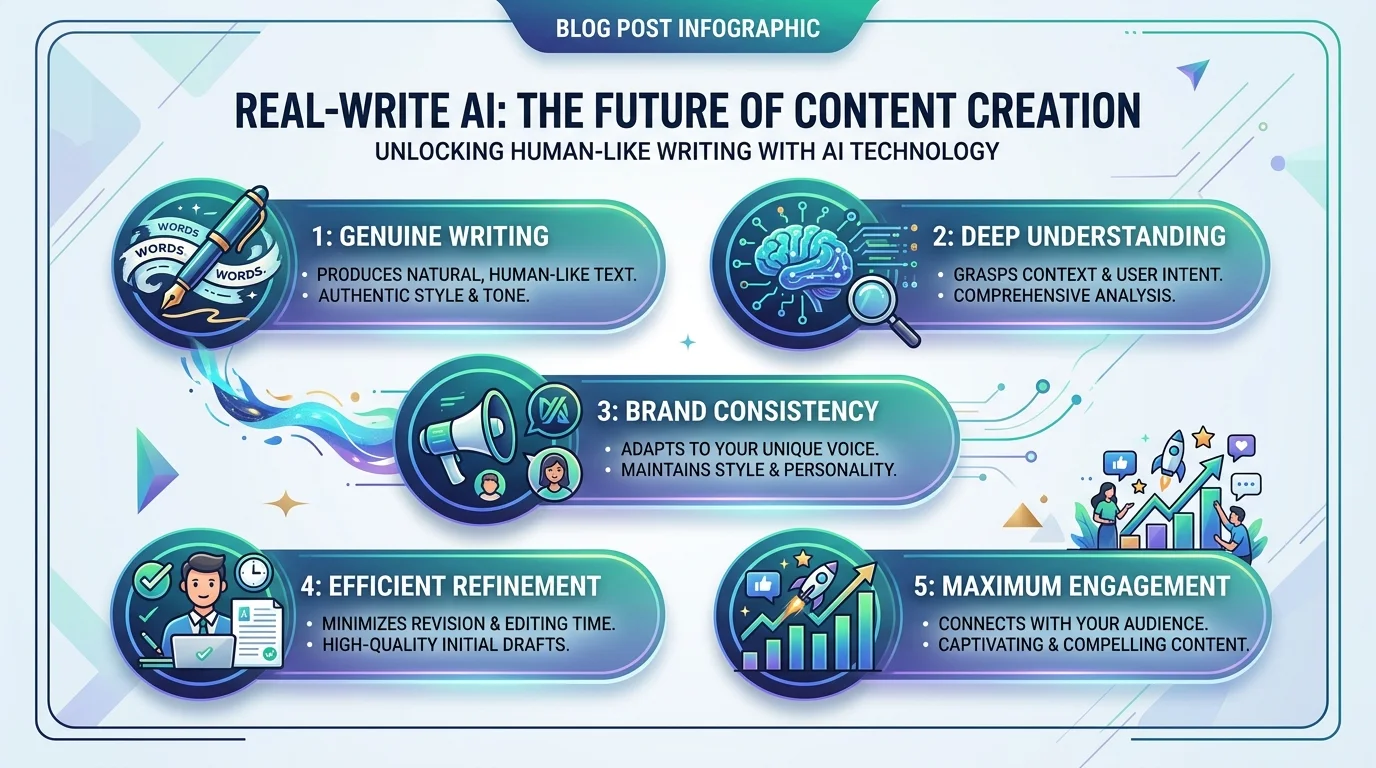
    Real-Write sits in a growing category called AI text humanizers. You paste in text written (or heavily assisted) by a model like ChatGPT or Claude, and the tool rewrites it to sound more natural — varying sentence length, swapping in contractions, loosening tone, breaking up repetitive patterns.

    If you want a broader look at this category before going deeper, I’d also recommend checking out this roundup of top AI humanizer tools for human-like writing — it’s a solid companion read alongside this review.

    What the tool claims

    According to its product page, Real-Write says it was trained on a large library of academic papers, essays, and AI-generated text, and it supports rewriting in more than 100 languages.

    How it compares to other humanizers

    You’ll find dozens of tools competing here — Grammarly’s AI Humanizer, WriteHuman, QuillBot, and Phrasly AI among the most visible. Here’s how they stack up on the essentials:

    ToolFree TierLanguagesDetector Bypass Claims*Best For
    Real-WriteYes100+Not independently verifiedStudents, researchers, general editing
    WriteHumanLimited40+Reported strong vs. Pangram Labs, QuetextLong-form content, blog posts
    QuillBotYesMultipleReported ~71% in third-party testingGrammar + light paraphrasing
    Phrasly AILimitedMultiplePositioned as output-quality leaderBlog-length content
    GrammarlyYes6 major languagesFocused on transparency, not bypassAuthorship disclosure, editing

    *Bypass figures come from third-party testing roundups published by competing vendors, not independent academic studies — treat them as directional, not definitive.

    The takeaway: no tool in this category has independently audited bypass rates. Every number you see online comes from the vendor itself or a competitor’s marketing blog.

    How Do These Tools Actually Work?

    Here’s the part most marketing pages gloss over.

    AI detectors — like GPTZero, Turnitin, and Originality.ai — don’t “read” your text for meaning. They analyze statistical patterns. If you want to understand this from the detector’s side of the fence, I broke it down in more depth in my GPTZero review.

    Perplexity

    Perplexity measures how predictable your word choices are. AI models tend to pick the most statistically likely next word, repeatedly. That’s low perplexity, and it’s a red flag to detectors.

    Burstiness

    Burstiness measures how much your sentence length and rhythm varies. Humans naturally write a short sentence, then a long rambling one, then something clipped. AI tends toward a much more uniform rhythm.

    Humanizer tools try to nudge both numbers — increasing variation, injecting natural phrasing, disrupting the too-perfect patterns detectors are trained on. That’s the mechanism. It’s clever engineering. It’s not magic, and it’s not foolproof.

    The Honest Risk You Need to Understand First

    I’m not going to sugarcoat this one.

    A huge chunk of the marketing around tools like Real-Write leans hard into phrases like “bypass Turnitin” and “beat GPTZero.” If you’re a student, or you work somewhere with an AI-use policy, that’s not a small detail — it’s the whole ballgame.

    Detection accuracy is inconsistent

    Independent testing roundups show that even strong humanizer output gets flagged by some detectors while sliding past others — there’s no universal “safe” score across the industry. A tool that beats GPTZero might still get flagged by Turnitin or Originality.ai on the same piece of text.

    Institutions are catching up

    Universities and employers increasingly treat any sign of AI-assisted rewriting-to-evade-detection as a policy violation — regardless of whether a detector actually flags it. The intent matters, not just the score.

    So ask yourself: is the goal to improve your writing, or to hide where it came from? Those are different use cases, and only one is worth the risk.

    Where Real-Write (and Tools Like It) Genuinely Help

    You’re not always trying to fool anyone. Sometimes you just want your content to read better. Here’s where I’d actually recommend it:

    1. Cleaning up your own AI-assisted first drafts — you used AI to get past the blank page, but it reads like a textbook. A humanizer pass, followed by your own edit, knocks off the robotic edge fast.
    2. Non-native English writing — smooths phrasing so your ideas land the way you intend, without losing your meaning.
    3. Marketing and blog copy — loosens tone for content marketing, email copy, and social captions, provided you review for accuracy and brand voice after.
    4. Speed-editing long-form content — if you’re publishing at volume, using a humanizer as a first pass, then editing by hand, saves real time.

    A Step-by-Step Way to Use It Responsibly

    If you decide to try Real-Write or a similar tool, here’s the workflow I’d follow:

    1. Draft with AI — get your ideas down using ChatGPT, Claude, or your model of choice.
    2. Run it through the humanizer — let the tool smooth out rhythm, tone, and phrasing.
    3. Fact-check everything — AI models (and humanizers) can introduce or preserve inaccuracies. Never skip this.
    4. Edit in your own voice — add your own examples, opinions, and phrasing. This is the step that makes it yours.
    5. Disclose where required — if you’re in an academic or workplace setting with an AI-use policy, follow it. Full stop.
    6. Run a final pass through a grammar checker like Grammarly or a readability tool like Hemingway Editor.

    Step 4 is doing the heavy lifting. No tool — Real-Write included — replaces your judgment, your expertise, or your voice.

    Frequently Asked Questions

    Is Real-Write free to use?

    Real-Write offers a free tier, similar to most tools in this category, though usage limits and premium features vary — check the current pricing on its site before committing.

    Does Real-Write actually bypass Turnitin?

    There’s no independently verified bypass rate for Real-Write specifically. Vendor and competitor testing in this space shows results vary significantly by detector, and none of it comes from a neutral third party.

    Is using an AI humanizer considered plagiarism?

    Not inherently — but submitting AI-generated work as entirely your own, especially to evade detection in academic or professional settings, can violate integrity policies even if a detector doesn’t flag it.

    What’s the difference between Real-Write and Grammarly’s Humanizer?

    Grammarly frames its tool around transparency (showing what came from AI vs. you), while Real-Write and most dedicated humanizers focus more directly on detector-evasion and rewriting depth.

    Can AI detectors be fooled reliably?

    No tool guarantees this. Detection accuracy is inconsistent across platforms, and detectors are actively updated to catch new evasion patterns.

    My Bottom Line

    Real-Write is a solid example of what AI paraphrasing tools and AI text humanizers can do in 2026 — smoothing out robotic phrasing, adjusting tone, and making machine-generated drafts feel more natural to read.

    Is it useful? Genuinely, yes — for editing, tone adjustment, and speeding up your content creation workflow.

    Is it a free pass to submit AI work as your own? No — and I’d be doing you a disservice if I told you otherwise.

    Use it the way you’d use any editing tool: as a helper, not a hiding spot. That’s the version of this that actually holds up.
  • Transcribe Audio to Text Free Online 2026 Tool Guide

    Transcribe Audio to Text Free Online 2026 Tool Guide

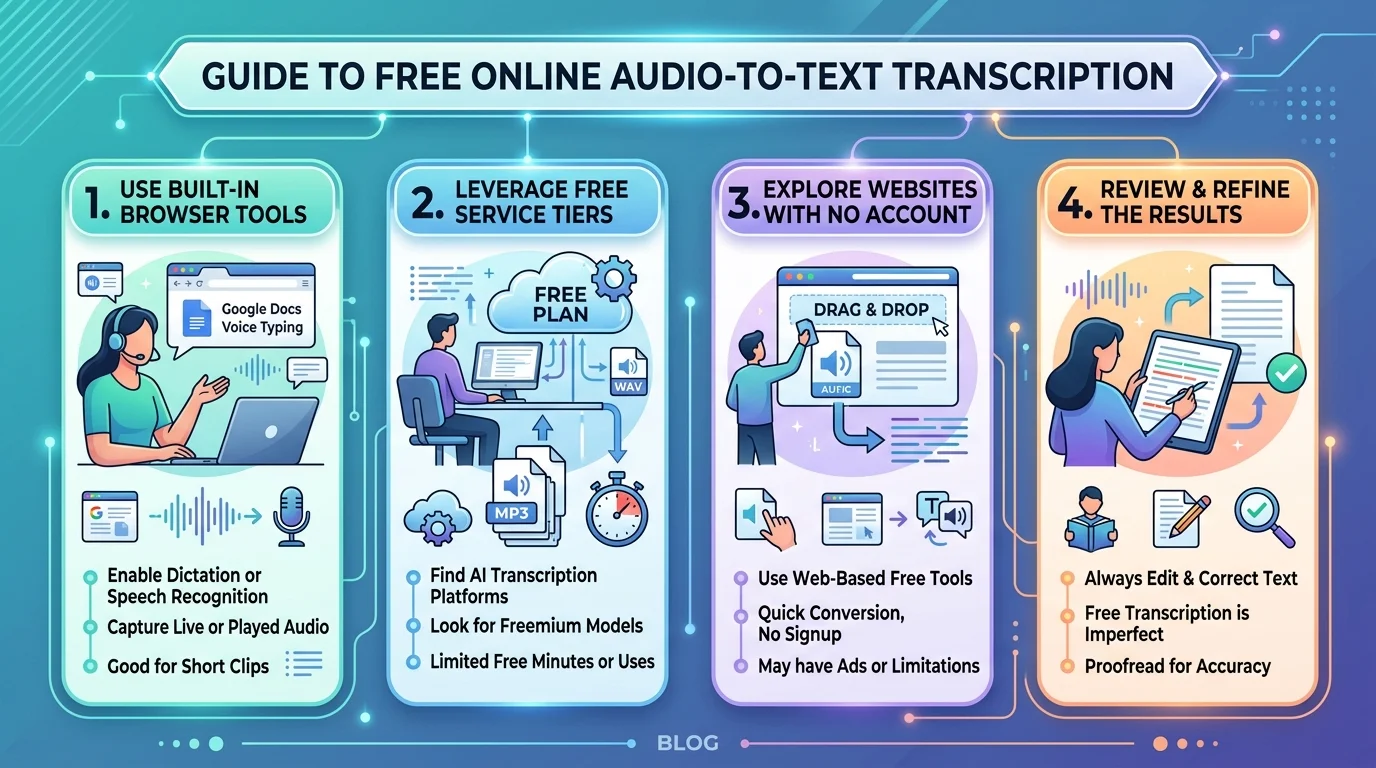
    Transcribe audio to text free online in about 60 seconds, without installing anything, and without handing over a credit card. Free tiers like Otter.ai give you 300 minutes a month. Open-source OpenAI Whisper gives you unlimited minutes if you don’t mind a little setup. Google Docs gives you unlimited live dictation but cannot open your MP3 file. Below, I’ll walk you through exactly which one fits your recording, your deadline, and your privacy tolerance.

    Let me be blunt for a second.

    Most “best free transcription tools” lists are recycled. They don’t tell you that Google Docs can’t open your MP3. They don’t tell you that “free” sometimes means “free trial.” I’m going to.

    Why Free Audio Transcription Suddenly Got Good

    For years, free transcription software was a punchline. You’d upload a clean recording and get back word salad. That changed when large speech models arrived — and the market noticed hard. Money followed the accuracy, and accuracy followed the money. So before you pick a tool, it helps to understand why the free tiers you’re about to use exist at all. They’re loss leaders in an industry growing at double digits, which is genuinely good news for anyone who doesn’t want to pay.

    The numbers back that up.

    The AI speech-to-text tool market sat around $3.3 billion in 2025 and is projected to hit $16.42 billion by 2035 — a 17.41% CAGR. Meanwhile, the broader speech and voice recognition market climbed from $19.34 billion in 2025 to $23.58 billion in 2026.

    The tech underneath is called automatic speech recognition, or ASR. It listens, predicts, and writes. Modern models fold in natural language processing so your transcript arrives with punctuation already attached — something older tools never managed.

    If you’re exploring the wider category, our AI video transcription tools directory lists the platforms covered here side by side.

    The 4 Types of “Free” (Read This Before You Click Anything)

    Nobody explains this, so I will. When a site says “free,” it means one of four very different things, and picking the wrong bucket wastes your afternoon. I sorted every major free audio transcription tool into these categories after checking their live pricing pages in August 2026. Read the table, pick your bucket, then skip to the step-by-step section. It takes thirty seconds and saves you a refund request later.

    Type of “free”What you actually getExample
    Free forever, built inUnlimited live dictation, zero extra featuresGoogle Docs voice typing
    Capped free tierReal product, hard monthly ceilingOtter.ai — 300 min/mo
    Free trial onlyFull features, then a paywallHappyScribe
    Open sourceUnlimited, but you host it yourselfWhisper

    Notice the third row. That one stings.

    The Otter.ai Reality Check

    Otter is the name everyone recommends, so let’s audit it properly rather than repeating the marketing. It’s a genuinely capable meeting assistant with Zoom, Teams, and Meet bots on the free plan, which is unusual generosity. But the caps are stricter than most articles admit, and two of them are lifetime rather than monthly. Here’s exactly what you get before the wall arrives.

    • 300 transcription minutes per month
    • 30-minute cap on any single conversation
    • Three lifetime file imports — yes, lifetime, not monthly
    • Playback locked to 1×; exports limited to plain text and MP3
    • Only your 25 most recent conversations stay visible

    And when you hit 300 minutes, transcription stops dead. No overage, no grace period.

    It’s still a good tool. It’s just not the unlimited miracle the listicles imply.

    Free Audio to Text Tools Compared (2026)

    Here’s the side-by-side I wish someone had handed me two years ago. I’ve weighted this by situation rather than hype, because the best audio to text converter depends entirely on whether you’re dictating live, uploading a finished file, or protecting confidential material. Every tool below has a genuine free path. The “catch” column is the part competitors leave out, and it’s usually the thing that decides your choice.

    ToolReal free limitSign-up?File upload?Speaker labelsExportBest for
    Google Docs voice typingUnlimitedGoogle acct❌ NoDocs, DOCXLive drafting
    Otter.ai300 min/mo, 3 lifetime imports✅ Yes✅ YesTXT, MP3Meetings
    NottaFree tier, capped minutes✅ Yes✅ YesTXT, DOCX, SRTInterviews
    HappyScribeTrial only✅ Yes✅ Yes45+ formatsOne-off precision work
    Microsoft Word DictateUnlimited w/ M365✅ Yes❌ NoDOCXWord users
    Whisper (self-hosted)Unlimited❌ No✅ Yes➖ Add-onAnyPrivacy, bulk files
    MacWhisperFree tier❌ No✅ YesTXT, SRT, VTTMac, offline
    whisper.cppUnlimited❌ No✅ Yes➖ Add-onTXT, SRTLow-spec machines

    How long does a 60-minute file take? Cloud tools like Notta and Otter typically return in two to five minutes. Whisper on a mid-range laptop CPU takes roughly 15–40 minutes; on a GPU, under five. Google Docs and Word Dictate take exactly 60 minutes, because they transcribe in real time.

    For a deeper look at one of these, I’ve written a full Notta review covering features and pricing.

    How to Transcribe Audio to Text Free Online: Step-by-Step

    Right — the practical part. This is the exact sequence I use when someone sends me a recording and needs a transcript before lunch. It works for interviews, lectures, podcasts, and voice notes, and it assumes you already have a file sitting on your drive. Follow it in order. Don’t skip step one, because file prep is the single biggest lever on accuracy, and it costs you about forty seconds.

    Step 1 — Check your file format

    Most online transcription services accept MP3, MP4, WAV, M4A, and FLAC. If yours is exotic, convert it first. Video to text conversion works identically — the tool simply strips the audio track and ignores the picture.

    Step 2 — Clean the audio, roughly

    Trim dead air at the start. Cut the cross-talk. Even ten seconds of tidying measurably lifts transcription accuracy. If your recording is noisy, run it through an enhancer first — our AI audio enhancement guide walks through the free options.

    Step 3 — Pick your tool by task

    Dictating live? Google Docs. Uploading a file? Notta or Otter. Handling something sensitive? Whisper, running locally on your own machine.

    Step 4 — Upload and wait

    A 60-minute file usually returns in two to five minutes on cloud tools. Keep the tab open — some free tiers drop the job if you navigate away.

    Step 5 — Fix, then export

    Scan for names, jargon, and numbers. That’s where models slip, every time. Then export to DOCX, TXT, SRT, or VTT subtitles.

    Simple, isn’t it?

    Quick tip most people miss

    If you need speaker diarization — the “who said what” labels — check before you upload. Plenty of voice to text converters skip it entirely on free plans, and retro-fitting speaker names to a 90-minute panel discussion is genuinely miserable work.

    How Accurate Is Free AI Transcription, Really?

    Let’s talk numbers, because vague claims of “99% accurate” mean nothing without a benchmark attached. The industry metric is word error rate, and understanding it takes about ninety seconds. Once you know how it’s calculated, you’ll immediately spot which vendors are quoting lab conditions and which are quoting reality. The gap between those two figures is larger than almost anyone advertises.

    Here’s the formula.

    WER = (substitutions + deletions + insertions) ÷ total words in the reference transcript. A 5% WER means 95 of every 100 words landed correctly. For Chinese, Japanese, and Korean, engineers use Character Error Rate instead, since word boundaries there are ambiguous.

    Now the honest data:

    • Whisper was trained on 680,000 hours of audio across 99 languages
    • It scores roughly 5–6% WER on English
    • Large-v3 hits 2.7% WER on clean benchmark audio but 8–12% in real-world conditions
    • In MLPerf benchmarking, Whisper cut the previous model’s error rate by over 72%

    One caveat I love: benchmarks penalise “Dr.” written as “doctor,” and count “$5” versus “five dollars” as two errors. So real-world readability is often better than the scoreboard suggests.

    Want to compare models yourself? The Open ASR Leaderboard updates constantly.

    The Privacy Question Nobody Asks

    Before you upload that client call, pause for thirty seconds. This is the section that separates a casual guide from a useful one, because the legal exposure around transcription is genuinely counter-intuitive. Most people assume the audio is the sensitive part and the text is harmless. Under European law, it’s closer to the opposite, and the reasoning matters whether or not you’re in the EU.

    Under GDPR, both your original audio and the resulting transcript count as personal data whenever they relate to identifiable people. Transcription can actually increase your exposure, because text becomes searchable, indexable, and easy to reuse across systems. Audio just sits there. Text travels.

    So here’s my rule.

    Medical, legal, HR, or unreleased commercial material? Run it locally with offline transcription and keep the file on your machine. Everything else — podcasts, lectures, public webinars — is fine in the cloud.

    Working With YouTube and Podcast Audio

    Two use cases deserve their own note, because the workflow shifts slightly. YouTube already generates automatic captions, which means you often don’t need a transcription tool at all — you need an extraction tool. Podcasts, meanwhile, benefit from transcription mainly as an SEO asset, since a full text version of every episode gives search engines something to index that audio alone never will.

    For video, start with our YouTube video transcript generator guide — it covers pulling existing captions before you spend minutes re-transcribing.

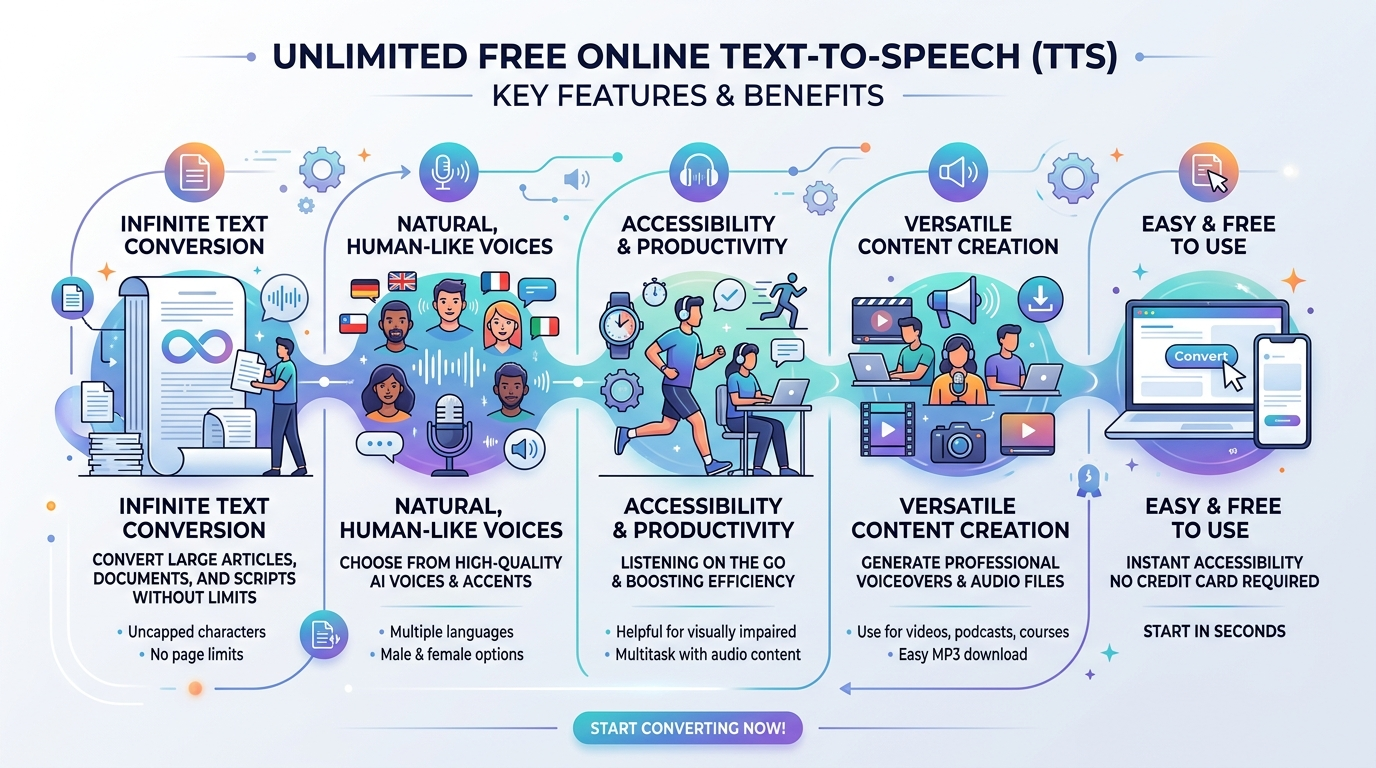
    Going the other direction? If you need to turn written content back into audio, our free unlimited text-to-speech guide covers the reverse workflow.

    Frequently Asked Questions

    These are the ten questions people actually type into Google around this topic. I’ve answered each in plain language, in the fewest words that fully cover it, so you can skim to the one you came for.

    Can I transcribe audio to text free online without signing up?

    Yes. Self-hosted Whisper and whisper.cpp require no account at all, and MacWhisper runs locally on macOS without registration. Most browser-based tools like Otter and Notta do require an email address to save and export your transcript.

    What is the best free audio-to-text converter in 2026?

    It depends on the job. Otter.ai is best for meetings within its 300-minute cap, Notta is best for straightforward file uploads, Google Docs is best for live dictation, and self-hosted Whisper is best when you need unlimited minutes or full privacy.

    How accurate is free AI transcription?

    Whisper Large-v3 achieves about 2.7% word error rate on clean benchmark audio and 8–12% in real-world recordings. Expect roughly 90–95% accuracy on a clear single-speaker file, and noticeably worse with heavy accents, crosstalk, or background noise.

    Is there a free tool with no minute limit?

    Yes — open-source Whisper and whisper.cpp are unlimited because you run them on your own hardware. Every cloud-based free tier applies a monthly minute cap. Google Docs voice typing is also unlimited, but only for live speech.

    Does Google have a free transcription tool?

    Google Docs includes built-in voice typing under Tools → Voice typing, free in Chrome on desktop. It transcribes live speech in real time but cannot open a pre-recorded audio file, and it offers no speaker labels or automatic punctuation.

    How do I transcribe a pre-recorded MP3 file?

    Upload it to a file-based tool such as Notta, Otter, or MacWhisper. Google Docs and Word Dictate cannot do this — they only listen through your microphone. Playing audio into your mic works but degrades accuracy badly.

    Are free transcription tools safe and private?

    It varies. Reputable services encrypt uploads and comply with GDPR, but your audio still leaves your device. For confidential recordings, use offline transcription with Whisper or MacWhisper so nothing is transmitted at all.

    The Bottom Line

    You can transcribe audio to text free online today, properly, without paying anything — provided you match the tool to the task rather than grabbing whichever name ranks first. Use Google Docs when you’re dictating live, Use Notta or Otter when you’re uploading a finished file and can live within the caps. Use self-hosted Whisper when the recording is confidential or the volume is high. And always check whether “free” means free-forever, capped, or a trial in disguise before you invest an afternoon in it.

    Ready to pick one? Browse the full video transcription category on AI Listing Tool to compare current free tiers side by side — and if you’ve built a transcription tool

  • Text to Speech Online Free Unlimited: Real Limits (2026)

    Text to Speech Online Free Unlimited: Real Limits (2026)

    Text to speech online free unlimited means browser-based speech synthesis, not a generous free tier. Tools that run on your own device using the Web Speech API have no per-character cost, so they impose no character caps. Cloud providers like Amazon Polly and Google Cloud charge per character and offer quotas instead, typically 500,000 to 5 million characters per month. Only a handful of free tools combine unlimited output, MP3 download, and full commercial rights. This guide compares the real limits behind each one, verified August 2026.

    Now, the part nobody puts in a table.

    I’ve burned a lot of hours hunting for free TTS tools that actually keep their promise.

    Most don’t.

    You paste 900 words, hit generate, and a popup asks for your credit card. Sound familiar?

    So here’s what I did. I tested the popular options, dug into the pricing pages nobody reads, and figured out which claims hold up.

    What “Unlimited” Actually Means in Free Text to Speech

    Before you pick a tool, you need to understand why some services can afford to be free forever and others can’t. This one distinction saved me weeks of trial and error, and honestly, it’s the thing almost every roundup post skips. Once you see it, you’ll never get burned by a fake free tier again. There are two completely different kinds of “free” out there, and they behave nothing alike.

    The first kind runs on your own machine.

    Your browser already ships with a speech synthesis engine. Developers reach it through the SpeechSynthesis interface and the SpeechSynthesisUtterance object, which carries your text plus language, pitch, rate, and volume. Nothing gets sent to a server. Nobody pays per character. That’s why a browser based text to speech tool can genuinely offer unlimited characters without going bankrupt.

    The second kind bills someone, somewhere.

    Cloud providers charge per character. Amazon Polly’s pricing page spells it out: Standard voices run $4 per million characters, Neural voices $16. The free tier is real, but it expires after twelve months. That’s a quota, not unlimited.

    Keep that split in your head. It explains everything that follows. If you want the plain-English version of how read-aloud technology works before you go further, our read out loud text guide covers the fundamentals.

    The Free Tier Trap (And How I Dodge It)

    I want to save you the frustration I went through, so let me lay out the actual numbers I verified against each provider’s own pricing documentation. Marketing pages love the word “free” and hate the word “until.” Every tool below is legitimately useful, but only some let you work at volume without a bill or a watermark showing up. Read this before you commit a project to any single platform.

    ProviderFree allowanceExpires?Commercial useMP3 download
    Browser / device voicesTruly unlimited❌ No✅ YesVaries by tool
    Google Cloud TTS~1M WaveNet chars/mo❌ Renews monthly✅ Yes✅ Yes
    Amazon Polly5M standard chars/mo✅ After 12 months✅ Yes✅ Yes
    Microsoft Azure F0 tier~500K neural chars/mo❌ No✅ Yes✅ Yes
    ElevenLabs10,000 chars/mo❌ No❌ Attribution required✅ Yes

    Last verified: August 2026. Free tiers change often, so confirm on each provider’s pricing page before you build on it.

    That last row matters more than people realize.

    Ten thousand characters sounds generous until you write a ten-minute script. ElevenLabs’ own usage guidance puts 1,000 words of narration at roughly 6,500 to 7,000 characters, which means a single medium-length video eats most of your month. Our full ElevenLabs free voice generator guide breaks down exactly where that quota runs out.

    And text to speech commercial use free is where the real trap sits. On the ElevenLabs free plan you must credit them, so monetized client work needs a paid tier. If you’re producing content for income, check the license before the voice, not after.

    My Step-by-Step Process for Free Unlimited Voiceovers

    Here’s the exact workflow I use when I need audio fast and refuse to pay for it. It takes about five minutes end to end, and it works whether you’re narrating a course module or dubbing a TikTok. Follow the order, because step two is where most people go wrong and end up regenerating everything an hour later.

    Step 1: Clean Your Script First

    Expand abbreviations. Spell out numbers you want read a specific way. Good text normalization on your end beats fighting the voice engine later.

    Step 2: Pick Your Tool Based on Output, Not Vibes

    Need a downloadable file? Go straight to a free text to speech download MP3 option like TTSReader or TTSMaker. Just listening? Any text to speech no sign up browser reader does the job. If you work in Hindi, Urdu, or other South Asian languages, our DesiVocal free AI voice generator review covers a stronger regional option.

    Step 3: Choose a Neural Voice, Always

    Older concatenative engines stitch recorded fragments together and sound it. Neural TTS models generate speech end to end, with far better prosody and intonation. The difference is obvious past thirty seconds. For a look at how far expressive AI audio has come, see our MiniMax Audio review.

    Step 4: Tune Pitch and Speed

    Most online voice generator free tools expose pitch and speed control. Drop the rate slightly for tutorials. Nudge it up for social clips.

    Step 5: Add Pauses With SSML

    SSML lets you insert breaks, emphasis, and phoneme corrections. It’s the single fastest upgrade to a robotic-sounding read.

    Step 6: Export and Listen Once, Fully

    Every single time. Mispronounced brand names hide in the last paragraph.

    Free Text to Speech APIs for Developers

    If you’re building text to speech into a product rather than generating one-off clips, the calculation changes completely. You’re no longer choosing a website. You’re choosing a billing model you’ll live with for years, and the free tiers differ far more than the marketing suggests. Here’s how the major free TTS API options actually compare on the things that bite you later.

    Amazon Polly gives the biggest headline number, but the clock starts at your first API call, not account creation. It also offers speech marks for word-level timestamps, which matters if you’re building lip-sync or karaoke-style highlighting.

    Google Cloud Text-to-Speech renews monthly and doesn’t expire, which makes it the stronger long-term free option. You’ll need billing enabled to activate it.

    Microsoft Azure AI Speech ships the F0 tier with no expiry and very broad language coverage.

    Open source models are the genuinely unlimited path. Piper runs locally, costs nothing, and has no quota at all. You trade convenience for control.

    OpenAI’s TTS has no free tier. You pay from the first character.

    Who Actually Needs This (Probably You)

    I used to think text to voice generator free tools were a niche accessibility thing. Then I watched a friend cut her course production time in half with one, and I changed my mind completely. The audience is far wider than most people assume, and there’s a decent chance you fall into more than one bucket below.

    Creators. A YouTube voiceover generator removes the mic, the room treatment, and the retakes. Same for a TikTok voice generator. Pair it with a YouTube video transcript generator and you can turn one script into audio, captions, and a blog post.

    Educators. E-learning voiceover work scales beautifully here. Update a slide, regenerate the audio, done.

    Publishers. Audiobook narration AI has gotten shockingly good for non-fiction.

    Everyone building websites. This one’s not optional. The W3C Web Accessibility Initiative names three groups served by read-aloud technology: people who are blind, people with partial sight, and people with dyslexia and other cognitive or learning disabilities who benefit from hearing and seeing text together. WCAG 2.2 became a W3C Recommendation on 5 October 2023, adding nine success criteria to the existing POUR framework. A read aloud tool for dyslexia helps you meet those standards while genuinely helping people.

    That’s not a compliance checkbox. That’s a bigger audience.

    A Quick Note on Multilingual Work

    Multilingual text to speech is where free tools separate themselves. Some cover five languages. Others cover seventy-plus with regional accents. If you publish in more than one language, test your target language specifically, because English quality tells you nothing about Urdu or Vietnamese output.

    Frequently Asked Questions

    Below are the questions I get asked most about free TTS online, answered in a sentence or two each so you can skim. If your question isn’t here, the comparison table above covers most of the remaining edge cases.

    Is there a text to speech tool that is genuinely free and unlimited?

    Yes. Browser-based tools using device voices have no character cap because synthesis happens locally. Cloud-based tools always have a quota.

    Can I use free text to speech audio commercially?

    It depends on the provider. Amazon Polly and Google Cloud permit commercial use on their free tiers. ElevenLabs’ free plan requires attribution and does not include a commercial license.

    Which free TTS has no character limit?

    Browser-native readers like TTSReader, plus self-hosted open source models like Piper. Metered cloud APIs all impose limits.

    Do I need to sign up to use text to speech online?

    No. Several tools including TTSMaker and TTSReader work without registration.

    Can I download the audio as MP3?

    Most dedicated TTS websites offer MP3 export. Pure browser-playback readers sometimes don’t, so check before you write your script.

    Why do some free tools add a watermark or require attribution?

    Because generation costs them money. Attribution is how free tiers on premium platforms recover that cost.

    Why I Recommend Starting Free Today

    You lose nothing by testing, and the market is moving fast enough that waiting costs you. Analyst estimates for 2026 vary widely: Global Market Insights puts the sector near $5.7 billion growing at 22.4%, while Polaris Market Research estimates roughly $4.1 billion at 3.7%. That disagreement is itself the useful signal. Nobody knows how fast this grows, but everybody agrees it’s growing.

    So here’s my honest advice.

    Start with a text to speech online free unlimited browser tool this afternoon. Run one real script through it. If the quality clears your bar, you’ve eliminated a recurring cost from your workflow permanently.

    If it doesn’t clear your bar, you now know exactly what you’re paying to fix, and a $5 tier with full commercial rights suddenly looks like the best money you’ll spend this quarter.

    Either way, you win.

    Ready to pick one? Browse the full voice and audio AI tools directory and start generating today.

  • YouTube Transcript Generator: Full 2026 Guide

    YouTube Transcript Generator: Full 2026 Guide

    A YouTube video transcript generator converts spoken audio from any YouTube video into readable text, using either YouTube’s native captions or AI-powered speech recognition. You paste a link, get text in seconds, and unlock better accessibility, stronger SEO, and easy content repurposing — all from one simple tool.

    I’ll be honest with you — I used to ignore transcripts completely.

    I thought they were just for accessibility nerds and hardcore researchers. Boy, was I wrong.

    Once I started using a YouTube transcript generator for my own content, everything changed. My blog posts got easier to write. My videos got more search traffic. And honestly? I started understanding my own content better.

    So in this guide, I’m going to walk you through exactly what a transcript generator does, why you need one in your toolkit, and how to use one — step by step — starting today.

    What Is a YouTube Video Transcript Generator, Really?

    Let’s start simple, because this concept trips up more people than it should.

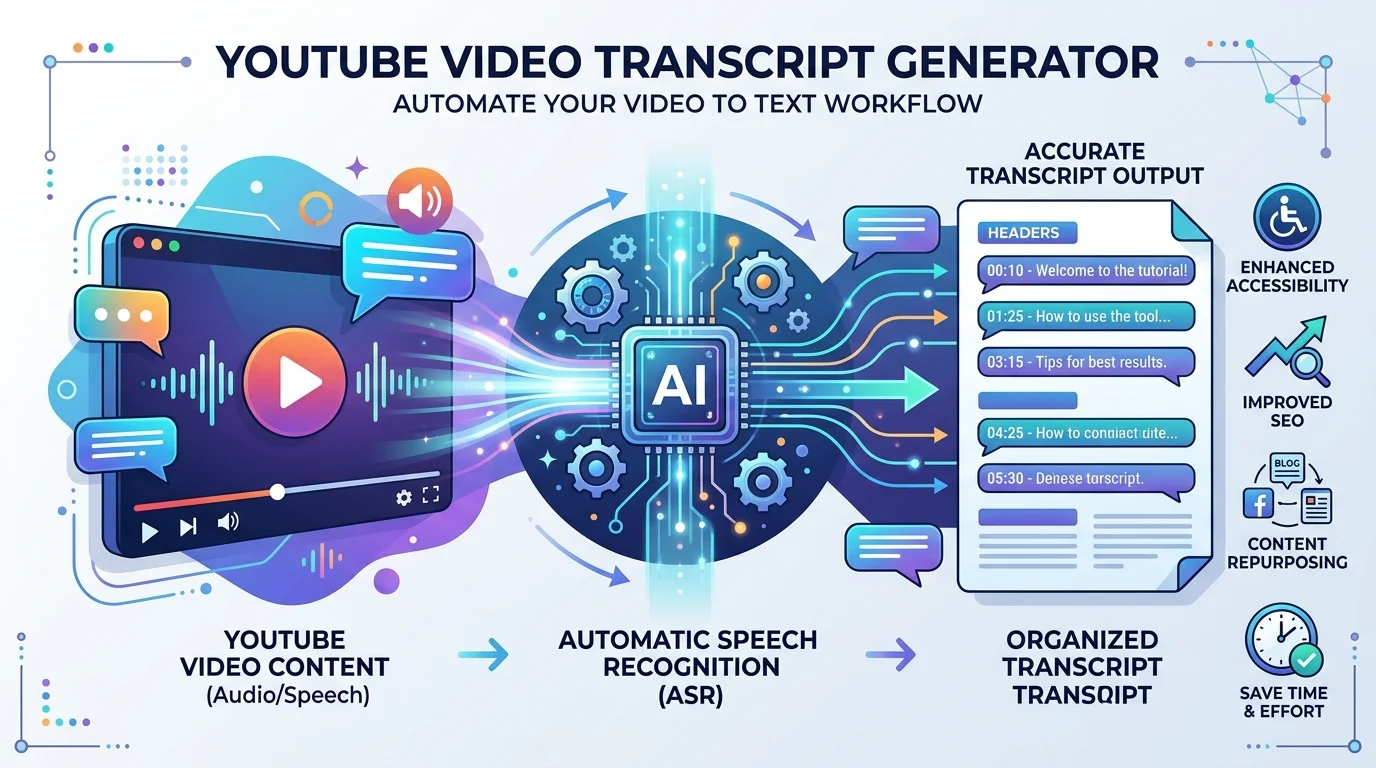
    A video transcript generator is a tool that converts the spoken audio in a YouTube video into readable text. You paste in a link, and within seconds, you get a full transcript — sometimes with timestamps, sometimes without.

    Definition: A YouTube video transcript generator is a web-based or browser-extension tool that extracts or transcribes the spoken content of a YouTube video into text, typically exportable as TXT, SRT, or VTT files.

    Some tools only pull captions that YouTube already generated. Others go further, using automatic speech recognition to transcribe videos even when captions are disabled entirely. That distinction matters more than you’d think, so let’s break it down.

    Why This Distinction Matters

    Here’s the thing — not every video has captions turned on. If you’re relying on a basic tool, you’ll hit a wall constantly.

    That’s why the better generators (like the ones I compare below) use AI transcription instead of just scraping existing subtitles. It means you get a transcript no matter what — captions or no captions.

    Why You Should Actually Care About Transcripts

    Okay, real talk. Why does this matter for you specifically?

    Three words: accessibility, video SEO, and content repurposing. Let me break each one down individually, because they all stack together beautifully once you start using them.

    1. Accessibility Isn’t Optional Anymore

    You’ve probably heard this stat before, but it’s worth repeating.

    Over 1.5 billion people globally live with hearing loss. That’s not a small niche audience — that’s a massive chunk of your potential viewers.

    Adding closed captions and transcripts isn’t just thoughtful. It’s increasingly expected under standards like WCAG compliance. And if you’re running a business channel, that compliance piece protects you legally too.

    2. Transcripts Are a Massive SEO Lever

    Here’s something a lot of creators completely miss.

    Search engines can’t “watch” your video. They can’t hear what you’re saying. But they can read a transcript.

    That means when you add a transcript, you’re handing Google and YouTube more indexable text to rank for relevant keywords. That’s a direct video SEO win, and it’s one of the easiest wins available today.

    I’ve seen this play out myself — videos with clean, keyword-optimized transcripts consistently outrank videos without them, all else being equal.

    3. Repurposing Content Becomes Effortless

    Once you have a transcript, you basically have a first draft of:

    • A blog post
    • A LinkedIn article
    • An email newsletter
    • Social media captions
    • A lead magnet or PDF guide

    You’re not starting from scratch anymore. You’re editing instead of creating from nothing.

    This alone is worth the five seconds it takes to generate a transcript.

    The Real Numbers Behind Captions and Transcripts

    I don’t want you to just take my word for it. Let’s look at the data — and I’ll flag when each stat is from, so you know exactly how current it is.

    • Videos with captions saw a 12% higher engagement rate on average (Facebook research, 2022).
    • Captions boost brand affinity by 95%, recall by 58%, and likability by 31% (Wistia, 2025).
    • 80% of people are more likely to watch an entire video when it’s captioned, compared to videos without.

    Honestly? These numbers alone should convince you. But here’s the catch —

    YouTube’s Auto-Captions Aren’t Perfect

    You need to know this before you rely on them blindly.

    YouTube’s auto-generated captions only reach around 61.92% accuracy at best, while properly done transcripts can hit closer to 99% accuracy. That’s a huge gap, and it’s exactly why a dedicated transcript generator tool — one built specifically for extraction and cleanup — beats relying on YouTube’s native captions alone.

    Comparing the Top YouTube Transcript Generators

    Not all tools are created equal, so I put together a quick side-by-side to save you the research time.

    ToolWorks Without CaptionsExport FormatsAI SummarySign-Up Required
    TactiqLimitedTXTNoNo
    NoteGPTYesTXTYesNo
    WayinVideoYesTXT, SRT, VTTYesNo
    OpusClipYesTXTYesNo
    YTTranscript.AIYesTXT, SRT, VTTYesNo

    If you want a deeper look at how an AI-assisted learning and note-taking workflow can pair with transcripts, my breakdown of the NoteGPT AI learning assistant covers that in more detail.

    How to Generate a YouTube Transcript: Step-by-Step

    Alright, let’s get practical. Here’s exactly how you do this, from start to finish.

    Step 1: Copy your YouTube video link. Grab the URL from the address bar or the “Share” button.

    Step 2: Paste the link into your transcript tool. Tools like Tactiq, WayinVideo, and NoteGPT all work the same basic way — paste and go.

    Step 3: Click generate. Within seconds, your transcript text appears on screen, often with timestamps included.

    Step 4: Export in your preferred format. Most tools let you export as TXT, SRT, or VTT — depending on whether you need plain text or subtitle files.

    Step 5: Edit for accuracy. Don’t skip this. Even the best AI transcription tools make mistakes, especially with jargon, accents, or overlapping speech.

    Step 6: Repurpose the content. Turn it into a blog post. Pull quotes for social media. Build an email sequence. If you’re also editing the video itself, it’s worth pairing this workflow with a proper AI video editor so your captions and edits stay in sync.

    Choosing the Right Transcript Generator for You

    Not sure which tool fits your workflow? Here’s what I’d personally look for, in order of importance:

    • Works without existing captions (uses real AI transcription, not just scraping)
    • Multiple export formats (TXT, SRT, VTT minimum)
    • Timestamp support for easy navigation
    • Built-in AI summarization — a huge time-saver
    • No sign-up required, at least for basic use

    Frequently Asked Questions

    Is it legal to transcribe someone else’s YouTube video?

    Generally, transcribing a publicly available YouTube video for personal use, research, or commentary falls under fair use in most jurisdictions. However, republishing large portions of someone else’s transcript without permission or attribution can raise copyright concerns, so always credit the original creator.

    What’s the most accurate free YouTube transcript generator?

    Accuracy varies by tool and audio quality, but AI-powered options like NoteGPT, WayinVideo, and OpusClip tend to outperform YouTube’s native auto-captions, which cap out around 61.92% accuracy.

    Can I generate a transcript if the video has no captions at all?

    Yes. Tools that use AI-based speech recognition (rather than scraping existing captions) can transcribe audio directly, even when a video has no subtitles or closed captions enabled.

    Do transcripts actually help with SEO?

    Yes. Since search engines can’t “watch” a video, a transcript gives them indexable text to match against relevant search queries, which can improve your video’s visibility in both Google and YouTube search.

    What file formats should I export my transcript in?

    TXT for blog posts and notes, SRT or VTT if you need timed subtitle files for video captioning.

    Should You Actually Use One? Yes — Here’s Why

    Look, I get it. Adding “one more tool” to your workflow can feel like a hassle.

    But this isn’t like every other tool. A transcript generator takes seconds to use and pays off in accessibility, SEO, and repurposed content for months afterward.

    If you’re serious about growing your channel, ranking higher in search, and reaching viewers who can’t (or won’t) watch with sound on — this is one of the lowest-effort, highest-return tools you can add to your process today.

    So next time you upload a video, don’t skip the transcript step.

    Paste the link. Generate the text. Watch what happens to your reach.

  • Read Out Loud Text: Best TTS Tools & Guide 2026

    Read Out Loud Text: Best TTS Tools & Guide 2026

    Read out loud text tools (also called text-to-speech or TTS software) convert written content into spoken audio using AI-generated voices, helping you consume articles, PDFs, and documents hands-free. They’re essential for accessibility, productivity, and content review — and in 2026, the best options range from free browser features to premium AI voice platforms.

    I’ll be honest with you.

    I used to think read out loud text technology was one of those “nice to have” features buried in some obscure settings menu.

    Boy, was I wrong.

    Here’s the thing — once I started using a proper read aloud tool, I couldn’t go back. My commute became a study session, My inbox became a podcast and My eyes finally got a break.

    And I’m not the only one.

    An estimated 1.3 billion people globally — roughly 16% of the world’s population — live with a significant disability, and a huge chunk of them lean on this exact technology every single day just to read a document or browse a website.

    So yeah. This isn’t a “nice to have” anymore. It’s essential.

    Let’s dig in.

    Quick Definition: What Is “Read Out Loud Text” Technology?

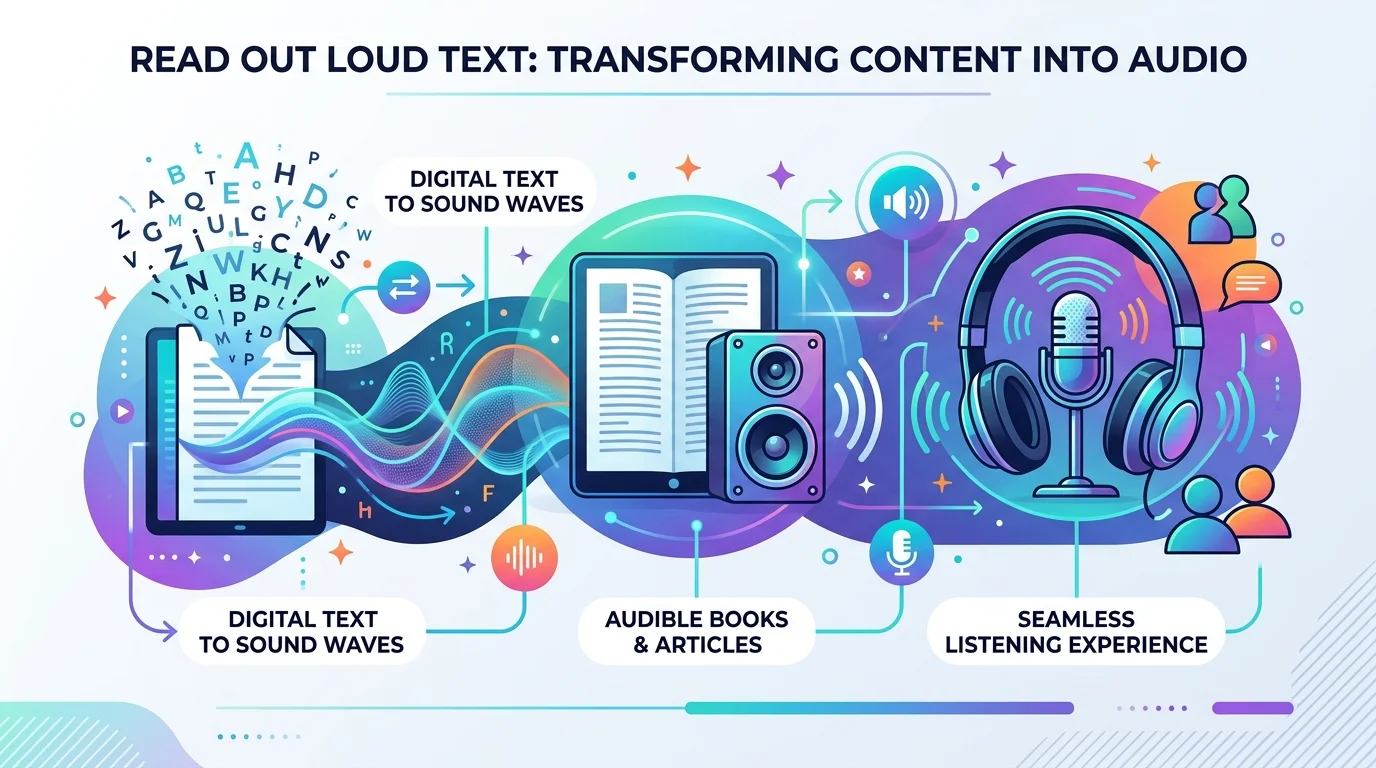
    In one sentence: Read out loud text (TTS) software uses AI speech synthesis to turn written words into natural-sounding spoken audio, so you can listen instead of read.

    At its core, this is speech synthesis — software that takes written text and converts it into audio using AI-generated or pre-recorded voices.

    But here’s where it gets interesting.

    Modern tools don’t just “read” text anymore — they use neural voice models that sound shockingly human. Natural pauses. Correct emphasis. Even emotional inflection.

    Old-school robotic TTS used to make people cringe. Now? You genuinely forget it’s AI.

    If you want to see how far AI voice quality has come, check out our full breakdown of ElevenLabs’ free AI voice generator — it’s one of the tools setting the bar for neural voice realism right now.

    How Read-Aloud Tools Actually Work (Step-by-Step)

    1. You paste, upload, or highlight your text (article, PDF, Word doc — doesn’t matter).
    2. The tool runs it through a natural language processing engine to break down sentence structure and punctuation.
    3. A voice API converts that structured text into audio using a chosen voice.
    4. You hit play, and your eyes are free.

    Simple, right?

    Why Should You Actually Care? (The Accessibility Angle)

    I want to slow down here, because this genuinely moved me while researching it.

    Globally, 2.2 billion people have near or distance vision impairments. That’s not a typo. Billion, with a B.

    For a huge portion of these folks, a screen reader isn’t a convenience — it’s the only way they access digital content at all.

    According to WebAIM’s Screen Reader User Survey #10, JAWS remains the most-used primary desktop screen reader at 40.5%, with NVDA close behind at 37.7%.

    And here’s the kicker — web accessibility standards like WCAG explicitly require that websites be usable with assistive technology such as screen readers to be legally compliant under laws like the ADA.

    So if you’re a content creator, business owner, or blogger — ignoring this isn’t just bad UX. It’s a liability.

    One thing I’ve noticed that most articles skip: accessibility compliance isn’t just about avoiding lawsuits — sites that add proper read-aloud support tend to see longer average session times, because visitors who’d otherwise bounce due to reading fatigue simply stay and listen instead.

    The 2026 Read-Aloud Tool Landscape

    Okay, let’s talk tools, because this is probably why you’re really here.

    The best Chrome text-to-speech extensions in 2026 include NaturalReader, Speechify, Read Aloud, Talkie, TTSReaderX, Capti Voice, and Polly for Chrome — and each one shines in a different lane.

    Quick Comparison Table

    ToolBest ForVoice QualityPDF SupportPrice
    NaturalReaderReading documents aloud with highlightingHighYesFree / Paid tiers
    SpeechifyMobile, on-the-go speed listeningHighYes (OCR)Free / Paid tiers
    Read Aloud (Chrome)Flexibility (multiple voice engines)VariesLimitedFree
    TalkiePrivacy, offline useMedium-HighLimitedFree / Paid
    Microsoft Edge Read AloudZero-cost browser readingHigh (neural)YesFree
    Google Translate TTSQuick pronunciation checksBasicNoFree

    If You Want Polished, Natural-Sounding Voices

    NaturalReader is fantastic for reading documents aloud, handling PDFs, Word docs, and web articles with live text highlighting so you can follow along visually too — a genuine game-changer for dyslexia reading support.

    If You’re Always On the Go

    Speechify has built its reputation around mobile speed listening — turning long articles into background audio for your commute, workout, or cooking session.

    If You Just Want Something Free and Instant

    Microsoft’s free Read Aloud feature in Edge gives you zero-cost access using the same neural voices available through the paid Azure Speech API.

    But — and I really want you to hear this — free tools have limits.

    Google Translate’s built-in TTS is completely free with no limits and supports over 100 languages, but it lacks voice selection, speed controls, downloads, and PDF support.

    Fine for a quick sentence. Not fine for a 3,000-word article or a legal document.

    Why I Genuinely Think You Should Invest in a Premium Tool

    Look, I get it. “Just use the free version” sounds tempting.

    But if you’re using read out loud text for real productivity — studying, content review, professional documents — free versions will frustrate you fast: character limits, one flat boring voice, no bookmarking.

    A dedicated AI voice generator platform fixes this with:

    • Multilingual TTS support for global content
    • Real-time TTS with practically zero lag
    • Pronunciation customization so names and jargon sound right
    • Sentence highlighting playback so you never lose your spot

    If you’re comparing dedicated voice platforms, our review of Desivocal’s free AI voice generator is a solid next read — it covers exactly this kind of premium-vs-free tradeoff in more detail.

    Researchers studying accessibility even used tools like NVDA to evaluate how well real documents — including clinical trial consent forms — hold up when read aloud, which tells you this technology is taken seriously at an academic and legal level, not just as a gimmick.

    My Honest Step-by-Step Recommendation

    1. Start with a free trial on a premium platform (most give you 10K–1M free characters).
    2. Test 2-3 voices — don’t settle on the first one you hear.
    3. Upload a real document you actually need to consume.
    4. Check for highlighting and bookmarking — you’ll want this for anything longer than a page.
    5. Compare pricing tiers based on your actual monthly usage.

    Frequently Asked Questions

    Is text-to-speech free to use?

    Yes, basic options like Google Translate TTS and Microsoft Edge’s Read Aloud are free with no limits, but they lack voice variety, speed controls, and document support. For serious use, a paid AI voice generator is worth it.

    What’s the best tool to read a PDF aloud?

    NaturalReader and Speechify both handle PDFs well, with Speechify adding OCR support for scanned pages or physical text.

    Can read-aloud tools help with dyslexia?

    Yes — combining audio playback with sentence highlighting helps many readers with dyslexia process text more easily by engaging both visual and auditory channels at once.

    Do screen readers and TTS tools do the same thing?

    Not exactly. A screen reader like JAWS or NVDA is built for full computer/website navigation for blind or low-vision users, while general TTS tools focus specifically on reading selected text or documents aloud.

    Are AI voices as good as human narration in 2026?

    Very close. Modern neural voice models include natural pauses and inflection that make them hard to distinguish from human narration in casual listening.

    Final Thoughts

    We live in a world drowning in text. Emails. Reports. Articles. PDFs that never end.

    Your eyes are tired. I know mine were.

    A solid read out loud text tool isn’t about being lazy — it’s about reclaiming hours of your day, protecting your web accessibility commitments, and making information easier to absorb.

    So here’s my honest advice: don’t keep reading about it. Go try one.

    Your eyes — and ears — will thank you.

  • Does Not Equal Sign (≠): Meaning, History & Uses

    Does Not Equal Sign (≠): Meaning, History & Uses

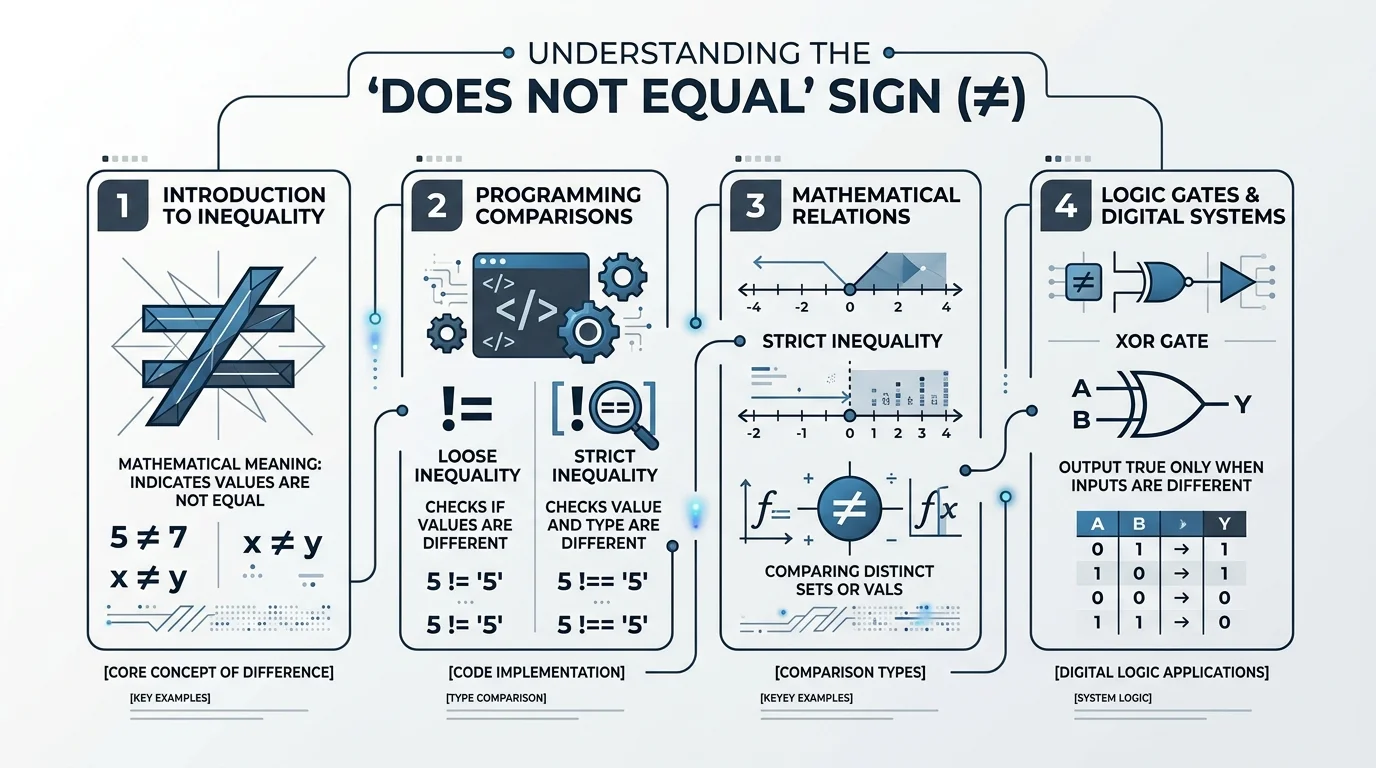
    The does not equal sign (≠) means two values, numbers, or expressions are different. It’s the direct opposite of the equals sign (=), and you’ll see it everywhere from basic math class to programming code, where it’s typically written as != or <> since most keyboards don’t have a dedicated ≠ key.

    That’s the short version. Now let’s go deep.

    Because once you understand the not equal to symbol — its history, its Unicode code, how to type it, and how it works across programming languages — you’ll never have to google “how to type ≠” again.

    Let’s dive in.

    What Is the Does Not Equal Sign, Really?

    Quick gut-check before we go further: the ≠ symbol simply means two things are not the same.

    That’s the whole concept.

    Visually, it’s the standard equals sign (=) with a diagonal slash through it — a clean, universal way of saying “these values are distinct.” You’ll bump into it in math class, in logic puzzles, and (if you’re a developer like me) constantly in your code editor.

    Here’s a simple example:

    • 5 ≠ 3 → “five is not equal to three”
    • x ≠ y → “x does not equal y”

    A (Surprisingly Cool) History of the Equals Sign

    I’ll admit — I did not expect to find myself geeking out over 16th-century math notation. But here we are.

    Before symbols existed, mathematicians just… wrote it out in words. People used terms like aequales, gleich, or faciunt to express equality, because there was no shared symbol for it yet. Imagine writing an entire equation using full sentences. Exhausting.

    Then, in 1557, everything changed.

    A Welsh mathematician named Robert Recorde invented the equals sign (=) in his book The Whetstone of Witte, reportedly because he was tired of repeating the phrase “is equal to” over and over. (Honestly? Relatable.)

    And get this — one of the earliest known equality notations actually dates back to Diophantus’s Arithmetica around AD 250, where he used a shortened form of the Greek word for “equals.”

    So the concept is ancient. The symbol itself is a Renaissance invention. The “not equal” version came along much later to formalize an idea people had been expressing informally for centuries.

    The Not Equal Symbol in the Unicode World

    Here’s where it gets a little technical, but stick with me — this part is genuinely useful.

    The not equal to symbol has an official home in the Unicode standard, which acts as the universal library of every character your computer can display.

    • Unicode code point: U+2260
    • Official name: NOT EQUAL TO
    • Category: Sits in the “Relations” subblock of the Mathematical Operators block
    • Approved: As part of Unicode version 1.1, back in 1993

    Screen readers even have their own shorthand for it. Accessibility tools like CLDR label it simply as “not equal,” with search tags like equal, inequality, inequation, and not.

    How to Type the Does Not Equal Sign (Step-by-Step)

    This is the part everyone actually searches for. So let’s make it dead simple.

    On Windows

    1. Make sure Num Lock is on.
    2. Hold Alt.
    3. Type 8800 on your numeric keypad.
    4. Release Alt — boom, ≠ appears.

    If you’re working in Microsoft Word specifically, there’s an even faster trick: type 2260, then hit Alt + X, and Word will auto-convert it into the ≠ symbol for you.

    On Mac

    Just press Option + = and the ≠ symbol appears instantly. Works across Pages, Keynote, Notes — basically everywhere.

    On the Web (HTML)

    Use &ne; or &#8800; in your HTML, and both will render the ≠ symbol correctly in any browser.

    In LaTeX

    Use the \neq command, or alternatively \not= to achieve the same result.

    Quick Reference: Shortcuts by Platform

    Platform / AppShortcut
    Windows (general)Alt + 8800
    Microsoft Word2260, then Alt + X
    Mac (any app)Option + =
    HTML≠ or ≠
    LaTeX\neq or \not=
    Excel / Google SheetsSee formula section below

    The “Not Equal” Operator in Programming

    Since most keyboards don’t have a dedicated ≠ key, programming languages needed an ASCII-friendly workaround. That’s where the not equal operator comes in.

    Python

    In Python, != is the standard not equal operator, used in both Python 2 and Python 3. There used to be an alternative, <>, but it’s deprecated in modern Python — so stick with !=.

    python

    x = 10
    y = 20
    print(x != y)  # Output: True

    JavaScript

    The loose inequality operator (!=) checks whether two values are different, regardless of their data type. The strict inequality operator (!==), on the other hand, does not attempt type coercion — it returns false only when values (and types) match exactly.

    javascript

    console.log(10 != '10');   // false (loose comparison)
    console.log(10 !== '10');  // true (strict comparison)

    Pro tip: always default to !== in JavaScript unless you have a specific reason not to. It saves you from confusing bugs down the road.

    SQL, Pascal, and BASIC

    Languages like Pascal, SQL, and BASIC often use the <> notation instead of !=, since it more closely mirrors traditional mathematical inequality.

    Haskell

    Haskell breaks from the != convention entirely and uses /= for “not equal,” which visually echoes the mathematical ≠ symbol much more closely than the C-style != does.

    Excel, Google Sheets, and R (the gap most guides skip)

    If you work in spreadsheets or data analysis, you’ll hit “not equal” constantly — and the syntax is different from what you’d expect:

    • Excel & Google Sheets: Use <> — for example, =IF(A1<>B1, "Different", "Same")
    • R: Use != — for example, x != y
    • SQL (most dialects): Both <> and != typically work, though <> is the ANSI SQL standard

    If you’re building spreadsheet-heavy workflows and want an AI to generate these formulas for you automatically, it’s worth browsing AI-powered Excel formula tools — several listed there can turn a plain-English request straight into a working <> comparison formula, so you don’t have to remember the syntax at all. One good example is Formulaizer, an AI Excel formula generator that handles exactly this kind of comparison logic.

    Full Comparison Table

    Language / ToolNot Equal Operator
    Python!=
    JavaScript (loose)!=
    JavaScript (strict)!==
    SQL (ANSI standard)<>
    Pascal / BASIC<>
    Excel / Google Sheets<>
    R!=
    Haskell/=
    C / C++ / Java!=

    Related Symbols You Should Know

    While we’re here, it’s worth quickly covering the ≠ symbol’s close cousins:

    • — almost equal to
    • — identical to (used heavily in logic and modular arithmetic)
    • — less than or equal to, defined in Unicode at code point U+2264 since ASCII never included a native character for it

    Frequently Asked Questions

    What does ≠ mean in math?

    It means two values are not equal — the opposite of =. For example, 5 ≠ 3 means five is not equal to three.

    Is != the same as ≠?

    Yes. != is the ASCII-keyboard-friendly version of ≠, used across most programming languages and some spreadsheet tools.

    How do I type ≠ on a Mac?

    Press Option + = and the symbol appears instantly in any app.

    How do I type ≠ on Windows?

    Hold Alt and type 8800 on your numeric keypad. In Microsoft Word, type 2260 and press Alt + X instead.

    What’s the HTML code for ≠?

    Use either &ne; or &#8800; — both render correctly in every modern browser.

    Does Excel use != or <> for “not equal”?

    Excel and Google Sheets use <>, not !=. For example: =IF(A1<>B1, "Different", "Same").

    When was the not equal symbol officially standardized?

    It was approved as part of Unicode version 1.1 in 1993, though the equals sign it’s based on dates back to 1557.

    Wrapping This Up

    So there you have it — the full story behind a symbol most of us use without a second thought.

    From a 16th-century math book to a Unicode code point to a programming operator you type dozens of times a day, the does not equal sign carries way more history than its tiny footprint suggests.

    If you take one thing away from this: next time you type != or <> in your code, you’re channeling something that traces back over 400 years.

    Got questions about a specific language’s inequality operator? Drop them in the comments — happy to dig in further.

    Read Also: How to Put a Line Through Text: Full Guide

  • Add Text to Photo: Free Tools & Step-by-Step Guide

    Add Text to Photo: Free Tools & Step-by-Step Guide

    Adding text to photo files takes under five minutes using a free online text overlay tool. You upload your image, click the text tool, type your message, adjust the font and color, then download. Most free tools export without a watermark, though premium software like Adobe Photoshop costs $22.99/month if you need advanced layer control. This guide covers the exact steps, the best fonts to use, readability rules, and which tool fits your specific need — whether that’s a meme, a product ad, or a simple photo caption.

    I’m going to walk you through this the way I’d explain it to a friend over coffee. No fluff. No filler. Just what works.

    Why Adding Text to Your Photos Actually Matters

    Here’s the thing nobody tells you upfront: a photo without text is just a photo. Add the right words, though, and suddenly it’s a message.

    Think about the last meme that made you laugh, or the last Instagram quote graphic that stopped your scroll. None of that happens by accident. It happens because someone understood how a text overlay works and used it well.

    You are not just decorating an image when you do this. You’re directing attention. You are adding context that a bare photo can’t give on its own, whether that’s a caption, a watermark, a title, or a call-to-action sitting on a product shot.

    According to Overlay Text’s guide, a text overlay covers a huge range of ground: captions, headlines, watermarks, logos, quote graphics, memes, subtitles, you name it. One skill, dozens of applications.

    If you’re comparing full editing suites before you commit to one, our free AI photo editor tools guide breaks down the best options for photo editing beyond just text.

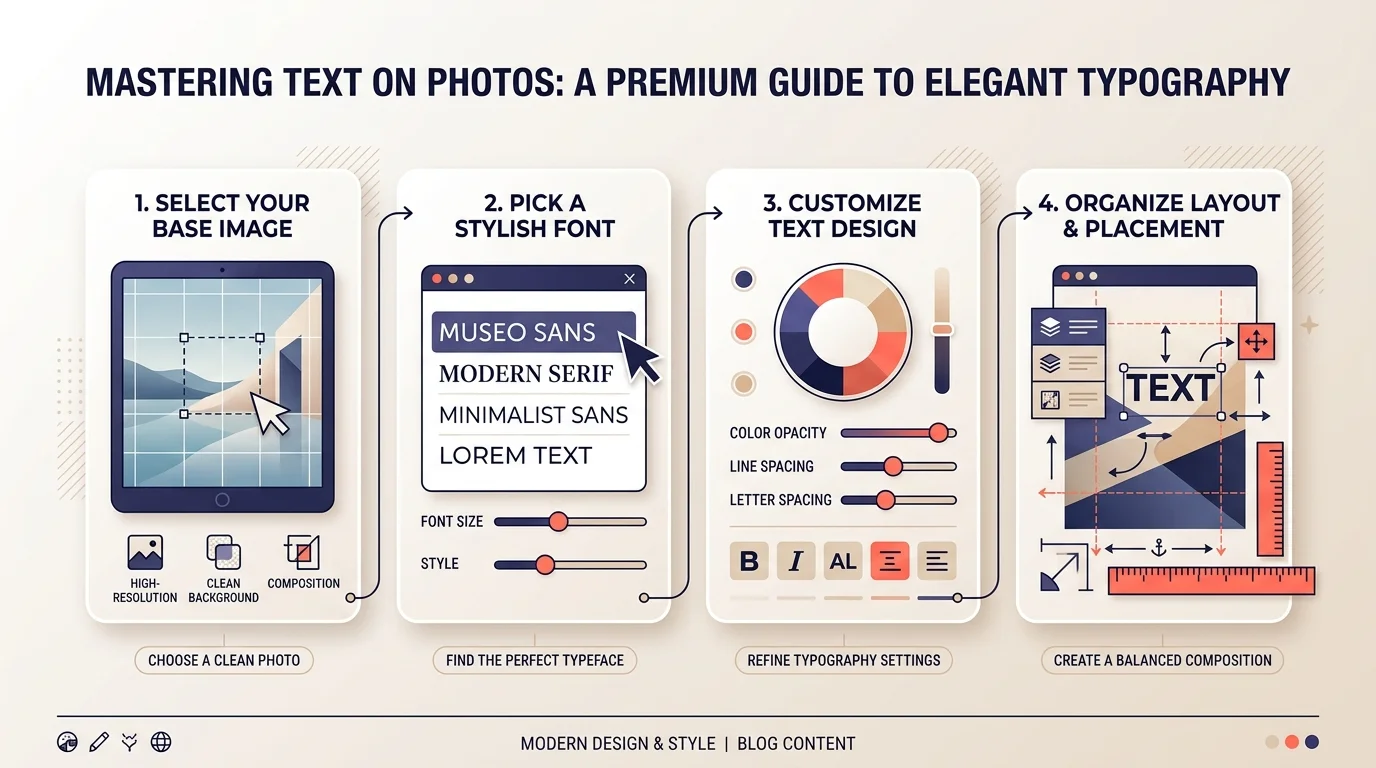
    Step-by-Step: How to Add Text to a Photo Online

    You don’t need Photoshop for this. You really don’t.

    Here’s the process that works across almost every free browser-based tool out there, including Canva and VistaCreate:

    Step 1: Upload your photo. Drag it into the editor, or pick one from a stock library if you don’t have your own image ready.

    Step 2: Click the text tool. It’s usually a “T” icon or an “Add Text” button sitting right at the top of the screen.

    Step 3: Type your message. Keep it short at first. You can always expand later.

    Step 4: Customize the look. This is where the fun starts. Pick your font style, adjust the text color, play with size, and drag it wherever it looks best.

    Step 5: Add contrast if it’s hard to read. A text shadow, a subtle background box, or an outline will fix that instantly.

    Step 6: Download. Most free tools, like Visual Watermark’s Add Text to Photo tool, let you export without a watermark, which honestly should be the standard by now.

    If you’d rather use an all-in-one AI editor for this, check out our Pixlr AI photo and video editor guide for a walkthrough of its text and design tools.

    Choosing the Right Font (This Part Matters More Than You’d Think)

    You’d be surprised how much a font can make or break your image.

    If you’re making something playful or meme-adjacent, you want bold, thick lettering that reads instantly, even at a glance. That’s exactly why Impact font became the internet’s unofficial meme standard. As Cedilla Studio explains, its tall x-height and condensed letterforms guarantee legibility at small sizes, which is why it still dominates decades later.

    Want something softer for a quote graphic or a personal photo? Look at cleaner sans-serif options, or something like Pacifico for a handwritten feel.

    Here’s a quick comparison of which font fits which use case:

    Use CaseRecommended FontsWhy It Works
    Memes and bold captionsImpact, Anton, Bebas NeueThick strokes, high legibility at small sizes
    Clean modern captionsMontserrat, Helvetica BoldNeutral, professional, easy to scan
    Personal, warm tonePacifico, ComfortaaSofter curves, friendly feel
    Professional brandingYour existing brand fontReinforces brand recognition

    Speaking of consistency, that’s not a small detail. If you’re adding text for a brand, Stock Photo Secrets notes that keeping your fonts, colors, and placement uniform reinforces brand identity every single time someone sees your content.

    Making Sure Your Text Actually Gets Read

    This is the mistake most people make. They add text, admire it for two seconds, and post it, without checking if it’s actually readable.

    Here’s what fixes that:

    • Use high contrast. White text on dark backgrounds, dark text on light ones.
    • Add an outline or stroke. A thin black outline around white lettering keeps your caption legible no matter what’s happening behind it in the photo.
    • Try a semi-transparent background box. If your photo is busy, giving your text its own “stage” behind it does wonders.
    • Don’t overcrowd the frame. If your words start touching the edges, drop the font size or cut a few words.

    Beyond Basic Captions: Text Behind Image and Other Effects

    Once you’ve got the basics down, you’ll probably want to level up.

    One effect worth trying is text behind image, where your words appear to sit behind the subject of your photo rather than flatly on top of it. Overlay Text’s tool automates this using AI, detecting the subject and slotting your text behind it in seconds.

    There’s also knockout text, where the photo itself shows through the letters, and embossed or beveled text if you want something more three-dimensional and tactile-looking.

    Don’t Forget Accessibility and SEO

    Here’s a piece most guides skip entirely: text baked into an image is invisible to search engines and screen readers. If the words matter for SEO or accessibility, always pair your image text with real HTML alt text describing the same message. This lets visually impaired visitors and Google’s crawlers both understand what your image says, not just what it looks like. It’s a two-minute step that protects the value of the caption you just spent time designing.

    Which Tool Should You Actually Use?

    ToolBest ForPriceWatermark-Free Export
    CanvaAll-in-one design + textFree / Pro plans
    Visual WatermarkQuick captions, watermarksFree
    Adobe PhotoshopAdvanced layered control$22.99/month
    PhontoMobile captionsFree
    Meme generator appsImpact-style meme textFree

    Whatever you choose, don’t overthink it. The tool matters far less than the habit of actually finishing the image instead of leaving it plain.

    Frequently Asked Questions

    Is it free to add text to a photo?

    Yes. Most browser-based tools, including Canva and Visual Watermark, let you add text and download the finished image for free without a watermark.

    What font do memes use?

    Impact is the classic meme font, thanks to its bold, condensed letterforms. Anton and Bebas Neue are close modern alternatives.

    Do I need Photoshop to add text to a photo?

    No. Photoshop offers more advanced layer control but costs $22.99/month. Free online tools cover nearly every common use case.

    How do I make text readable on a busy photo?

    Use high-contrast colors, add a black outline or stroke, or place a semi-transparent box behind the text.

    Does text in an image help my SEO?

    Not directly. Search engines can’t read text baked into an image, so always add matching alt text to the image itself.

    Can I add text to a photo on my phone?

    Yes. Both iPhone and Android have built-in markup tools, and apps like Phonto add more font options.

    Your Next Step

    You’ve got the process, the font logic, and the readability rules.

    Now go open one of these tools and try it on a photo you’ve been sitting on for weeks. You’ll be surprised how much better it looks with even three or four well-placed words. For more editing power beyond text, browse our free AI photo editor tools guide to find your next go-to app.

  • Best AI Visibility Tools 2026: Get Cited by ChatGPT

    Best AI Visibility Tools 2026: Get Cited by ChatGPT

    The best AI visibility tools right now are Frase, Profound, Semrush AI Toolkit, Evertune, and AIclicks.io — each tracking how often ChatGPT, Claude, Gemini, and Perplexity mention and cite your brand. Frase is my top pick overall because it pairs daily citation tracking with the content fixes to actually win those mentions back.

    (Pricing and rankings below reflect data available as of mid-2026 — I’ll flag anything that needs a refresh.)

    Okay, real talk.

    If you’re still obsessing over your Google rankings and ignoring what’s happening inside ChatGPT, Perplexity, and Google’s AI Overviews, you’re fighting yesterday’s war.

    I’ve spent weeks buried in research on AI visibility tools, and honestly? What I found changed how I think about SEO completely.

    Here’s the thing you need to understand first: ChatGPT reached about 900 million weekly active users in early 2026, and Gemini-powered AI Overviews in Search reach an estimated 2 billion-plus people every month.

    That’s not a trend. That’s a tectonic shift.

    And if your brand isn’t showing up when someone asks ChatGPT “what’s the best [your category] tool,” you’re invisible to a massive chunk of your future customers.

    So let’s fix that.

    What Are AI Visibility Tools (And Why Should You Care)?

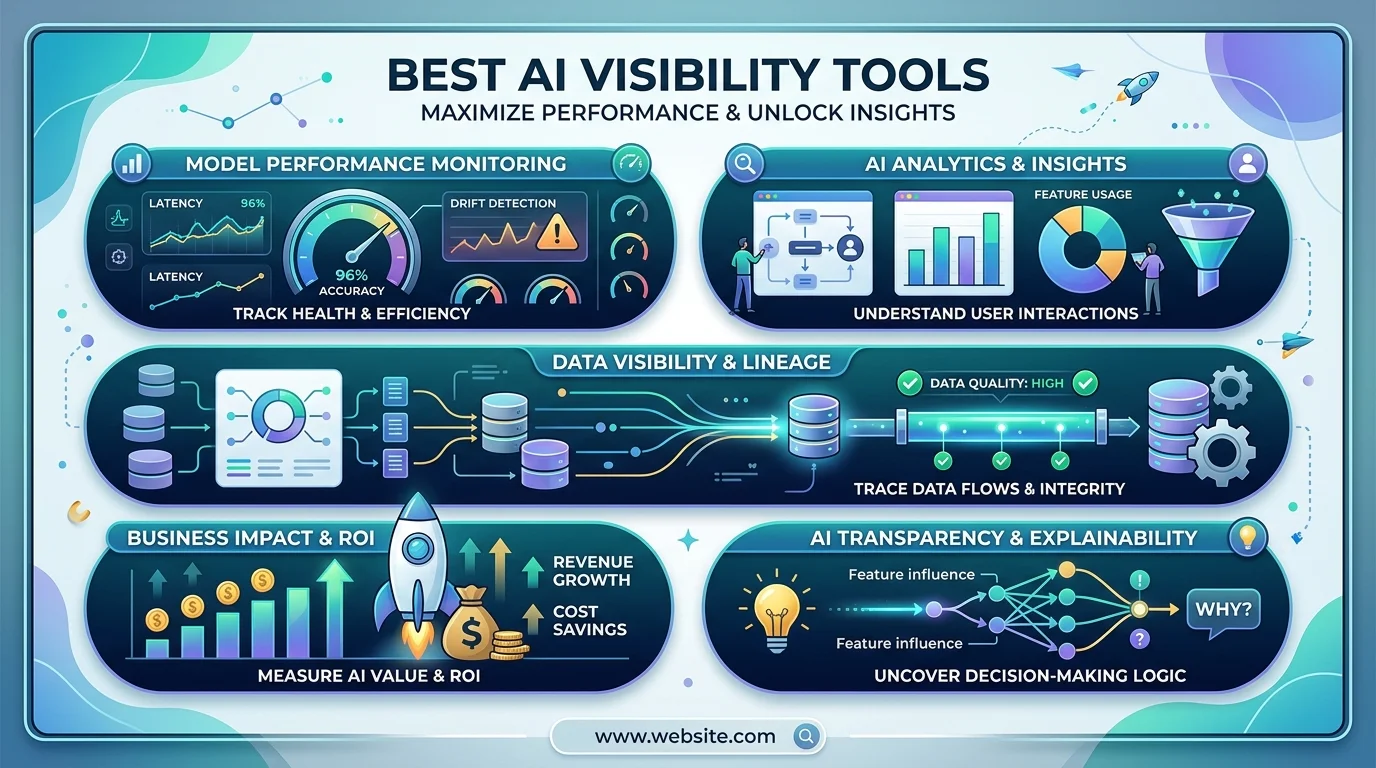
    AI visibility tools are platforms that track how often, and how favorably, your brand gets mentioned inside AI-generated answers. Think of them as rank trackers — except instead of tracking blue links, they’re tracking whether ChatGPT, Claude, Gemini, and Perplexity actually recommend you.

    Here’s why this matters: traditional SEO tools were built for a link-based web. But AI visibility software helps you understand what these models actually say about your brand, where they cite you, and how you compare against competitors — because SEO platforms track keyword positions and backlinks, while AI visibility platforms track mentions, citations, and share of voice within conversational answers.

    Two completely different data sets. Two completely different games.

    If you’re only playing the old game, you’re leaving money on the table. This ties directly into the broader shift toward generative engine optimization — a topic worth bookmarking if you want the deeper technical playbook.

    It also connects to something I’ve written about before: how AI products can improve brand visibility without a huge marketing budget. If you’re a smaller brand worried about competing with bigger names in AI answers, that piece walks through the exact leverage points.

    Why This Shift Is Happening (And Why It’s Urgent)

    You might be thinking, “Come on, is this really that big of a deal?”

    Yes. It absolutely is.

    Ahrefs found that AI overviews reduced click-through rates for top-ranking Google content by 58% — up from just 34.5% the year before.

    Read that again.

    Your beautifully optimized, top-ranking blog post might be getting zero clicks now because Google just answers the question directly. This phenomenon is called zero-click search, and it’s reshaping content discovery entirely.

    So what do you do? You stop chasing rankings alone, and you start chasing citations.

    How to Choose the Right AI Visibility Tool (Step-by-Step)

    I know — there are dozens of these tools now, and picking one feels overwhelming. Here’s my framework, in four steps.

    Step 1: Check for Multi-Model Citation Tracking

    Don’t settle for a tool that only tracks ChatGPT. You need cross-platform coverage across ChatGPT, Claude, Gemini, Perplexity, and Copilot. Single-model tracking is insufficient for comprehensive visibility.

    Step 2: Look for Prompt-Level Insights

    You want to know the exact prompts triggering your brand mentions. Prompt-level insights show you exactly which questions and prompts trigger your brand mentions, and this granularity is essential for targeted optimization.

    Step 3: Demand Source Attribution

    You need to know which pieces of your content are driving AI citations — otherwise you’re optimizing blind.

    Step 4: Insist on Actionable Recommendations

    The best platforms provide data-driven guidance on how to improve visibility, not just report on what you already know. A dashboard full of charts without a fix-it plan is only half a tool.

    Best AI Visibility Tools Compared (2026)

    Here’s a side-by-side so you’re not stuck reading five different reviews.

    ToolBest ForLLM CoverageStarting Price
    FraseMonitor-and-fix workflowChatGPT, Claude, Gemini, PerplexityPaid plans, contact for quote
    ProfoundUnderstanding AI query behaviorChatGPT, Gemini, PerplexityCustom/enterprise
    Semrush AI ToolkitTeams already in SemrushChatGPT, Claude, Gemini, Perplexity~$99–$199/month
    EvertuneStatistical rigor at scaleChatGPT, Perplexity, Gemini, ClaudeEnterprise custom pricing
    AIclicks.ioSmall teams, overall tracking + fixesChatGPT, Gemini, Perplexity, CopilotEntry-level paid tiers

    Note: pricing shifts often in this space — treat this table as a starting point and verify current rates before you buy.

    Frase — Best for Monitor-and-Fix Workflows

    If you want to monitor where AI search cites your brand and act on what you find in the same workflow, Frase pairs daily AI-engine tracking with the research, writing, optimization, and publishing that closes the gap. Most tools stop at the alert. This one keeps going. If you want a deeper technical look at how Frase actually works for content optimization, I broke it down in my full Frase AI SEO content optimization guide.

    Profound — Best for Understanding AI Behavior

    Profound’s Query Fanouts feature shows how AI models internally expand a broad question like “what’s the best project management tool” into multiple specific queries. Genuinely useful intelligence for content planning.

    Semrush AI Toolkit — Best If You’re Already in Their Ecosystem

    Semrush’s AI Visibility Tracking integrates seamlessly into its existing dashboard, letting SEO teams monitor AI citations alongside traditional metrics, with pricing starting around $99/month.

    Evertune — Best for Statistical Rigor

    The best platforms run millions of prompts monthly to achieve the statistical significance that single-digit prompt samples simply don’t reveal.

    AIclicks.io — Best Budget-Friendly Option for Smaller Teams

    If you’re a smaller brand and can’t justify enterprise pricing yet, this is where I’d start. It bundles tracking with lighter-weight optimization guidance — good enough to get real signal without a big commitment.

    Building Content That Actually Gets Cited

    Tracking is only half the job. You also need content built for generative engine optimization. That means:

    • Clear, quotable statements AI models can lift easily
    • Strong E-E-A-T signals (Experience, Expertise, Authoritativeness, Trustworthiness)
    • Structured data and schema markup
    • Direct, well-organized answers to real questions people ask

    Research has shown that content optimized for GEO can see significant increases in citation rates across AI platforms compared to content optimized only for traditional search.

    Frequently Asked Questions

    What is the best AI visibility tool overall?

    Frase, because it combines citation tracking with the actual content fixes needed to win mentions back — most competitors only alert you to a problem.

    Are there free AI visibility tools?

    Entry-level tiers exist (some tools mentioned above offer lower-cost starting plans), but full multi-model tracking with prompt-level insight typically requires a paid plan.

    How is an AI visibility tool different from an SEO tool?

    SEO tools track keyword rankings and backlinks. AI visibility tools track whether your brand is mentioned, cited, and recommended inside AI-generated answers — a completely different data set.

    Do small businesses need an AI visibility tool?

    Yes, increasingly. Gartner predicted a 25% decline in traditional search volume by 2026 as AI chatbots take over more queries, meaning small businesses that ignore this risk becoming invisible to buyers who now ask AI for recommendations instead of Googling.

    How often should I check my AI visibility?

    Weekly at minimum. AI model outputs shift as models update, so monthly checks alone can miss fast-moving changes in citation share.

    My Final Take: Which Tool Should You Choose?

    This isn’t a “maybe later” situation.

    AI visibility is becoming the new front page of the internet. The brands that show up inside ChatGPT’s answer, inside Perplexity’s citation list, inside Gemini’s recommendation — those are the brands that win the next five years of customer trust.

    My honest recommendation: start with Frase if you want tracking and fixes in one place, or AIclicks.io if you’re budget-conscious. Either way — pick one, start tracking this week, and don’t wait until your competitor is three steps ahead of you in the answer box.

    You’ve got the roadmap now. Time to use it.

  • AI Writing Tools 2026: What’s New & Worth Buying

    AI Writing Tools 2026: What’s New & Worth Buying

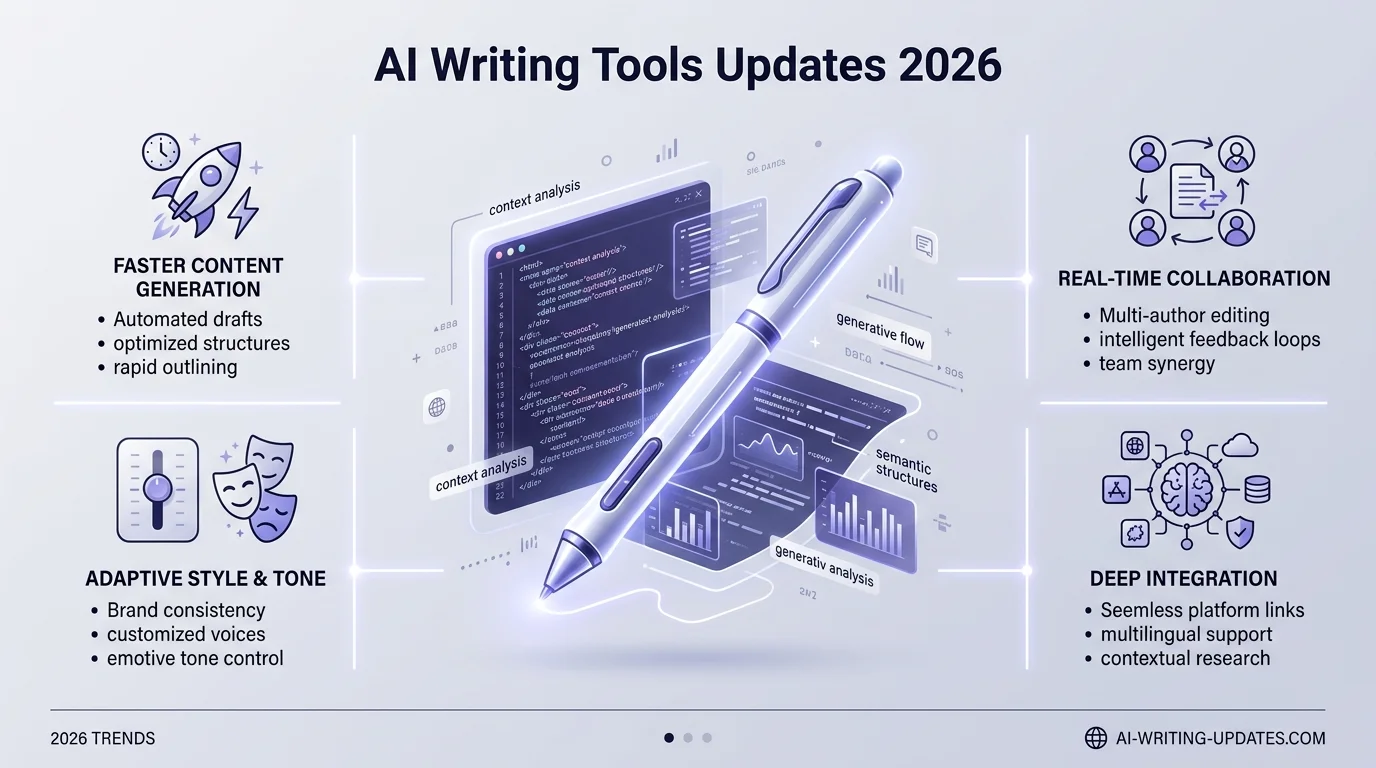
    In 2026, AI writing tools shifted from “generate content fast” to “get cited by AI search engines.” Jasper now tracks your brand’s visibility across ChatGPT, Claude, and Gemini. Grammarly’s Rewrite engine got a major upgrade with Brand Voice controls. And tools like Surfer AI and Frase now build content specifically for Answer Engine Optimization (AEO). Below, I’ll break down exactly what changed, compare the top tools, and give you a step-by-step way to pick the right one.

    Let’s be honest with each other for a second.

    You’ve probably tried three or four AI writing tools already this year. And you’re still here, reading this. So something isn’t clicking, right?

    I get it. I dug through dozens of product pages, comparison sites, and user reviews this month. And what I found genuinely surprised me. The AI content generation space didn’t just get an update in 2026 — it got a whole new job description.

    Here’s the deal: these tools used to compete on speed. Who can spit out a blog post fastest. Now? They’re fighting over something way more valuable — getting cited by ChatGPT, Google AI Overviews, and Perplexity. That’s a totally different game. And I’ll walk you through exactly what changed, what to buy, and how to use it.

    If you want a deeper side-by-side, I’ve also broken down ChatGPT vs Jasper as a writing tool in a separate comparison — worth a read if you’re stuck between the two.

    Why “Fast Content” Isn’t Enough Anymore

    Quick gut check before we dive in.

    If your content strategy is still “write fast, publish often” — you’re optimizing for a search engine that’s quietly losing relevance. Answer engines like ChatGPT now handle over 2 billion queries daily. And traffic referred from AI platforms grew by a jaw-dropping 527% year-over-year.

    So here’s the shift you need to understand:

    • Old world: rank on page one of Google.
    • New world: get quoted inside an AI-generated answer.

    This is called Answer Engine Optimization (AEO), sometimes called Generative Engine Optimization (GEO). Same idea, different acronym, honestly. And the tools that win in 2026 are the ones built around this.

    Tool Breakdown: What Actually Changed in 2026

    Let me break this down tool by tool. No fluff.

    Jasper Went All-In on AI Search Visibility

    Jasper used to be “just” a long-form content generator. Not anymore.

    Their July 2026 update lets you literally see how your brand shows up inside ChatGPT, Claude, and Gemini answers. Then it helps you fix the gaps — and pump out optimized content across languages and markets to close them.

    Why this matters for you: if you sell anything online, buyers are now forming opinions about your brand before they land on your site — based purely on what AI engines can find. Jasper closes that loop.

    Grammarly’s Rewrite Engine Got Genuinely Smarter

    This one impressed me, not gonna lie.

    Grammarly’s 2026 “Rewrite” feature isn’t just fixing commas anymore. It’s suggesting full rewrites that actually match your intended tone. Casual email? It’ll loosen up. Client proposal? It tightens right up.

    They also rolled out Brand Voice, which lets teams define a writing style once, and it enforces that voice across every single team member.

    One caveat, though. Grammarly caught some heat in March 2026 over an “Expert Review” feature that simulated advice from real authors without their permission. Worth knowing before you lean on that specific feature.

    Surfer AI Doubled Down on Real Data

    Surfer’s whole pitch is: stop guessing what to write, start reacting to what’s actually ranking.

    It scores your content live against 500+ on-page ranking factors pulled straight from competitor pages. And their case studies back it up — one client reportedly saw a 127% increase in non-brand organic signups.

    Frase Built Its Whole Engine Around Getting Cited

    Frase deserves its own spotlight here, because it’s approaching 2026 differently than the rest.

    Instead of just helping you write, Frase’s AEO framework walks you through a four-part loop: create answer-first content, optimize it for citation density, track your AI citation performance, and iterate with fresh data. If your main goal is showing up inside AI answers (not just ranking on Google), this is worth a serious look. I’ve also put together a full Frase AI SEO content optimization guide if you want to go deeper on setup and workflow.

    Writesonic and Copy.ai Handle the Short-Form Side

    Not every writing task is a 2,000-word blog post, right?

    Writesonic leans into fast, templated output for product descriptions, landing pages, and ad variations — solid if you’re running a lot of small campaigns at once. Copy.ai, meanwhile, is built for punchy, conversion-focused copy: subject lines, CTAs, short social captions. Both are lighter-weight than Jasper or Surfer, but that’s kind of the point — you’re trading depth for speed.

    Comparison Table: Which Tool Fits Your Need

    ToolBest ForKey 2026 UpdateStarting Price
    JasperBrand-scale content + AI visibilityCross-platform AI citation tracking~$39/mo
    GrammarlyEditing + tone controlSmarter Rewrite engine + Brand Voice~$12/mo
    Surfer AISEO-driven long-form contentLive 500+ ranking-factor scoring~$89/mo
    FraseAEO/citation-focused contentFull answer-first content loop~$45/mo
    WritesonicFast templated marketing copyExpanded template library~$16/mo
    Copy.aiShort-form, conversion copyFaster generation workflows~$36/mo

    Step-by-Step: How to Actually Choose the Right Tool

    Okay, so which one should you pick? Let’s make this simple.

    Step 1: Figure out your bottleneck. Are you struggling to write fast enough? Or writing plenty but getting zero visibility? These are different problems requiring different tools.

    Step 2: Match the tool to the problem.

    • Need volume + brand consistency → Jasper
    • Need editing + tone control → Grammarly
    • Need SEO/AEO-driven structure → Surfer AI or Frase
    • Need quick, punchy copy → Copy.ai or Writesonic

    Step 3: Test the free tier first. Nearly every tool above offers one. Don’t skip this. Run your actual content through it before committing.

    Step 4: Layer in AEO tracking. Whatever you pick, make sure it tracks your AI citation performance. This is non-negotiable in 2026. Conductor’s research analyzed 17 million AI-generated responses and confirmed something important — strong traditional SEO still correlates heavily with getting cited by AI.

    Step 5: Commit for at least 30 days. These tools need a little runway to learn your brand voice and adapt to your workflow. Don’t judge on day one.

    Frequently Asked Questions

    Is Jasper better than Grammarly in 2026?

    Not exactly a fair fight — they solve different problems. Jasper generates and optimizes new content for AI visibility. Grammarly polishes and enforces tone on content you’ve already written. Many teams honestly use both together.

    What is Answer Engine Optimization (AEO)?

    AEO means structuring your content so AI platforms like ChatGPT, Perplexity, and Google AI Overviews can easily extract, trust, and cite it as a source — rather than just ranking it in traditional search results.

    Do I need a separate tool for AEO, or does my current writing tool handle it?

    Some tools like Jasper and Frase now build AEO tracking directly in. If your current tool doesn’t, you’ll likely need a companion tool to monitor AI citation performance separately.

    Are free AI writing tools good enough in 2026?

    For light, occasional use — sure. But if content quality affects your revenue or client relationships, the paid tiers’ brand-voice and citation-tracking features are genuinely worth the cost.

    Why You Shouldn’t Wait to Upgrade

    Look, I’ll level with you one more time.

    60% of marketing teams are already planning to shift budget toward AI search optimization by the end of this year. That’s not a small trend — that’s a stampede.

    If your competitors are already showing up inside AI Overviews and you’re not? You’re invisible to an entire, rapidly growing segment of buyers. And the tools I mentioned above aren’t experimental anymore — they’re mature, tested, and actively closing that gap for real companies right now.

    Honestly, the cost of not upgrading is higher than the subscription fee. A missed customer conversation happening inside ChatGPT costs you way more than $39/month for Jasper or $12/month for Grammarly Premium.

    So here’s my honest recommendation: pick one tool from the comparison table above today. Not next quarter. Today. Run it against one piece of underperforming content. See what changes.

    You’ll likely notice the difference within a single content cycle.

    Read More: Real-Write AI Review: Does It Work? | Honest Test

  • PushWiki.com Traffic 2026: The Truth Nobody Checks

    PushWiki.com Traffic 2026: The Truth Nobody Checks

    No major analytics tool — not SimilarWeb, not Semrush, not Ahrefs — currently shows verifiable traffic data for PushWiki.com. What does exist is a wave of near-identical “guide” articles about the site, published within weeks of each other, that read like content marketing rather than reporting. Below, I’ll show you exactly how to check this yourself, and what the real signals say.

    I’ll be straight with you.

    You searched “PushWiki.com traffic 2026” because you saw the name pop up somewhere — maybe a backlink, maybe a random mention — and you want a real answer.

    Here’s the problem.

    Most of what’s published about PushWiki.com right now is fluff. Recycled fluff. The kind of content that sounds confident but says nothing.

    So instead of adding to that pile, I’m going to show you exactly how to check PushWiki’s traffic yourself — using the same tools professional SEOs use — and what the signals actually tell us so far.

    Let’s dig in.

    What Is PushWiki.com, Actually?

    Before you can judge a site’s traffic, you need to know what it is. And that’s harder than it sounds here.

    Here’s the weird part: articles about PushWiki.com can’t agree on what it even does. Some call it a knowledge base platform for SEO and blogging. Others say it’s a tech and AI content hub. A few frame it as a Wikipedia-style content aggregator.

    That inconsistency itself is a signal. If you want the fuller breakdown of what categories and content types PushWiki actually publishes, check out our PushWiki.com category breakdown for 2026.

    When multiple “guide” articles about the same site contradict each other — while using near-identical phrasing — that usually means they were written to rank for the keyword, not to inform you. It’s a pattern common to content farm websites, and it’s worth recognizing before you trust anything else you read about the platform.

    So step one, always: verify a site’s identity from the site itself, not from third-party recaps.

    How to Actually Check a Website’s Traffic (Step-by-Step)

    You don’t need to take anyone’s word for a site’s size. You can check it yourself in about five minutes. Here’s how I’d do it.

    Step 1: Run It Through SimilarWeb

    Head to SimilarWeb and drop the domain in.

    You’ll get an estimate of monthly visits, average session duration, bounce rate, and traffic sources — organic, direct, referral, social, and paid.

    If a domain doesn’t show up in SimilarWeb’s index at all, or the estimate is “insufficient data,” that tells you something too: the site likely doesn’t have meaningful, trackable traffic yet.

    Step 2: Cross-Check with Semrush or Ahrefs

    Next, plug the domain into Semrush’s Traffic Analytics or Ahrefs’ Site Explorer.

    Look specifically at:

    • Organic search traffic (visits from Google, not ads)
    • Referring domains (who links to it, and how authoritative they are)
    • Domain Rating / Authority Score — a proxy for overall trust and backlink strength

    A brand-new or low-authority domain will usually show thin numbers here, even if it feels like it’s everywhere online.

    Step 3: Check Google Trends

    Go to Google Trends and search the brand name.

    This won’t show you visits, but it will show you search interest over time — whether curiosity is rising, flat, or fading. Spikes often line up with a wave of near-duplicate “review” articles hitting the web, not with organic user growth.

    Step 4: Look at the Backlink Pattern, Not Just the Count

    This is the step most people skip.

    Open the referring domains list in Ahrefs or Semrush and actually read a few of them.

    Are they real, established publications? Or are they a cluster of low-authority blogs that all published a “PushWiki.com Guide 2026” within weeks of each other?

    If it’s the latter, you’re looking at a backlink profile built through content syndication or PR blasts — not organic authority. That distinction matters enormously if you’re deciding whether to trust, link to, or build on top of a site.

    Which Tool Should You Actually Use?

    Each tool tells you something different. Here’s the quick comparison:

    ToolWhat It MeasuresFree or PaidBest For
    SimilarWebEstimated visits, engagement, traffic sourcesFree (limited) / Paid tiersQuick traffic snapshot
    SemrushOrganic traffic, keywords, backlinks, authority scoreFree trial / PaidFull SEO + traffic audit
    AhrefsBacklinks, referring domains, Domain RatingFree (limited) / PaidBacklink quality checks
    Google TrendsSearch interest over timeFreeSpotting hype spikes vs. real growth

    If you only run one check, run SimilarWeb first — it’s the fastest way to see if a site has any measurable footprint at all.

    Reading the Real Signals So Far

    Based on what’s publicly checkable right now, here’s the honest picture:

    • No major SEO tool currently shows a stable, indexed traffic estimate for PushWiki.com.
    • The wave of “guide” and “review” articles about it are overwhelmingly duplicate-style content, not independent reporting.
    • The one point of actual nuance I found — from a more careful writeup — flagged that different sources describe PushWiki.com’s purpose in conflicting ways, using strikingly similar language to each other. That’s the fingerprint of a coordinated content push, not organic discovery.

    None of that means PushWiki.com is fake, or bad, or a scam. It might genuinely be a small, growing informational site. For a deeper look at whether the platform itself holds up, see our full is PushWiki.com legit? 2026 review.

    But it does mean you shouldn’t trust a specific “X million visits” number you see floating around — because as of now, none of the credible tools back it up.

    Key Terms, Quickly Explained

    • Domain Authority / Rating — a 1–100 score estimating how likely a site is to rank in search, based on backlink strength.
    • Referring Domains — the number of unique websites linking to a site (more meaningful than raw backlink count).
    • Bounce Rate — the percentage of visitors who leave after viewing just one page.
    • Content Farm — a site or network that mass-produces low-effort, keyword-targeted articles rather than original reporting.
    • Organic Traffic — visits coming from unpaid search results, as opposed to ads or social.

    Frequently Asked Questions

    Does PushWiki.com have real traffic?

    There’s no independently verifiable data confirming this either way. Major tools like SimilarWeb and Semrush don’t show a stable traffic estimate for the domain as of 2026.

    Is PushWiki.com legit?

    It may be a genuine informational site, but the surrounding “reviews” of it are largely duplicate content, so treat any specific claims about it with caution until you verify them yourself.

    How do I check any website’s traffic myself?

    Run the domain through SimilarWeb for a quick snapshot, then cross-check with Semrush or Ahrefs for organic traffic and backlink quality, and use Google Trends to see if interest is rising or just spiking.

    Why do so many “guide” articles about PushWiki.com sound the same?

    That’s typically a sign of a coordinated content push — often paid placements or syndicated posts — rather than independent journalism or genuine user demand.

    What’s the fastest way to spot a content farm?

    Compare a few articles on the same obscure topic side-by-side. If the phrasing, structure, and claims are nearly identical, you’re likely looking at templated content, not original research.

    The Bottom Line

    PushWiki.com’s real traffic size is not currently verifiable through any major analytics tool — and that gap, not a growth story, is the real headline for 2026.

    That’s not a reason to panic. It’s a reason to verify before you trust, every single time you’re evaluating a site you don’t already know.

    And that habit — checking SimilarWeb, checking backlinks, checking whether sources agree — will serve you a lot better than any single “how big is it” article ever could.